Start here
Getting Started
NURBS Studio has two editors in one app: the Parametric Kernel editor and the Quick Geometry editor. Both import STEP, STL and PLY files, and they share the same sign-in, settings and AI assistant. They work in different ways, so it helps to know which one to pick.

The two editors
- Parametric Kernel editor. This is the one that opens first. It keeps
the real structure of a model: bodies, faces, edges and vertices. Every change you make
is stored as a step, so you can go back through the history. You can change hole sizes
and fillets on a STEP file, build surfaces from curves that stay linked to those curves,
merge surfaces into fewer ones and sew a model closed. Models are saved as
.ncffiles. - Quick Geometry editor. The simpler editor. It edits surfaces directly, without a history. A file opens as a set of NURBS patches that you can select, edit and analyze one by one.
Which one should I use?
- Use the Parametric Kernel editor when you want to change an existing STEP model, keep a surface linked to the curves it came from, merge or sew surfaces, or be able to step back through your changes.
- Use the Quick Geometry editor when you want to work on single patches and curves directly and don't need a history.
Switching editors
Click the name of the other editor in the switch. The app swaps the editor in place. Save your work before you switch.
Where to go next
- New to NURBS? Start with NURBS Basics. It explains control points, degree, knot vectors, weights and continuity in plain words, and it applies to both editors.
- Using the Parametric Kernel editor? Read Parametric Kernel Editor first, then the other pages in that group.
- Using the Quick Geometry editor? Read Quick Start first, then the other pages in that group.
- File Formats, AI Assistant, Viewport & Performance and Accounts & Tiers cover what both editors have in common.
Parametric Kernel editor
Parametric Kernel Editor
The Parametric Kernel editor keeps the real structure of your model. A STEP file opens with its bodies, faces, edges and vertices, not as a loose pile of patches. Every change you make, such as lofting curves, merging surfaces or changing a hole size, is stored as a step together with the things it was built from. Steps can be undone, they are listed in the History panel, and many of them can be changed again later.
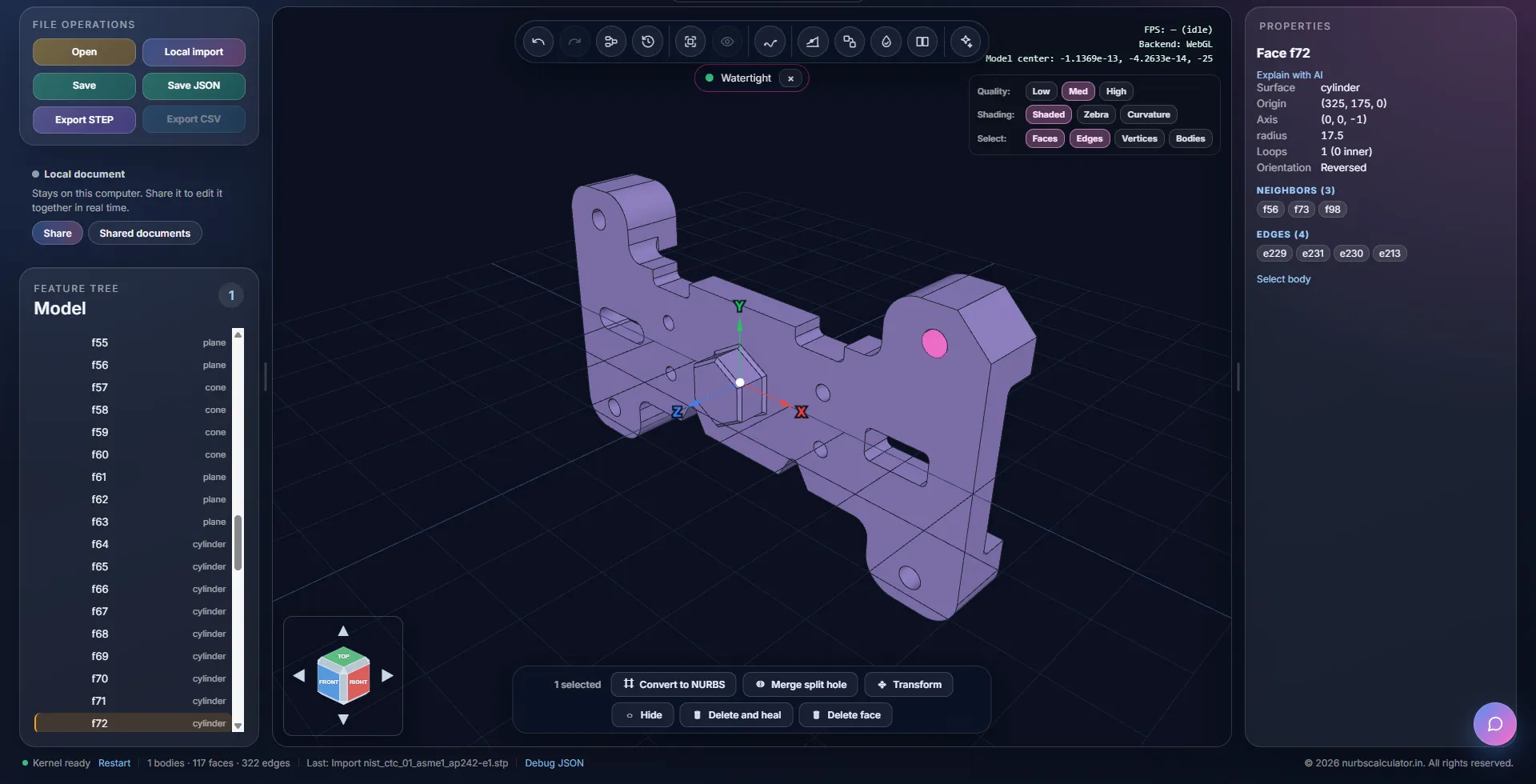
The parts of the screen
- File operations (top left): Open, Local import, Save, Save JSON, Export STEP and Export CSV. Hover over a button to see what it does and what it needs. Saving & Exporting covers them one by one.
- Sharing card (left, under the file buttons): says whether the model is a Local document or a shared one, with Share and Shared documents. Collaboration explains it.
- Feature tree (left): one row for every step of the model. Open a row to see its bodies, faces, edges and vertices.
- 3D view (middle): the toolbar is at the top, the display settings (Quality, Shading, Select) are at the top right, the view cube is at the bottom left, and a bar with the actions for your selection appears at the bottom.
- Properties (right): opens when something is selected and shows what you can read and change about it.
- Status bar (bottom): whether the geometry engine is ready, how many bodies, faces and edges the model has, and the last change you made.
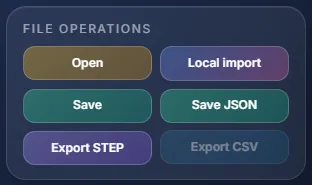
You can drag the borders between the panels to make the left and right panels wider or narrower. Double-click a border to put it back. The sizes are remembered in your browser.
The toolbar
The round buttons at the top of the 3D view, from left to right. Some only appear when they apply.
- Pick boundary points lets you trace an outline on a point cloud by hand. It appears when the model has a point cloud.
- Undo takes back your last change (Ctrl+Z).
- Redo puts it back (Ctrl+Y).
- Node graph shows the steps of the model and how they connect.
- History lists your changes so you can go back to an earlier one.
- Fit view fits the whole model in the view (F).
- Show all shows every body and surface you have hidden.
- Draw curve starts sketching a NURBS curve.
- Comments opens the comments of a shared document. It only appears in a shared document, with the number of open comments on it.
- Surface continuity analysis opens the Continuity panel. It needs NURBS faces in the model.
- Merge NURBS patches finds faces that can be joined into one.
- Measure opens the Measure panel for lengths, areas, distances and dimensions (M).
- Drawing makes a 2D engineering drawing of the model.
- Watertight checks the model for open edges.
- Sew joins faces into one body. It appears when there are faces to sew.
- AI analysis sends a summary of the visible surfaces to your AI provider (see AI Assistant).
Steps, not copies
When you change something, the editor adds a new step to the tree instead of overwriting the original. Changing a hole size adds a Hole edit step, merging surfaces adds a Merge step and lofting curves adds a Loft step. The step that was replaced stays in the tree, hidden, so you can still see where the model came from. Undo takes the change back.
Steps remember what they were built from. If you move a control point of a curve that a loft uses, the loft is rebuilt for you.
The geometry engine
The heavy work (reading STEP files, sewing, merging, lofting) runs in your browser in a separate engine, so the page stays usable while it works. The status bar says Kernel ready once the engine has loaded. If it ever seems stuck, click Restart in the status bar. The model is rebuilt from its steps.
Keyboard shortcuts
- Ctrl+O opens a saved model, Ctrl+S saves it and Ctrl+I opens Local import.
- Ctrl+Z undoes and Ctrl+Y (or Ctrl+Shift+Z) redoes.
- F fits the view, H hides the selection and Shift+H shows it again.
- M opens or closes the Measure panel.
- Delete deletes the selection and Esc clears it.
Parametric Kernel editor
Importing & the Model Tree
This page covers how to bring a file in, how the feature tree is laid out, and how to select things in the tree and in the 3D view.
Importing a file
- Click Local import (or press Ctrl+I) and pick a file. You can pick
several at once, and you can also drop files onto the 3D view.
.step/.stp: the file opens with its real topology. You don't need an account for this..stl: the mesh opens right away. Feature recognition needs a signed-in account with a verified email (see STL & Point Clouds)..ply: point clouds need a signed-in account with a verified email too.
- The file is read in your browser and is not uploaded anywhere. While it loads, the 3D view shows a progress message, with a Cancel button for STEP files.
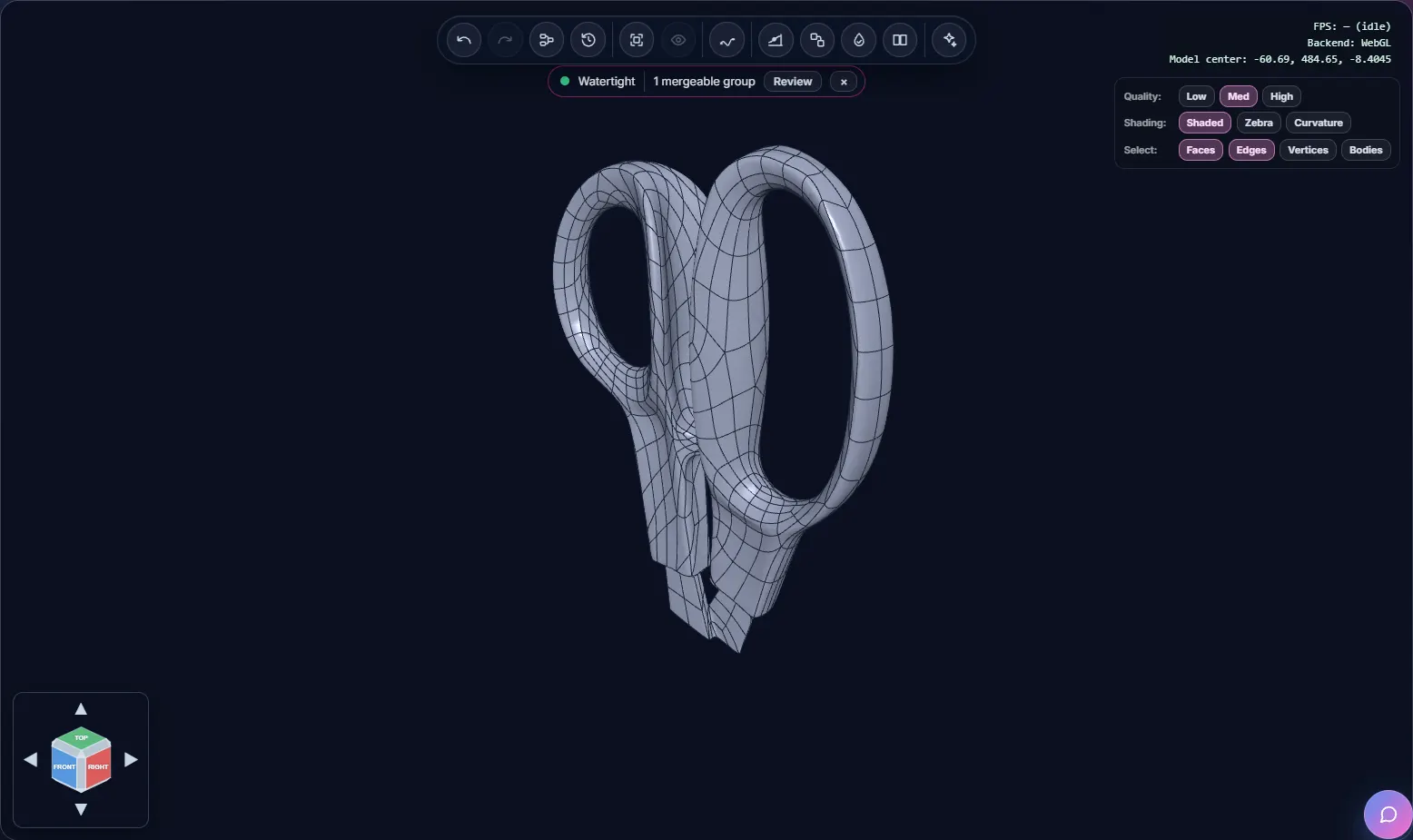
- The model shows up in the feature tree and in the 3D view. A short check runs by itself and tells you whether the model is watertight (see Checking & Repairing).
To open a model you saved earlier (.ncf or .json) use
Open instead. It replaces the model that is open now.
Reading the feature tree
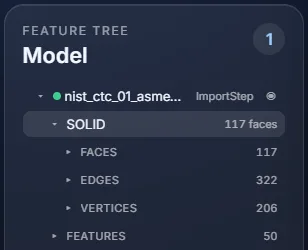
- The top row of each step shows its name and type, for example ImportStep, Loft or Merge. The eye button hides or shows it.
- Under a solid or shell you find FACES, EDGES and VERTICES. Faces show their surface type (plane, cylinder, cone or bspline).
- FEATURES lists the fillets and holes found in a STEP model. Equal fillets are grouped, for example Equal fillet radii (7 × R50).
The tree and the 3D view follow each other. Click a row and the matching geometry lights up in the 3D view. Click something in the 3D view and the tree scrolls to it and highlights it. Hovering works the same way. Hold Ctrl or Shift while you click to add to the selection or take something out of it.
What you can pick in the 3D view
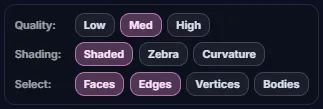
The Select row has four buttons: Faces, Edges, Vertices and Bodies. Only the kinds that are switched on can be picked. Turn off Faces if you keep grabbing a face when you want an edge. The same card has Quality (Low, Med, High) for how finely surfaces are drawn, and Shading (see Checking & Repairing).
The action bar
When something is selected, a bar at the bottom of the 3D view shows what you can do with it. Only actions that fit the selection are shown. If an action can't be used, it is greyed out and its tooltip tells you why.

The Properties panel
What it shows depends on what you picked.
- A face shows its surface type and numbers (a cylinder shows its origin, axis and radius), how many loops it has, and chips for its neighbouring faces and edges. Click a chip to jump to that item.
- An edge shows its curve type and details such as the degree and the number of control points, how many faces share it, and its faces and end vertices.
- A vertex shows its position.
- A step (the row of the file or operation) shows its name and colour, whether it is up to date, and details such as how many bodies and faces it has. Type a new name to rename it.
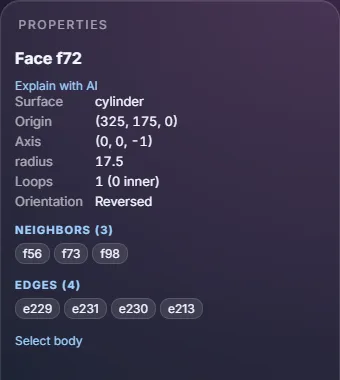
Explain with AI at the top of a face's properties asks your AI provider to describe that face (see AI Assistant).
Hiding and showing
The eye button in the tree hides or shows a step or a body. H hides the selection and Shift+H shows it. Show all in the toolbar brings back everything you hid.
Parts used more than once
If a STEP file uses the same part several times, the copies share one definition. Changing a face or a shared edge of that part changes every copy. Colour and visibility can be set for each copy on its own.
Parametric Kernel editor
Editing Faces, Edges & Features
A STEP file holds exact geometry, and the Parametric Kernel editor changes it without turning it into a mesh. Each edit adds a step to the tree. The shape it replaced stays there, hidden, and Undo brings it back.
Changing a hole or a fillet size
- Select the hole or fillet. You can click it in the 3D view, or pick its row under FEATURES in the tree.
- The Properties panel names the feature and shows its size. A plain hole shows Hole ⌀. A counterbored or countersunk hole also shows Counterbore ⌀, Counterbore depth, Countersink ⌀ and Depth where they apply. A fillet shows Fillet R.
- Type a new value and press Enter. The editor adds a Hole edit or Fillet edit step and the model is rebuilt.
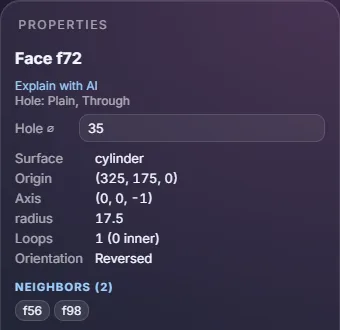
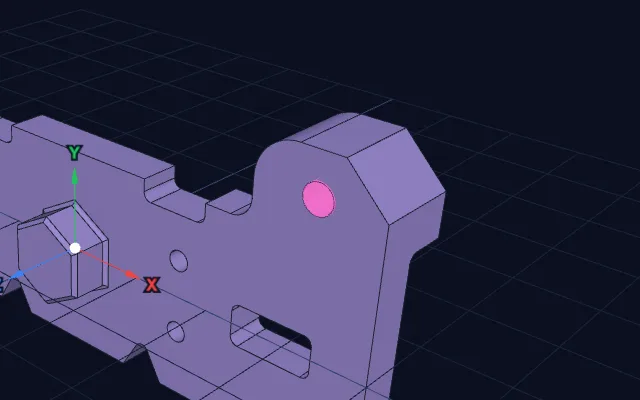
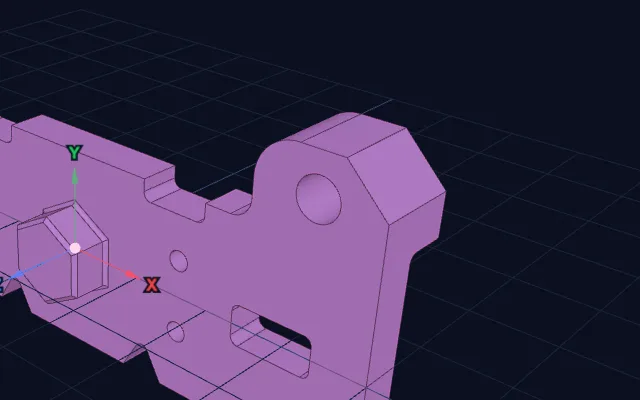
When several fillets share one radius, the Properties panel lists them under Relations (for example Equal fillet radii (7 × R50)). Type a value in the box below that chip to change all of them in one step.
Moving the control points of a face
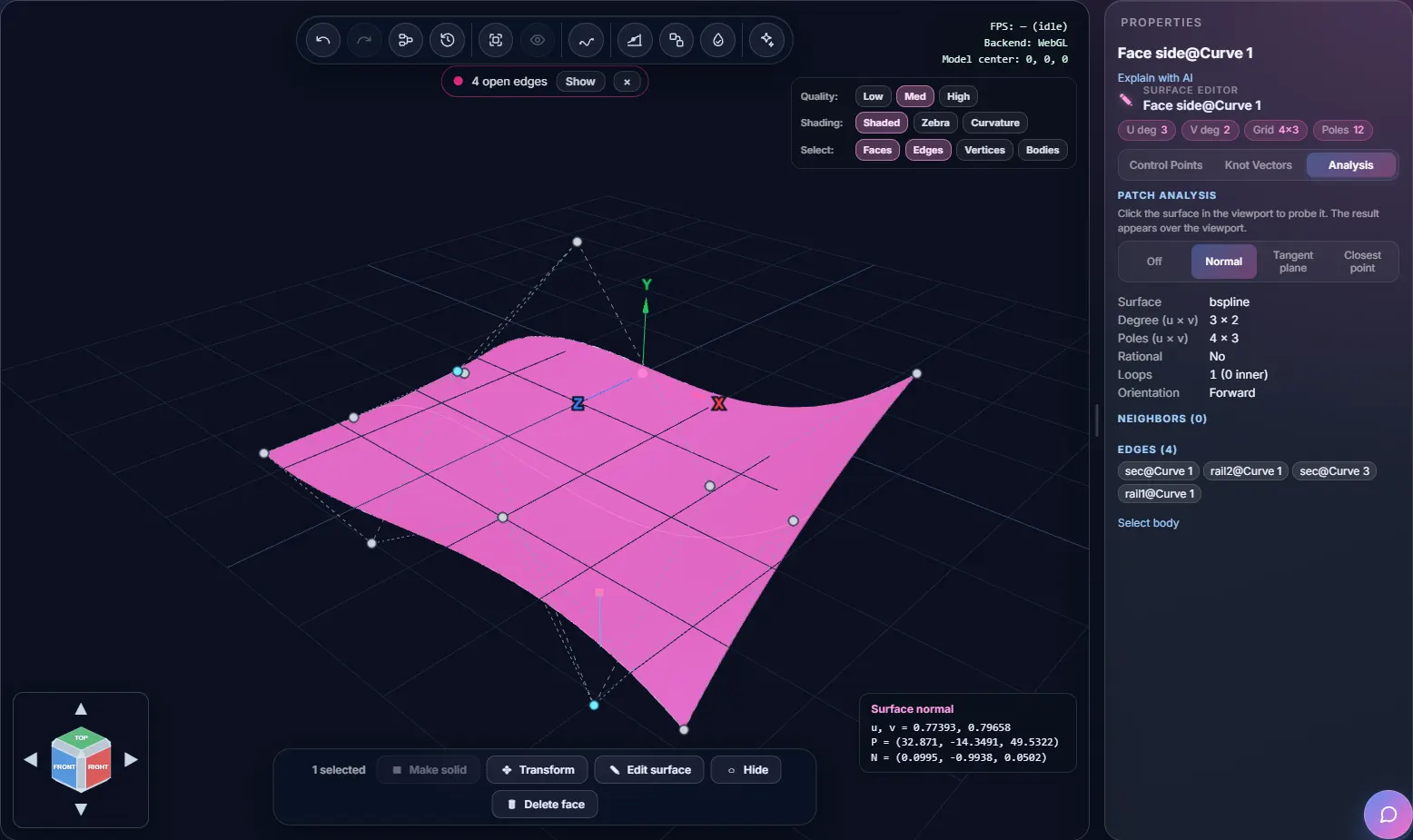
Select a face and the Properties panel opens the Surface Editor. The chips at the top show the degree in each direction (U deg, V deg), the size of the control point grid and the number of poles. There are three tabs.
- Control Points lists every point with its X, Y, Z and weight (W). Type new values, or drag a point in the 3D view. The grey points along the boundary are fixed so the face keeps fitting its neighbours. Only the interior points move.
- Knot Vectors shows the U and V knots. Knots of imported and edited faces are fixed because they are tied to the trimmed edges. You can edit knots on free-standing B-spline surfaces.
- Analysis has the surface probes described in Checking & Repairing.
The small + next to a degree raises it by one without changing the shape.
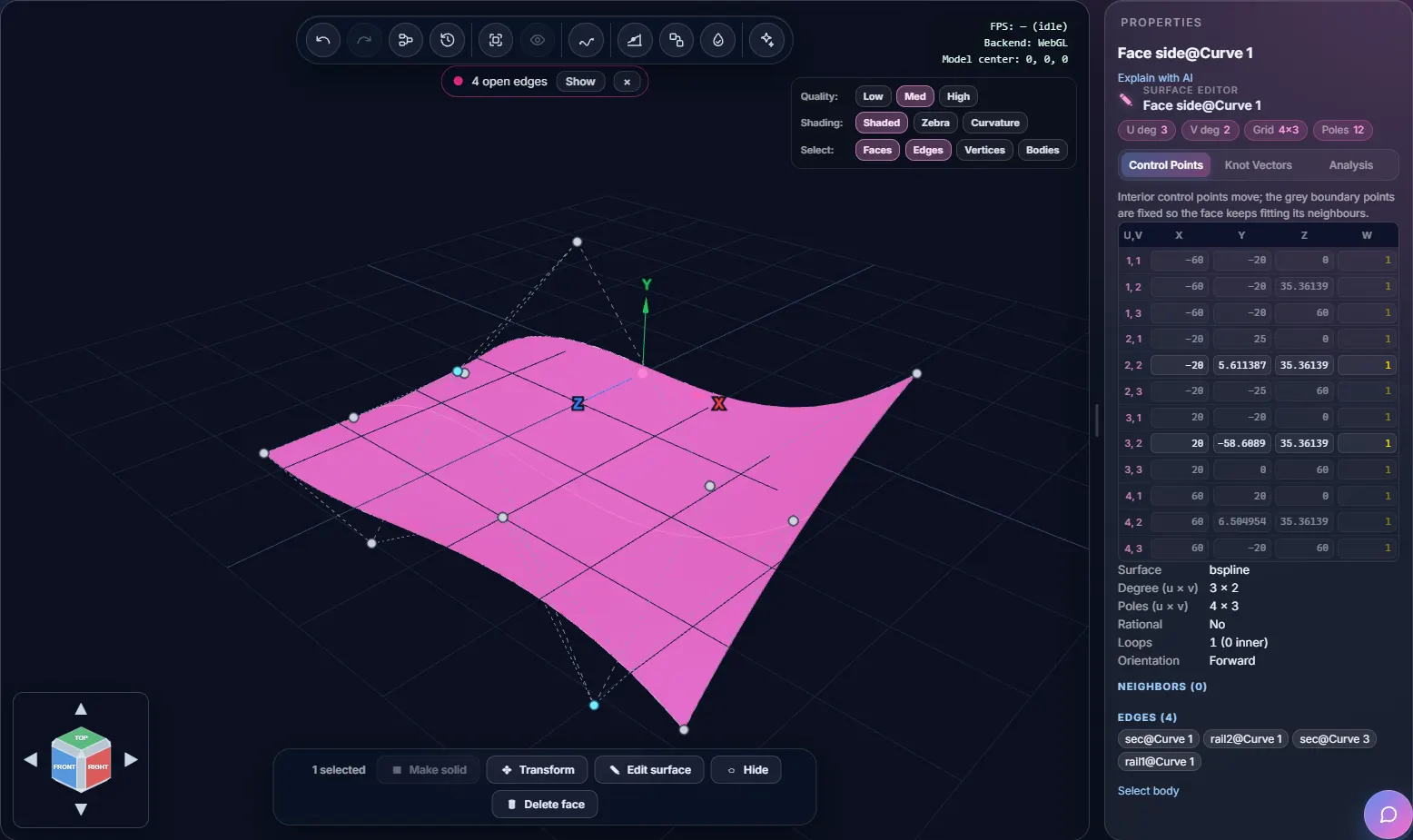
The first time you move a point on an imported face, an (edited) step is added for it. Later moves update that same step.
Editing a shared edge
Select an edge that two faces share. If it can be edited, Edit shared edge appears in the action bar. Both faces then follow the control polygon of the edge. The grey end points stay on the edge's vertices, and every other boundary of both faces stays where it is.

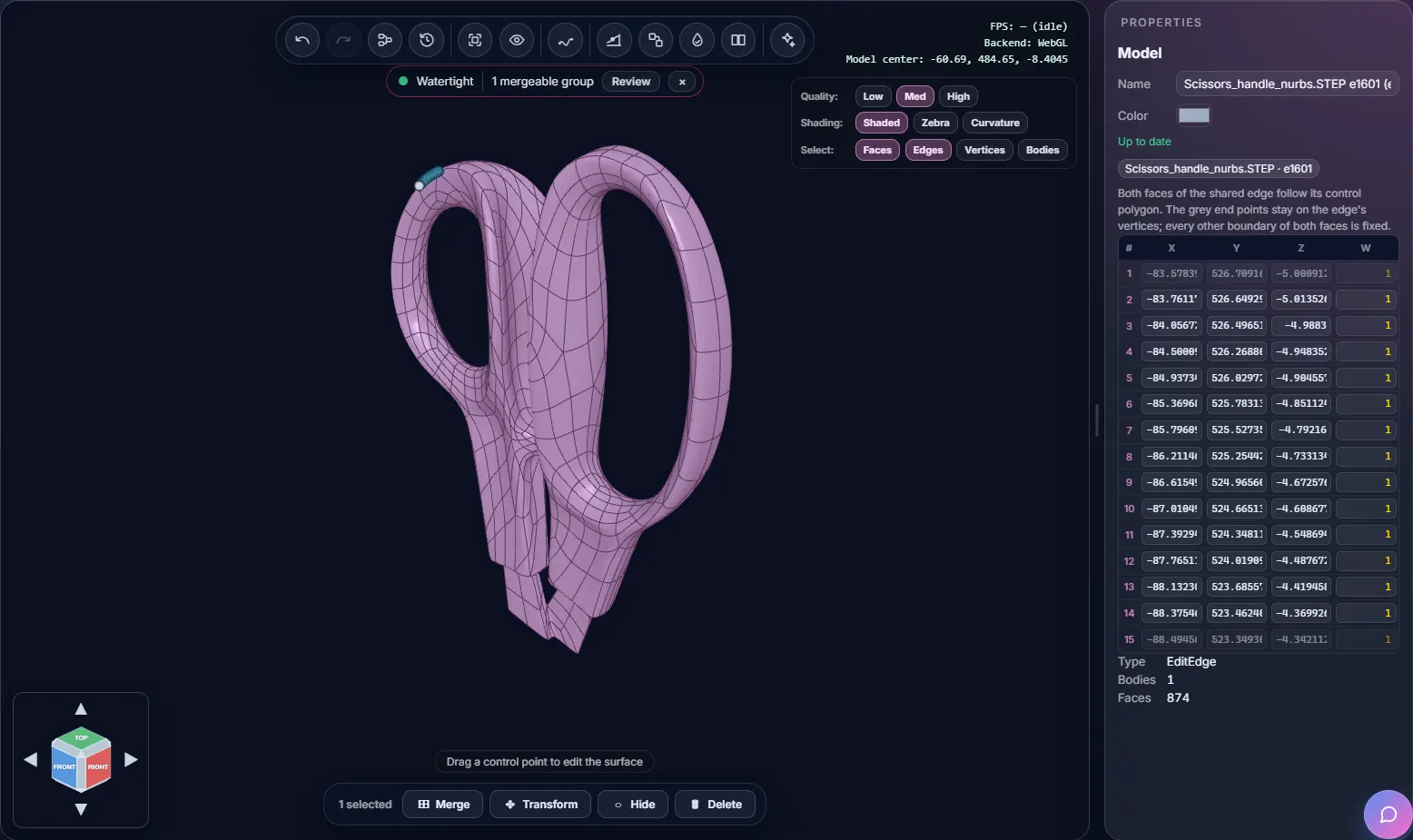
The button is greyed out when it can't work. Hover over it to read why. A common reason is that the two faces describe the edge in different ways, with a different degree or number of control points.
Deleting faces and steps
- Delete face removes the selected faces and leaves the gap open.
- Delete and heal removes a face the way a CAD program removes a hole or a fillet: the neighbouring faces are extended to close the gap.
- Delete on a whole model or step removes it from the tree.
All of these are single steps, so Undo takes them back.
Other actions
- Transform adds a Transform step with boxes for the translation in X, Y and Z. Type the distance you want to move the selection.
- Convert to NURBS turns planes, cylinders and other analytic faces into B-spline faces, so you can edit their control points.
- Make solid turns a closed shell into a solid. If the shell still has open edges, the button is greyed out and the tooltip tells you to close them first.
- Merge joins the selected faces (see Checking & Repairing).
Parametric Kernel editor
Curves & Surfaces
Draw NURBS curves, look at how they behave, and build surfaces from them. A surface built from curves stays linked to them, so changing a curve changes the surface.
Drawing a curve
- Click Draw curve in the toolbar. The sketch plane is shown as a blue grid in the 3D view and a Sketching Curve panel opens on the right.
- Pick the plane under Sketch plane: XY, YZ or ZX. Points you click land on that plane through the origin.
- Under Draw, pick how your points shape the curve: Through points makes the curve pass through every point you place (its control points and knots are worked out for you), and Control points uses your points as the control points. A curve through points is always open; use Control points for a closed or periodic curve.
- Click in the 3D view to place points, one click per point. You can also click + Add Point and type the X, Y, Z (and, for control points, W) values of a point, which can be anywhere in space.
- Press Enter or click Finish Curve once you have at least 2 points. Backspace or Undo Point removes the last point. Esc or Cancel throws the sketch away.
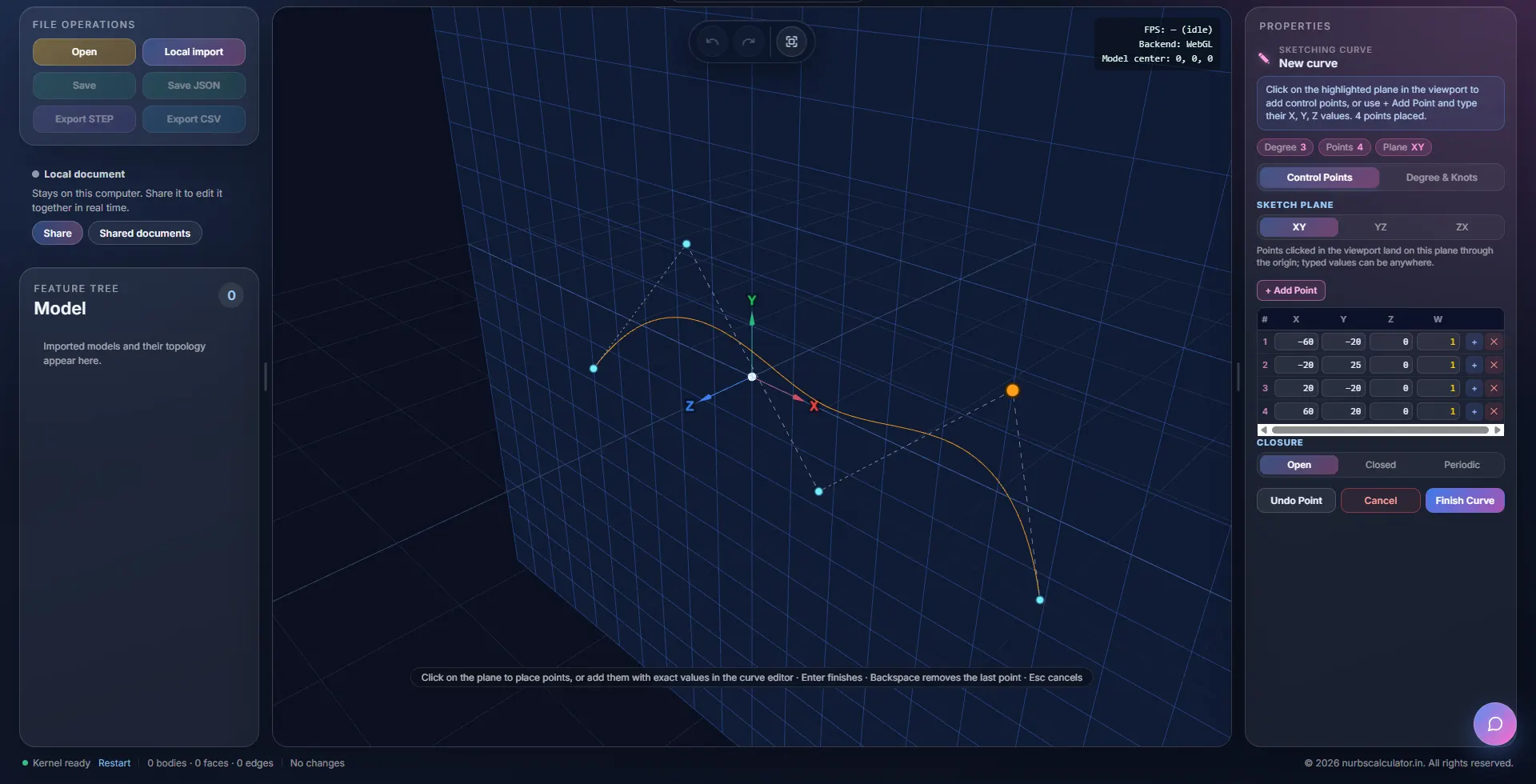
A curve through points
Pick Through points when you know where the curve has to go, for example a path that has to pass certain spots on a part. Each click adds a point and the curve is redrawn so that it passes through all of them. The light blue dots are your points, and the orange curve shows the result as you go. The Points tab lists X, Y and Z for every point, and you can type exact values there.
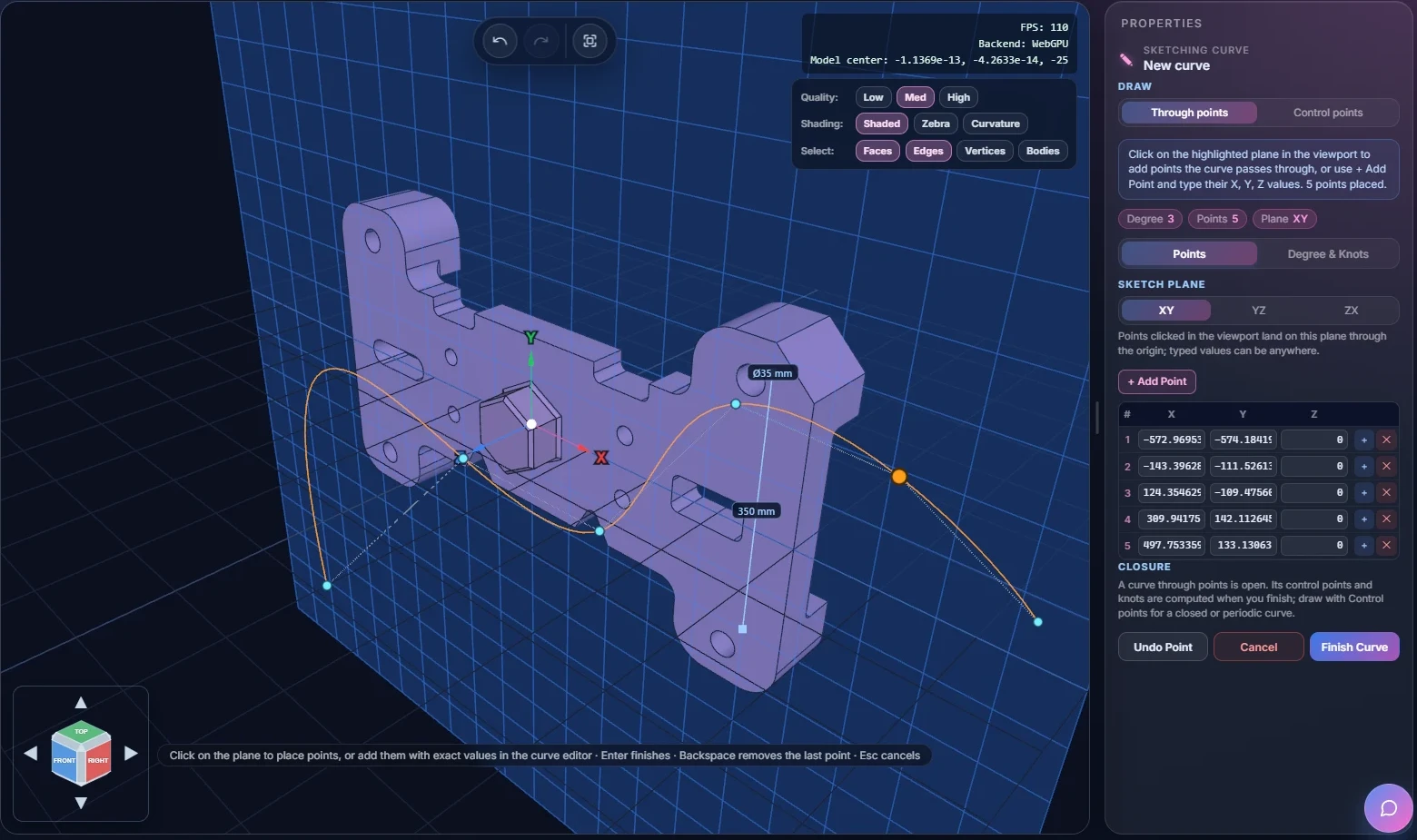
When you click Finish Curve, the editor works out the control points and knots for you. After that the curve is a normal curve: select it and you see its control points, not the points you clicked. A curve through points is always open.
The Degree & Knots tab sets the degree. Under Closure you can choose Open, Closed or Periodic. Closed and Periodic are Pro features.
Editing a curve
Select a curve and the Properties panel shows the Curve Editor with three tabs. Chips at the top show the degree, the number of points and the closure.
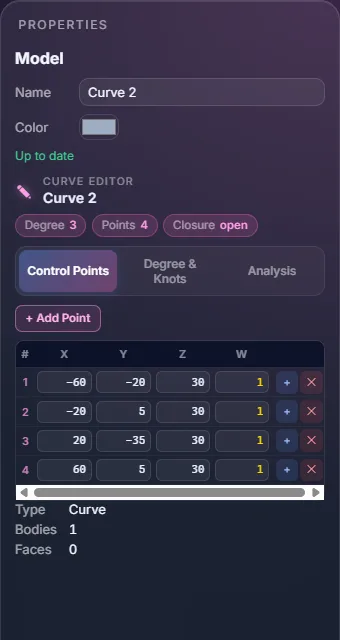
- Control Points: a table of X, Y, Z and W for every point. The + button on a row inserts a point after it, and ✕ deletes it. You can also drag the points in the 3D view.
- Degree & Knots: the degree, the closure, endpoint clamping (Clamp Start and Clamp End) and the knot vector as text you can edit and apply. Reset to uniform puts the knots back. Two Pro views help you read the knots: the Basis Function Graph and Knot Vector Spans, where you can drag a tick to move a knot.
- Analysis: tick Point on curve and vectors and a point moves along the curve. See below.
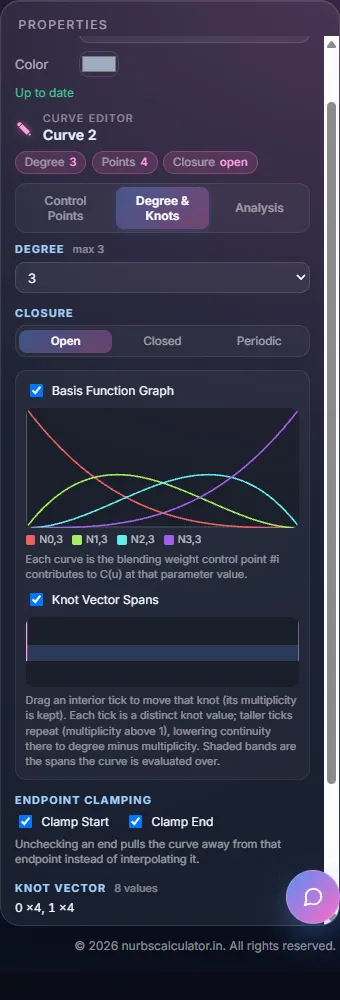
What knot vectors, basis functions and degree mean is explained in NURBS Basics and Curves In Depth. The same ideas apply here.
Reading a curve
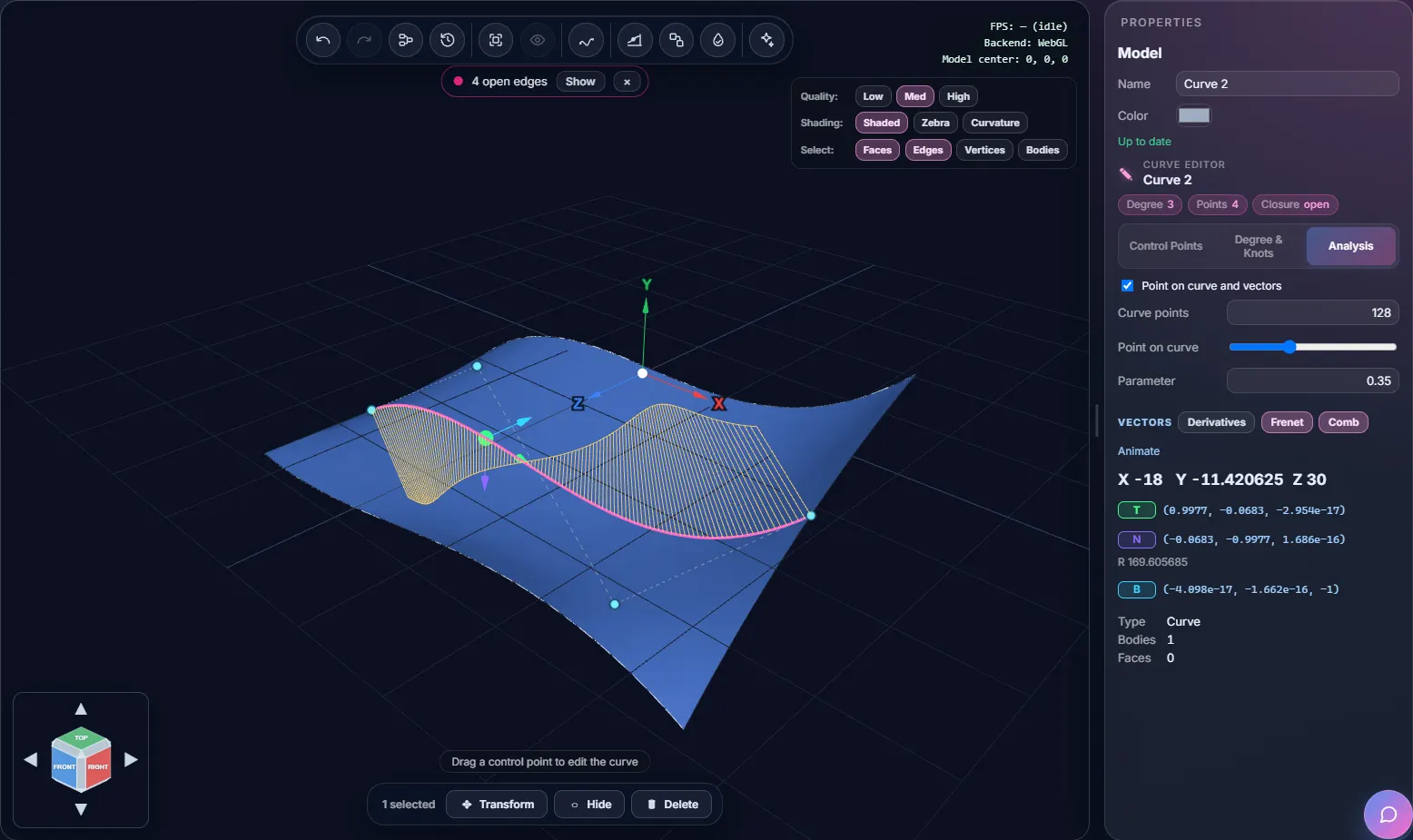
On the Analysis tab, drag the Point on curve slider or type an exact Parameter between 0 and 1. The point's X, Y and Z are shown below (you need to be signed in to see them). The Vectors buttons add more to the 3D view:
- Derivatives draws the first and second derivative vectors at the point.
- Frenet draws the Frenet frame (T, N and B) and shows the radius of curvature.
- Comb draws the curvature comb along the whole curve.
These three are Pro features. Curve points sets how many segments the curve is drawn with (128 by default). Animate moves the point along the curve for you.
Loft, Fill and Sweep
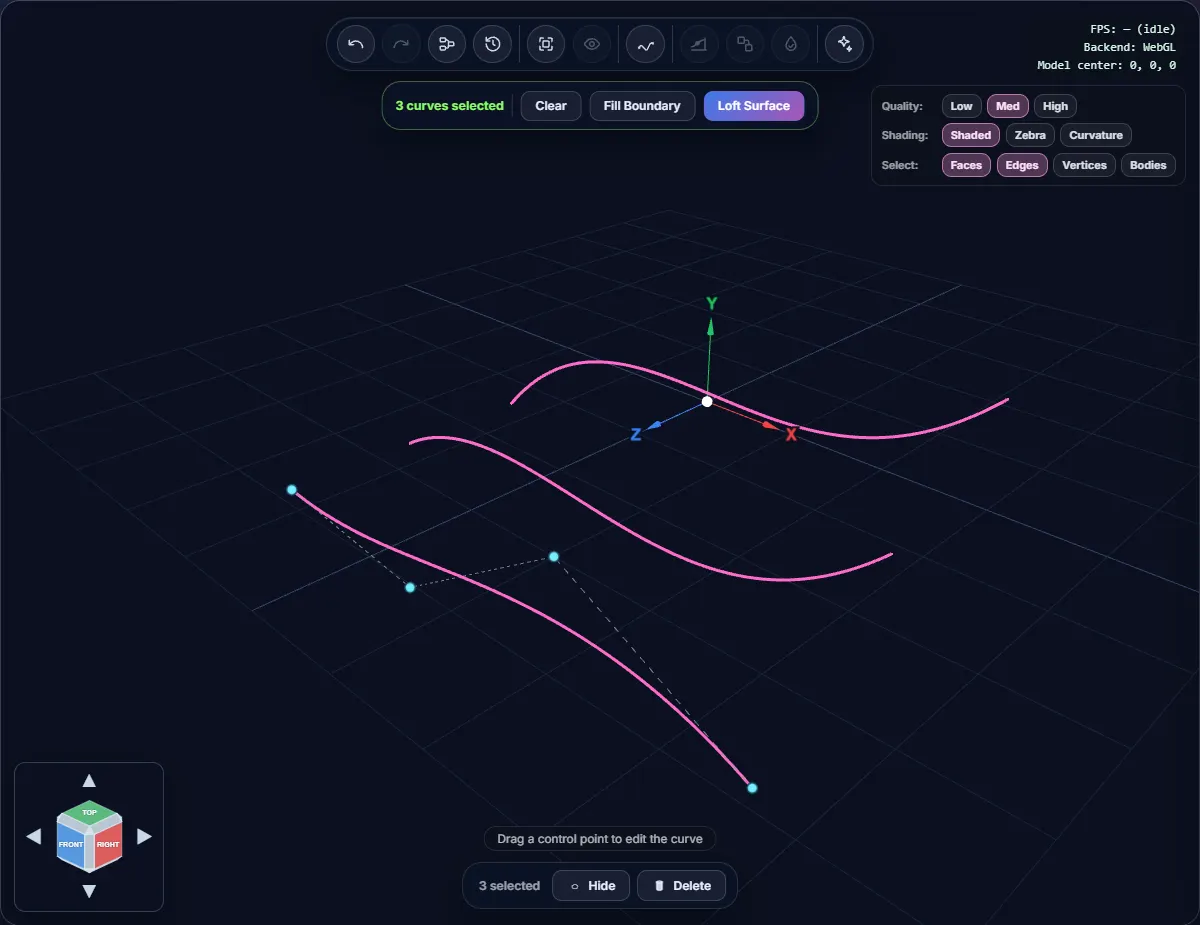
Select two or more curves, one after the other. In the tree, hold Ctrl and click each row. A bar appears under the toolbar.

- Loft Surface builds a surface through the curves, in the order you selected them. If every curve is closed, a Cap ends box appears. Tick it to close the ends and get a closed shell.
- Fill Boundary fills the gap between 2 to 4 boundary curves.
- Sweep (exactly 2 curves) moves the second curve, the profile, along the first, the path. See Sweep below.
- Clear empties the selection.
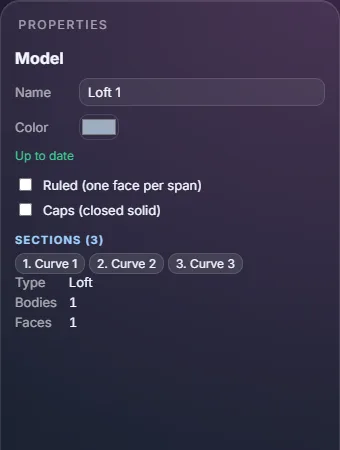
The result is a Loft step (or a Fill step). Select it to change how it is built: Ruled makes one face per span, Caps closes the ends into a solid, and the Sections chips list the curves in order. A Fill step lets you pick the style: Coons, Stretch or Curved.
Sweep
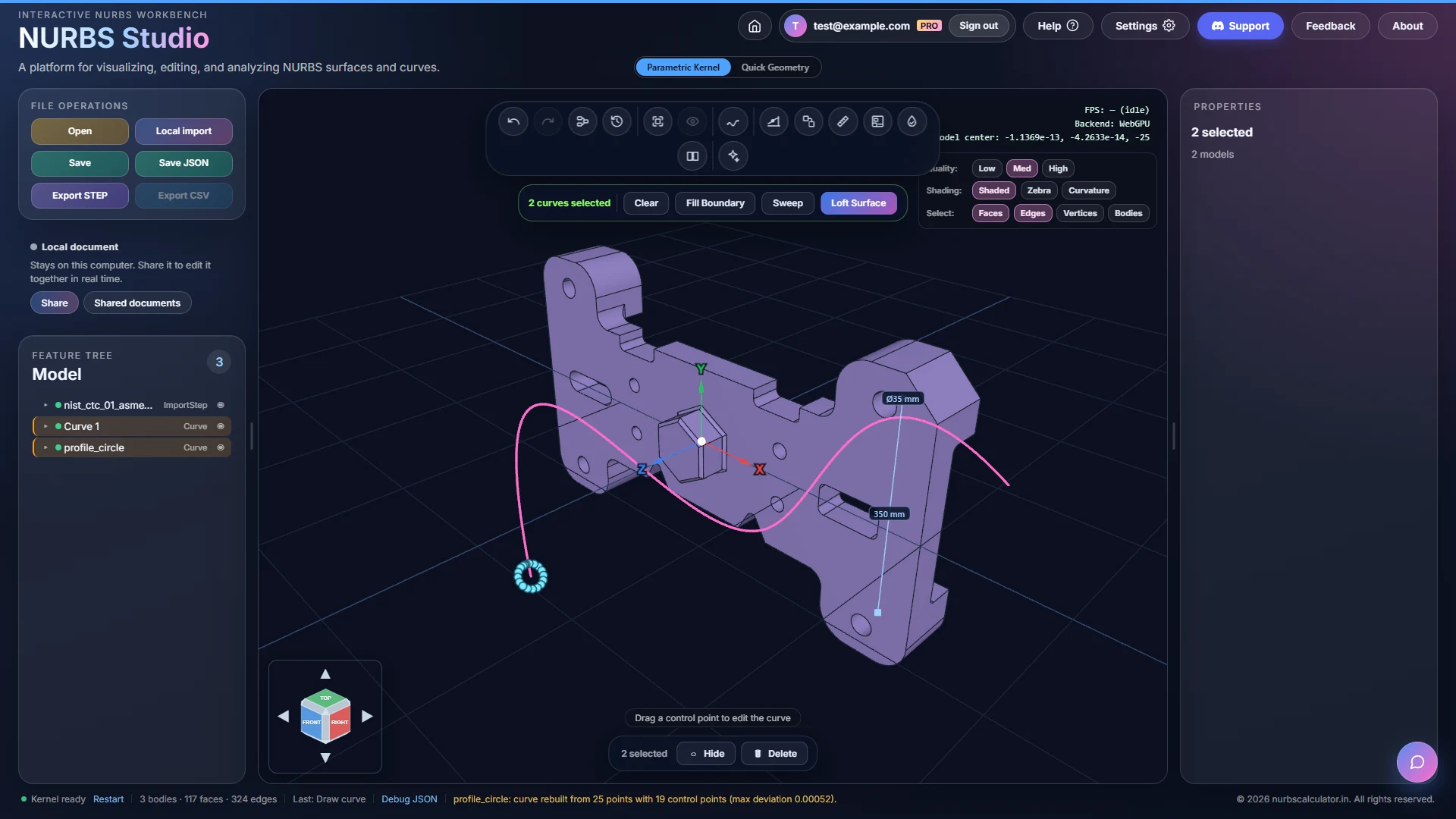
A sweep moves one curve, the profile, along another curve, the path. The profile keeps its angle to the path as it moves, so a small circle swept along a bent curve gives a pipe that follows the bends.
- Draw or import the path. In the example below it is a curve drawn through five points.
- Draw or import the profile at the start of the path. Here it is a circle of radius 30 imported from a CSV file (see Importing curve points on the Saving & Exporting page).
- In the tree, click the path, then hold Ctrl and click the profile. The order matters: the first curve is the path.
- Click Sweep in the bar under the toolbar.
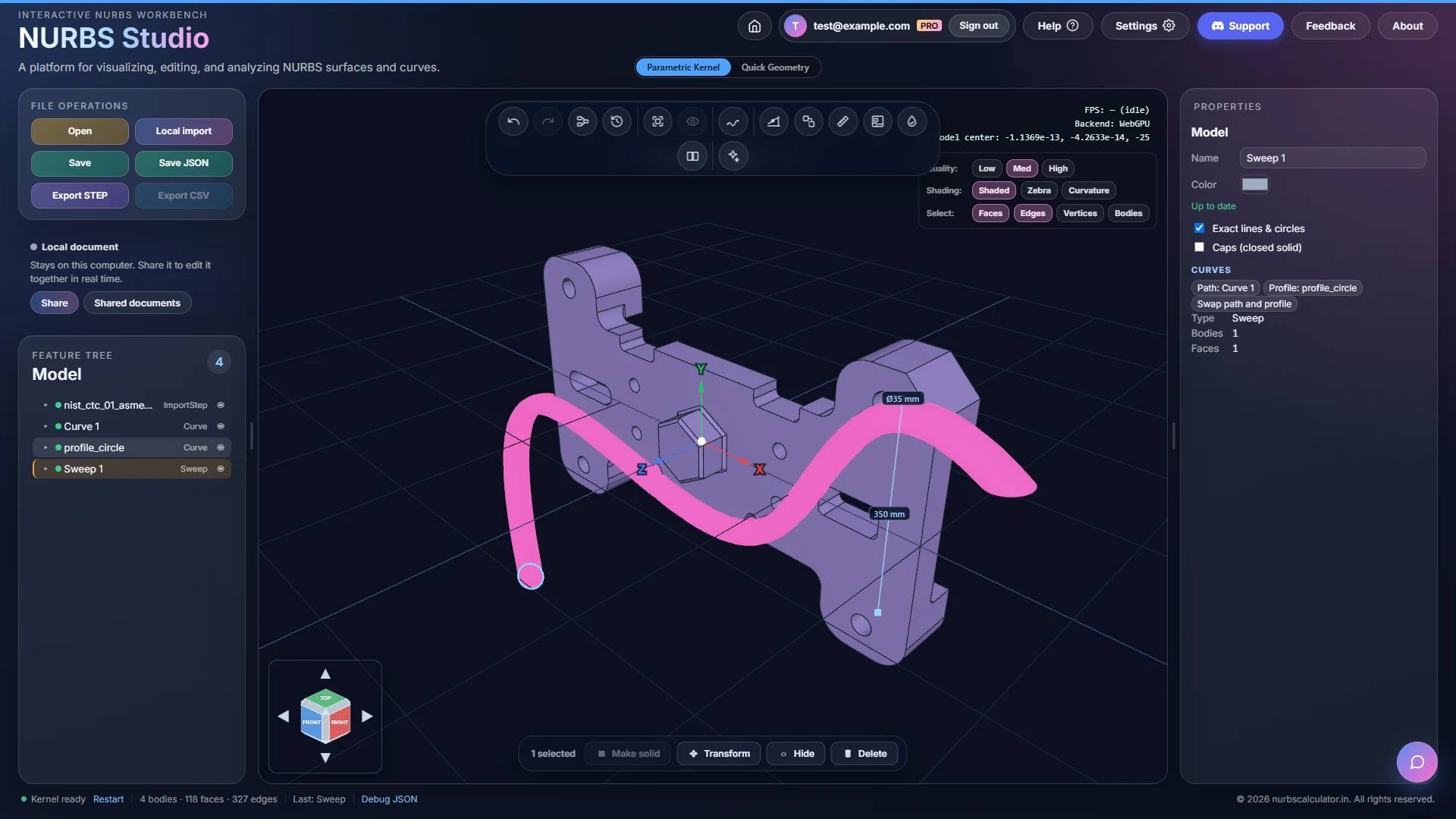
Select the Sweep step to change it:
- Curves shows the Path and the Profile. Swap path and profile trades their roles, which is handy if you selected them the wrong way round.
- Exact lines & circles (on by default) treats a curve that is straight or round to within 0.2% as an exact line or circle. A line swept around a circle then gives a true cylinder, or a cone when the line leans in, a circle swept along a line gives a true cylinder, and a circle swept around a circle gives a torus. Turn it off to keep a NURBS surface.
- Caps (closed solid) closes the two ends when the profile is closed, so you get a solid instead of a tube.
Like a loft, a sweep remembers its curves. Move a control point of the path or the profile and the swept surface is rebuilt.
Change a curve, the surface follows
A loft remembers its curves. Move a control point of the middle curve and the surface is rebuilt to match. The two pictures below show the same loft before and after one control point of the second curve was moved.
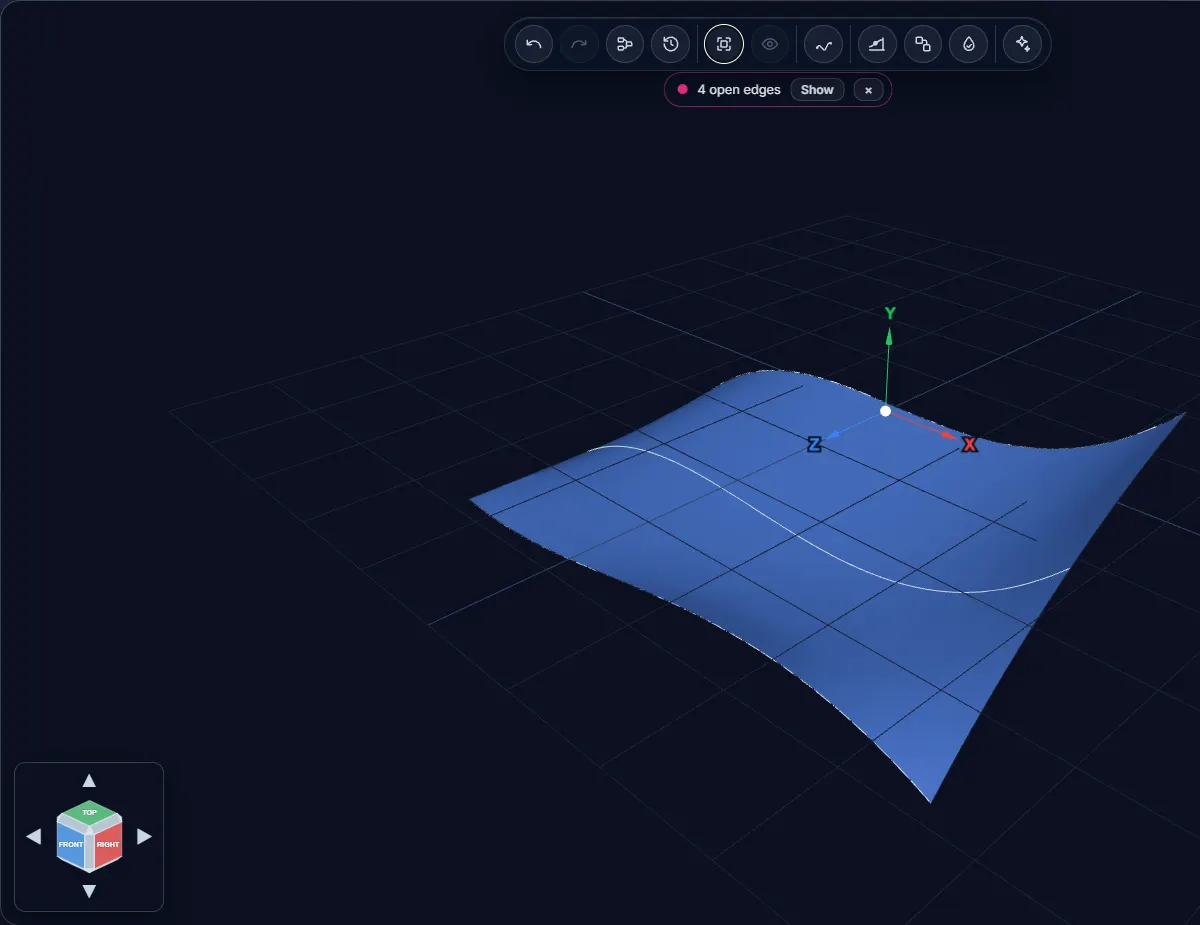
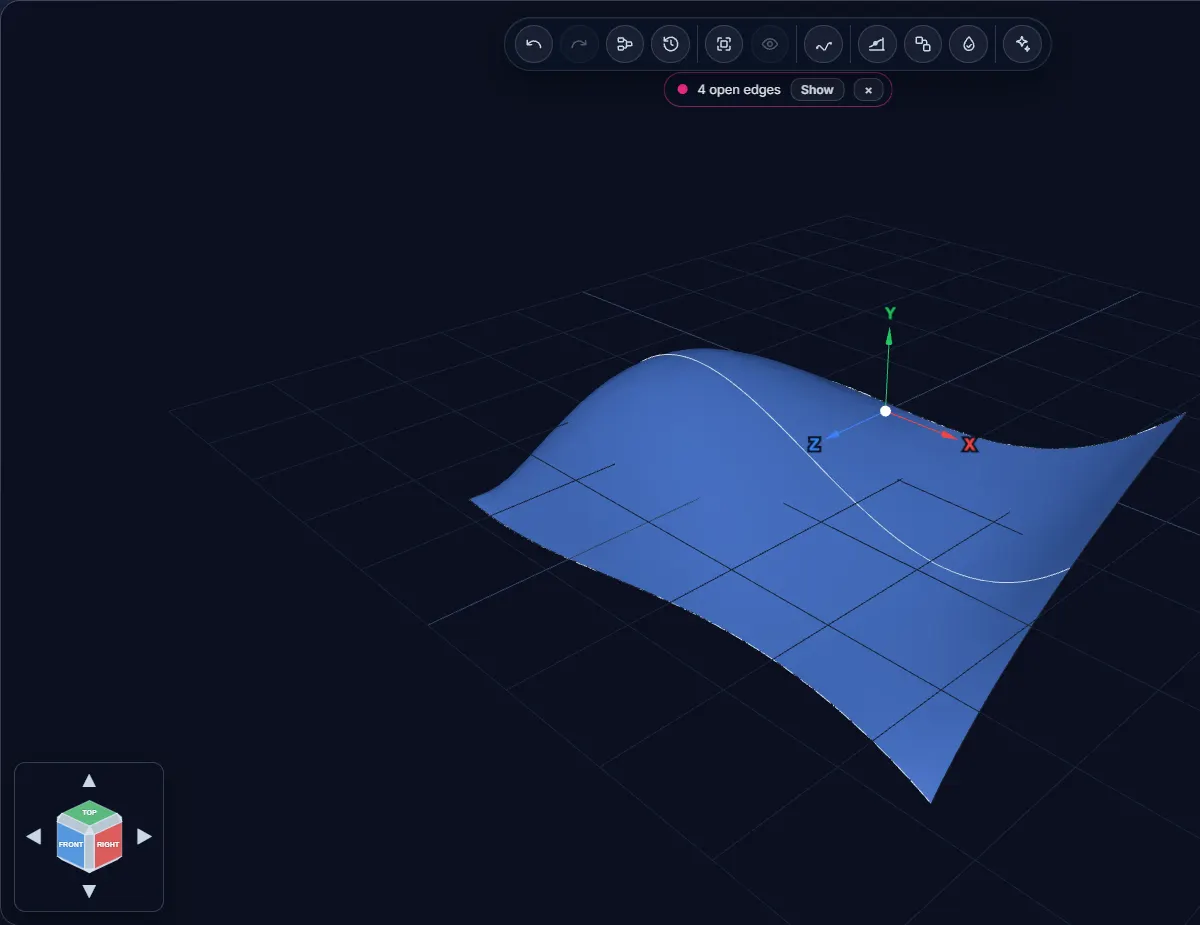
If you want to move the control points of the surface itself, select one of its faces and click Edit surface. The editor warns you first: editing the face directly breaks the history, so it becomes a plain surface that no longer follows its curves. The original step stays in the tree, greyed out.
Parametric Kernel editor
Checking & Repairing
This page covers the tools for finding gaps, closing them, joining surfaces into fewer ones, and judging how smooth a surface really is.
The automatic check
When a model opens, a small bar appears under the toolbar. It tells you whether the model is watertight, or how many open edges it has, and how many groups of faces could be merged.

Show selects the open edges. Review opens the Merge candidates panel. The × button hides the bar.
Watertight check
A model is watertight when every edge belongs to two faces, so there are no gaps. Click Watertight in the toolbar to check the selection, or everything you can see if nothing is selected. The open edges get selected and the Watertight panel opens.
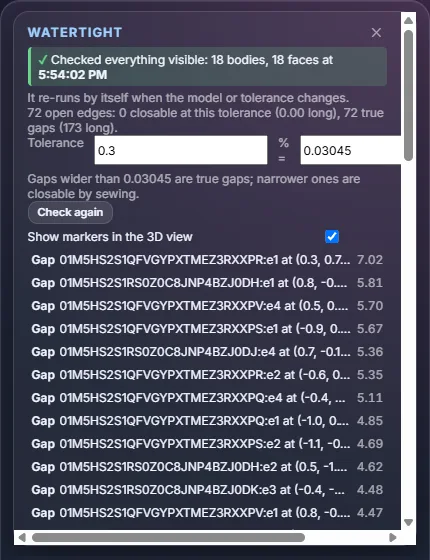
- The summary says how many edges are open, how many are closable at the current tolerance and how many are true gaps.
- Tolerance is the widest gap that sewing may close. You can type it as a percentage of the model size or as a length in model units. The two boxes stay in step. A gap wider than the tolerance is a true gap.
- The check runs again by itself when the model or the tolerance changes. Check again runs it on demand.
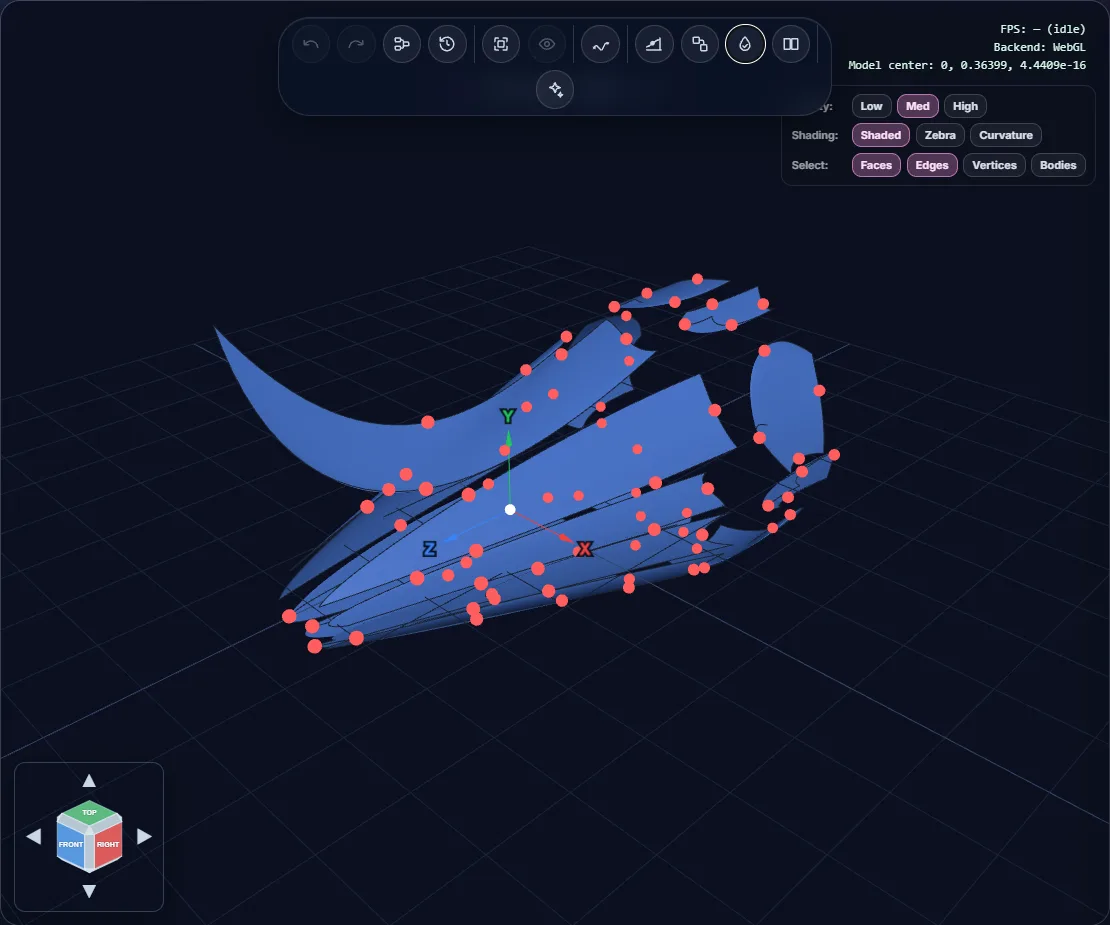
- Turn on Show markers in the 3D view to see a red dot on every gap.
- The list below shows each true gap with its length. Click one to select it.
- Sew at this tolerance appears when some edges are closable. It sews the faces using that tolerance.
Sew
Sew joins faces that meet along their edges into one body. It sews the faces you selected. With fewer than two faces selected, it sews every visible face. The result is a Sew step. The faces it used are hidden, and the sewn body takes their place.
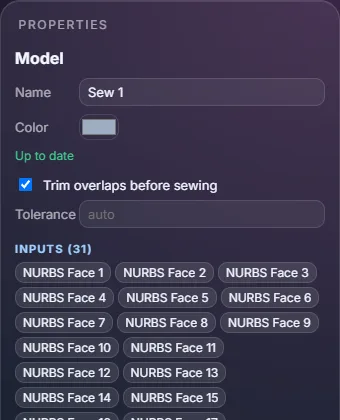
- Trim overlaps before sewing cuts away the parts where faces overlap before they are sewn.
- Tolerance is left on auto by default. Type a length to set your own.
Sewing closes gaps up to the tolerance. Gaps that are wider stay open, and they still show as open edges in the Watertight check. Once a shell is closed, Make solid turns it into a solid.
Continuity
Surface continuity analysis lists every place where two B-spline faces meet and tells you how smoothly they join: G0 (they touch), G1 (the tangents match) or G2 (the curvature matches too). NURBS Basics explains the three levels.
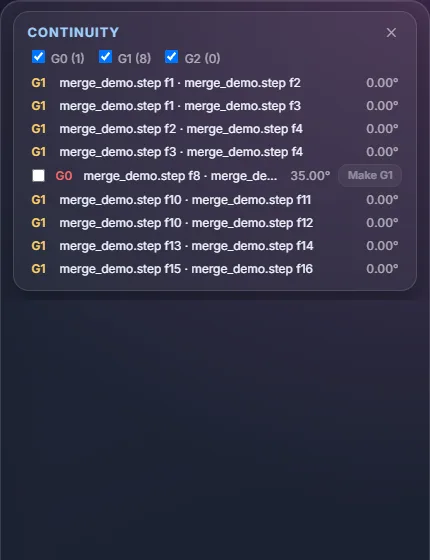
- Each row shows the level, the two faces and the angle between their tangents. Click a row to select the two faces. Hover over it to light them up.
- The three boxes at the top show or hide each level and count how many seams there are.
- A G0 row has a Make G1 button that adjusts both surfaces so the tangents match. Tick several G0 rows to fix them together. This only works on free-standing B-spline surfaces. For other faces the button is greyed out.
Merging surfaces
Many CAD files split one smooth surface into dozens of small faces. Merging joins faces that share whole edges into a single B-spline surface, so the model has fewer faces to manage. Open Merge NURBS patches (or click Review on the check bar).
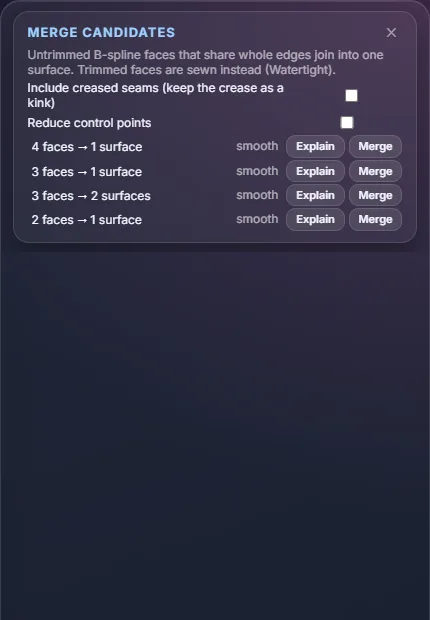
- Each row is a group, for example 4 faces → 1 surface, with the kind of seam (smooth, or the crease angle). Click the row to select its faces. Merge joins the group. Explain asks your AI provider to describe the group.
- Only faces without trims can be joined this way. Trimmed faces are sewn instead.
- By default only smooth seams are listed. Tick Include creased seams to also list seams with a visible crease. The crease is kept as a kink in the new surface.
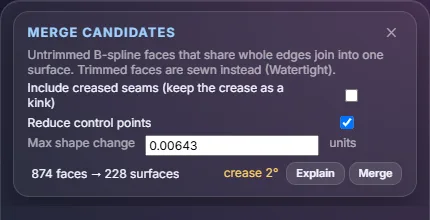
- Tick Reduce control points to make the merged surface lighter. It removes control points as long as the surface stays within Max shape change of the unreduced shape. You can type your own limit.
- You can also select two or more faces yourself and click Merge in the action bar. That joins them whatever the angle between them.
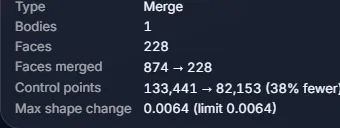
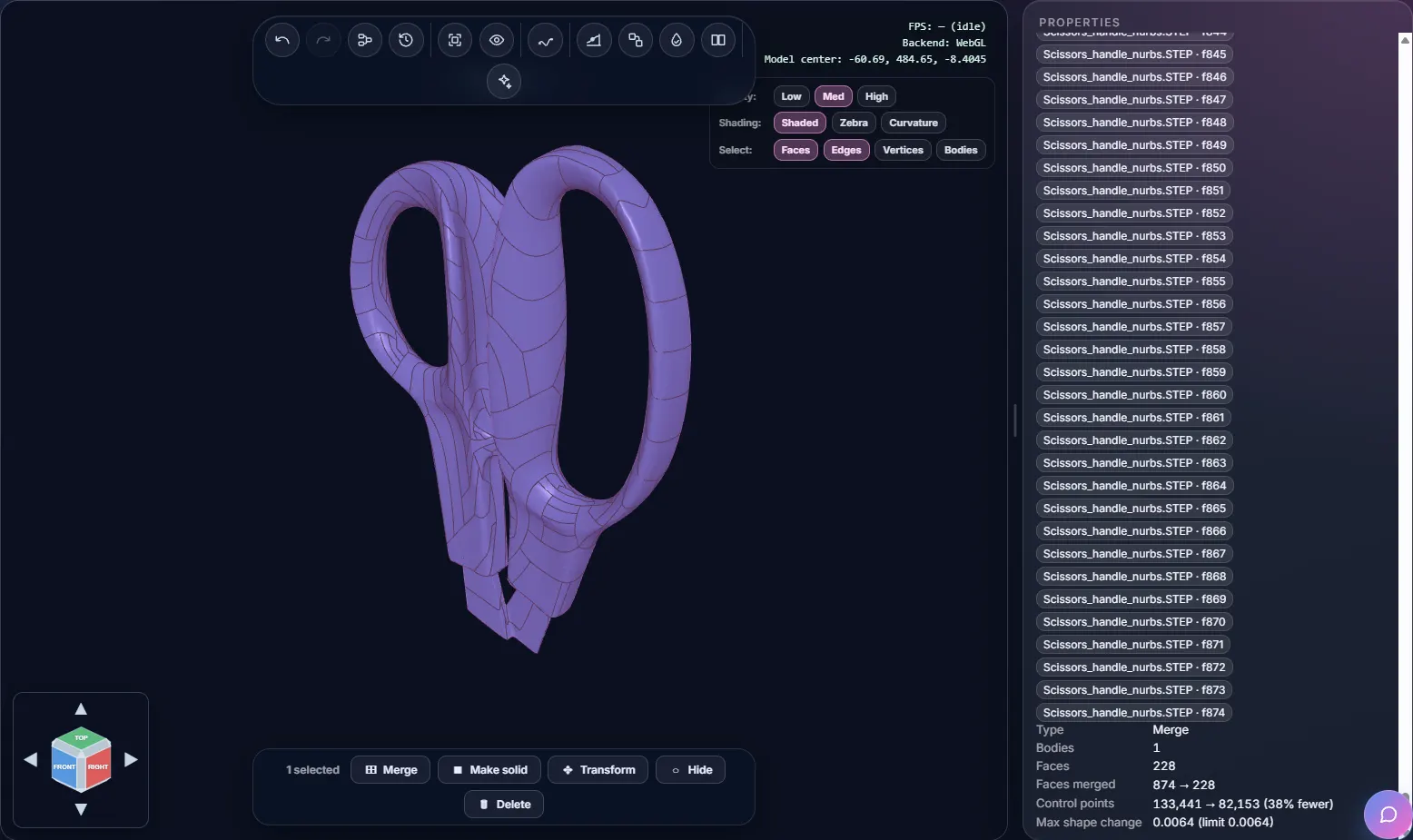
The result is a Merge step. Its Properties panel lists the faces that went in and shows the figures for the result. For the scissors sample, merging with Reduce control points turned 874 faces into 228 and removed 38% of the control points.
Shading checks
The Shading row in the display settings changes how surfaces are painted.
- Shaded is the normal view.
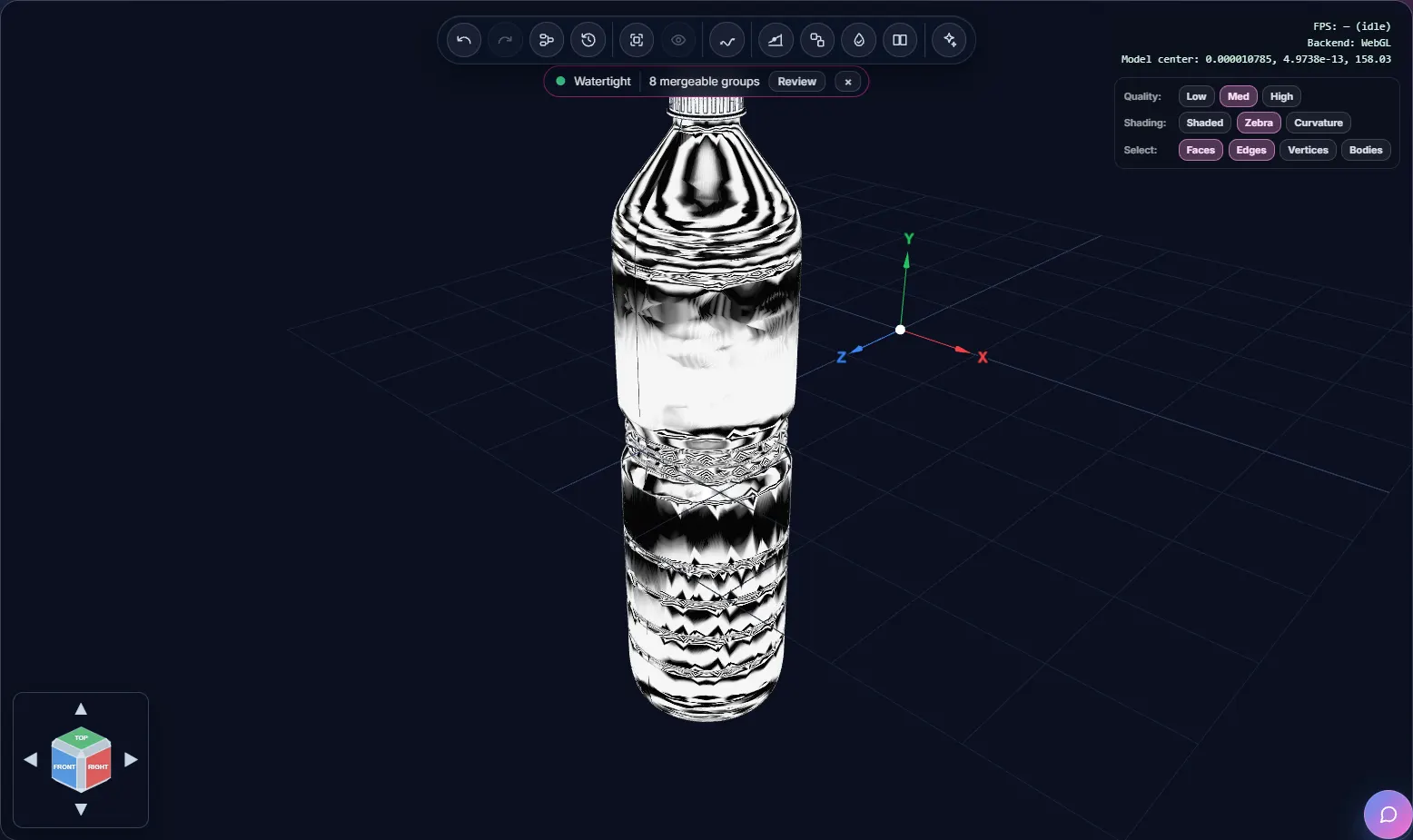
- Zebra (Pro) paints stripes as if the surface reflected a striped sky. Smooth surfaces give smooth stripes. A kink in a stripe shows where a surface isn't smooth. Surfaces In Depth explains how to read them.
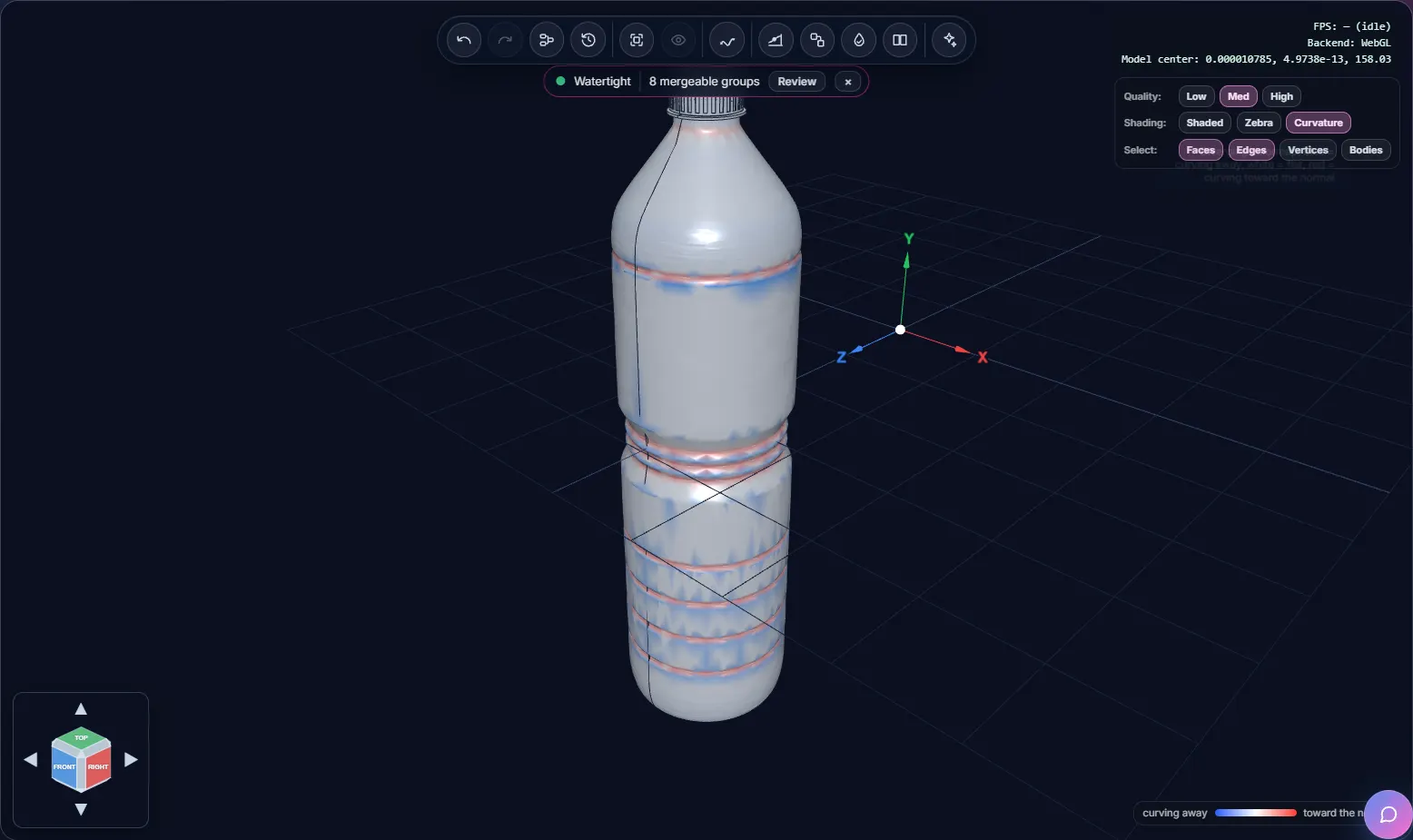
- Curvature colours the surface by how it curves: blue where it curves away from the normal, white where it is flat and red where it curves toward it. A small legend appears in the corner.
Probing a surface
Select a face, open the Analysis tab of the Surface Editor, and pick a probe. Then click the surface and the result appears in the corner of the 3D view. All three are Pro features.
- Normal shows the surface normal and the point it belongs to.
- Tangent plane shows the plane that just touches the surface there.
- Closest point finds the closest point on the surface to a point you click, or to X, Y and Z values you type, and gives its u, v position and the distance.
Parametric Kernel editor
Measure & Drawings
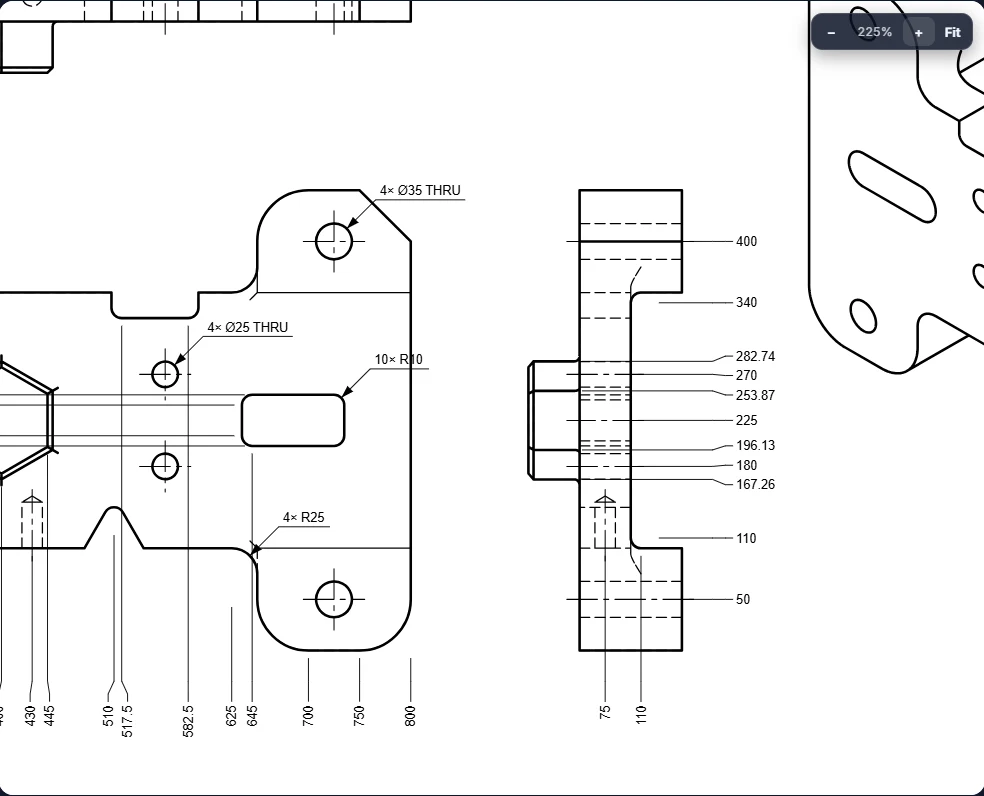
Measure sizes, distances and angles on the model, keep the ones you need as dimensions,
and turn the model into a 2D engineering drawing. The pictures on this page use the NIST
sample part nist_ctc_01_asme1_ap242-e1.stp.
Opening the Measure panel
Click Measure in the toolbar, or press M. The Measure panel opens on the right. Click the button again, or the ✕ on the panel, to close it. There are three ways to measure:
- Hover over a face to see its area, or over an edge to see its length.
- Click two points on the model for the straight distance between them.
- Ctrl+click faces, edges or bodies to measure them in full.
Distance between two points
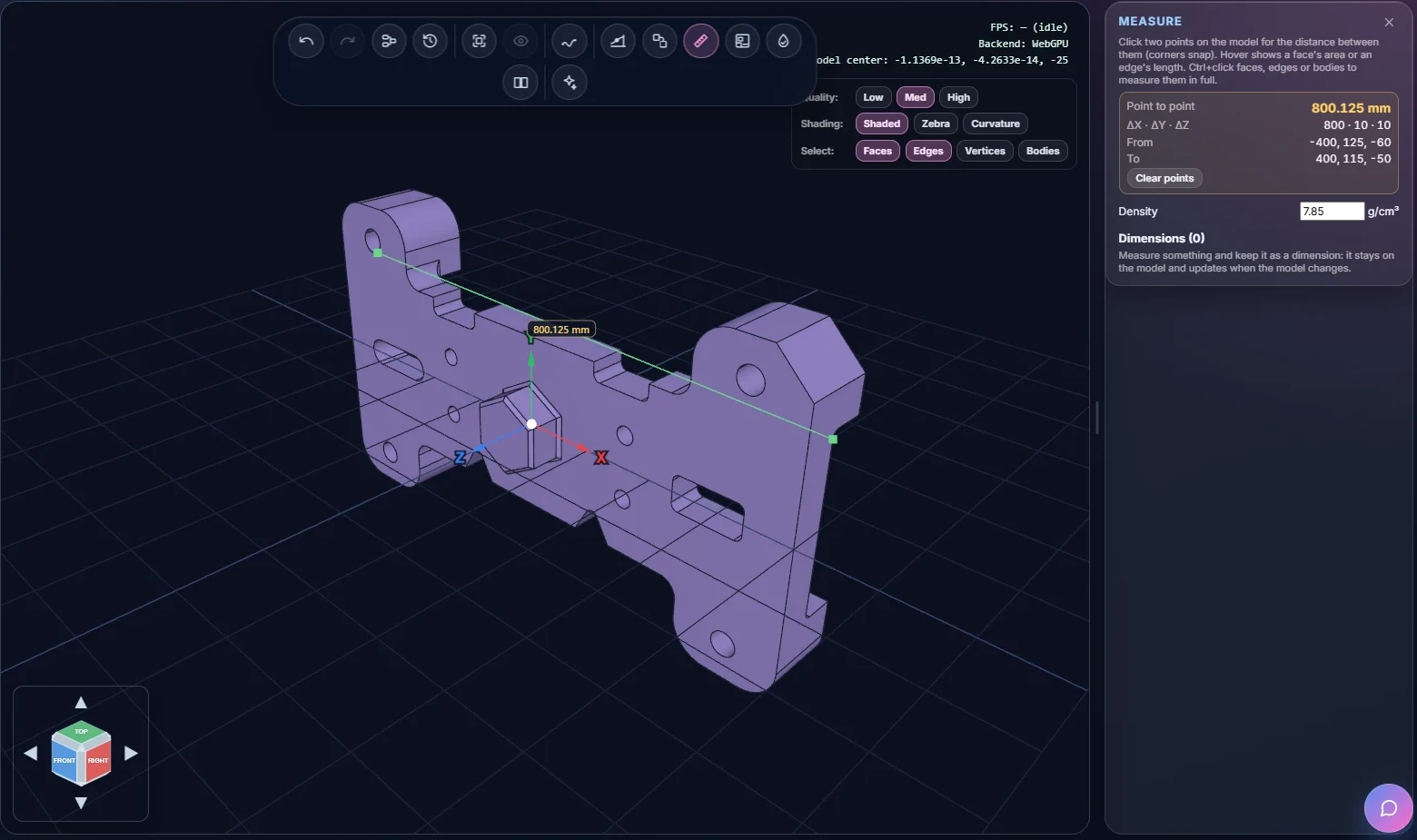
Click a first point on the model, then a second. A green line joins them and the distance is written next to it. Points close to a corner snap to the corner, so it is easy to measure from corner to corner. The panel shows the distance, the difference in X, Y and Z, and the two points. Clear points starts again.
Measuring faces, edges and bodies
Hold Ctrl and click a face, an edge or a body. The panel lists what it is and its sizes. What you see depends on the shape:
- an edge: its length, and for a circle or arc its radius, diameter and centre;
- a face: its area and centroid, and for a cylinder, cone or torus its radius, diameter and axis;
- a body: its area, volume, mass, centre of mass, size in X, Y and Z, and the number of faces and edges.
Ctrl+click a second item and the panel also shows the distance and angle between the two. For two holes it gives the distance from centre to centre, or from axis to axis. With more than one item selected, a Total row adds up the lengths, areas and volumes.
Mass is worked out from the Density box at the bottom of the panel, in g/cm³. It starts at 7.85, which is steel. A model made of surfaces only has no volume. The panel tells you so, and Make solid turns a closed shell into a solid you can weigh.
Keeping dimensions
Under the measurements, Keep as dimension offers the values you can keep, for example Diameter and Radius for one hole, or Distance, Centre distance and Angle for two. Click one to add it to the model.
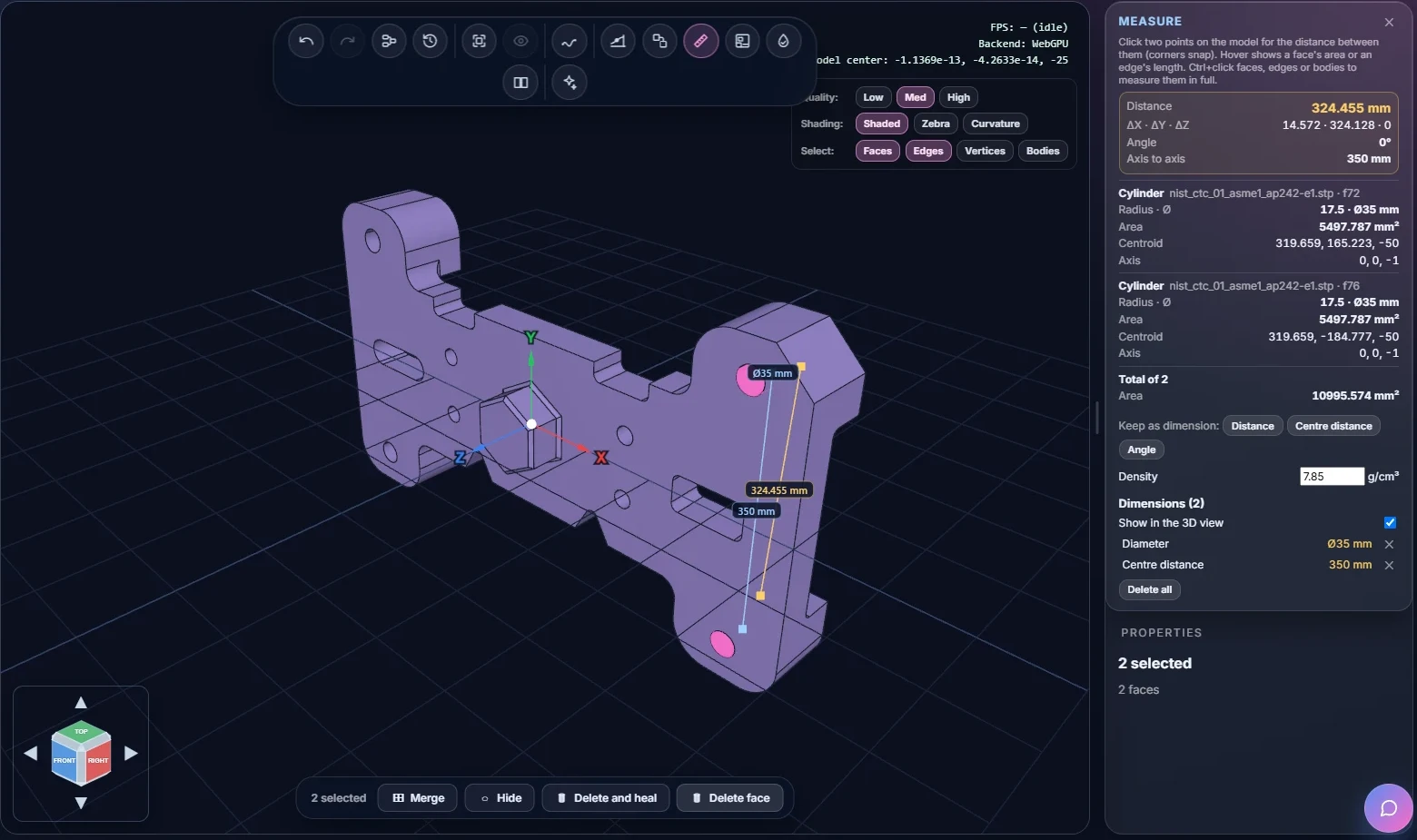
Kept dimensions are listed under Dimensions and drawn in the 3D view. They are part of the model, so they are saved with it, and they are measured again after every change. If you change a hole size, its dimension shows the new value. If a measured face or edge no longer exists, the value shows a dash.
- Click a dimension in the list to select what it measures.
- Untick Show in the 3D view to hide them from the view.
- The ✕ on a row deletes that dimension. Delete all removes every one.
Adding and deleting dimensions are normal steps, so Undo takes them back.
Making a drawing
Click Drawing in the toolbar. If you selected something in the tree, the drawing shows only that. Otherwise it shows everything that is visible. The button is grey until the model has a visible surface or solid.
The Drawing window opens with the options on the left and a preview of the sheet on the right. The editor projects the views, adds hidden lines, dimensions, hole callouts and centre marks, and fills in the title block. Every change to an option redraws the preview.
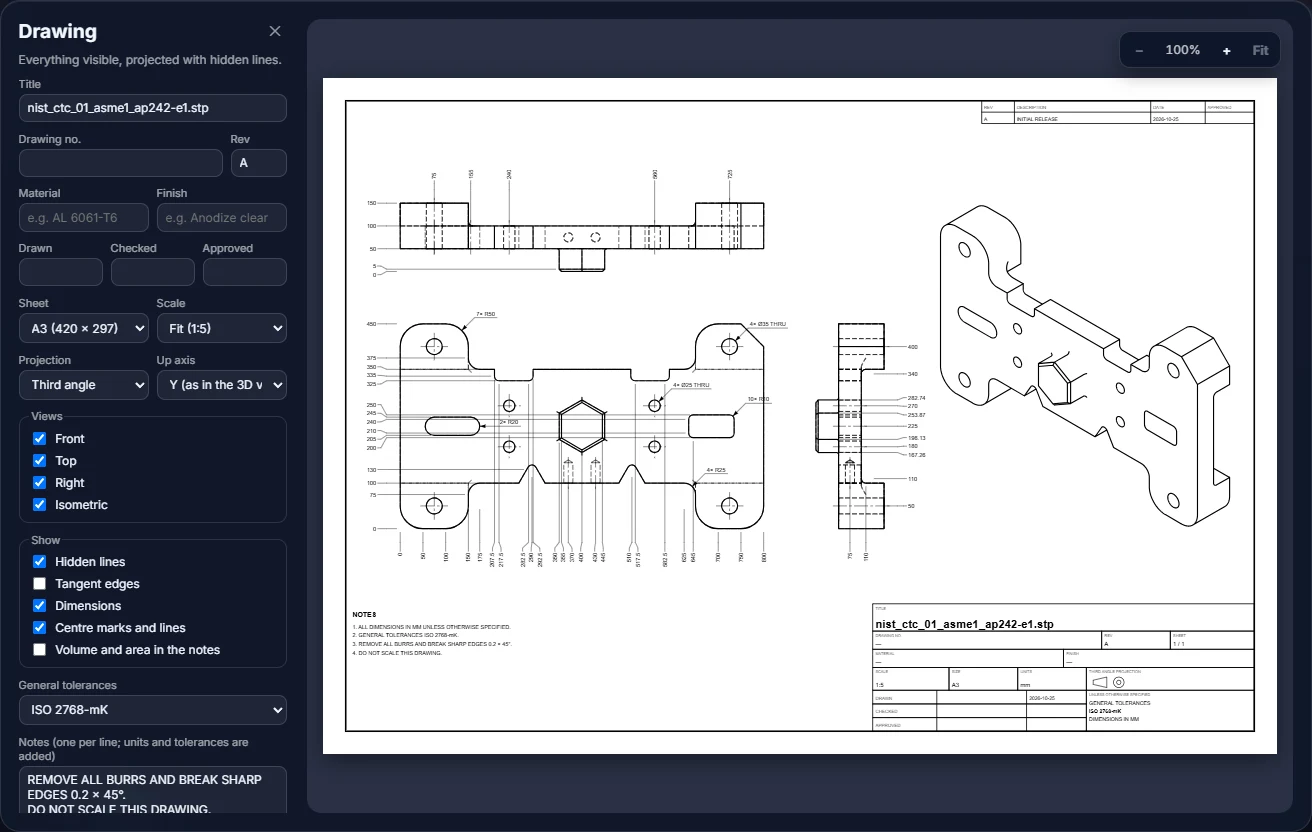
The options, from top to bottom:
- Title block: Title (the model's name to start with), Drawing no., Rev, Material, Finish, and the names in Drawn, Checked and Approved.
- Sheet: A4, A3, A2, A1, Letter or Tabloid.
- Scale: Fit picks the largest standard scale that fits the sheet. You can also pick a fixed scale, from 10:1 to 1:1000.
- Projection: Third angle or First angle. The symbol in the title block follows your choice.
- Up axis: Y, as in the 3D view, or Z, for models that were made with Z pointing up.
- Views: tick Front, Top, Right and Isometric as you need.
- Show: Hidden lines (dashed), Tangent edges, Dimensions, Centre marks and lines, and Volume and area in the notes.
- General tolerances: ISO 2768-fH, ISO 2768-mK, ISO 2768-cL or None.
- Notes: one note per line. The units and the tolerance note are added for you.
The dimensions on the drawing are made for the drawing. They measure every edge, hole and arc position from one corner of the part, so they are not the same as the dimensions you kept in the Measure panel. Holes get a callout such as 4× Ø35 THRU.
For a very large model the views are taken from the display mesh, so the window says so: curves become short straight lines and holes get no diameters.
Zooming the preview
Use the mouse wheel over the preview, or the − and + buttons, to zoom in. The zoom level is shown between them. When zoomed in, drag the sheet to move around. Fit, or a double-click on the sheet, shows the whole sheet again.
Printing and saving the drawing
- Print / PDF opens your browser's print window with the sheet at its real paper size. Choose Save as PDF there to get a PDF file.
- SVG saves the sheet as an SVG file, which you can open in a browser or a vector drawing program.
- DXF saves the sheet as a DXF file for CAD programs.
Parametric Kernel editor
Node Graph & History
Two views show how your model was built: the History panel lists your changes in order, and the node graph draws the steps and what feeds into what.
History
Click History in the toolbar. Every change you made is a numbered row. Click a row to go back to that point, or forward to a change you undid. Each row is one undo step.
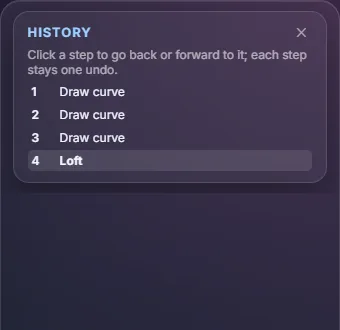
Undo and Redo in the toolbar do the same thing one step at a time. The status bar at the bottom shows the last change.
Node graph
Click Node graph and a panel opens under the 3D view. Every step of the model is a box. A wire from one box to another means the first one feeds the second. Here a loft is fed by three curves.
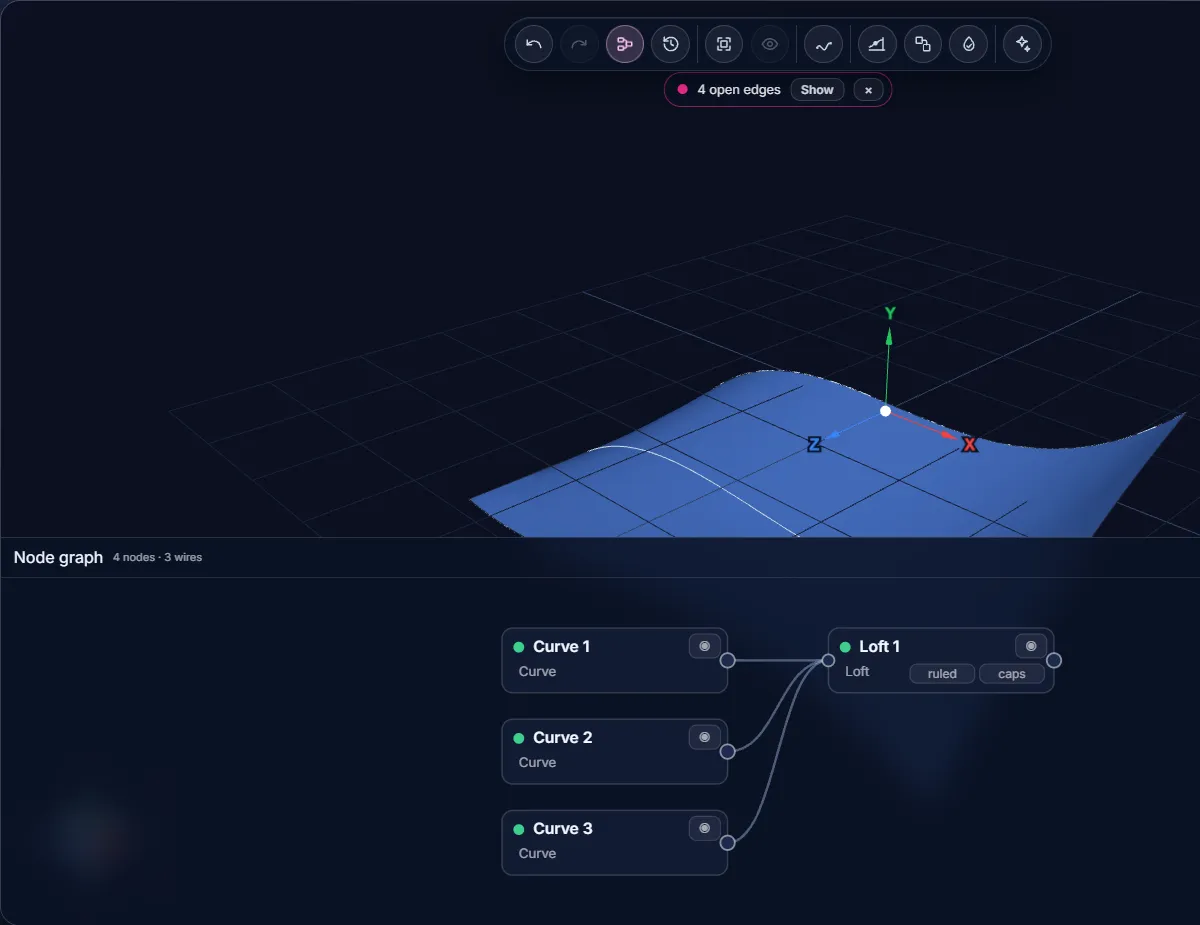
- Each box shows the name, the type of step and a status dot. The eye button hides or shows it. Steps with options, such as Loft, show small switches (ruled, caps) that you can click.
- Click a box to select it. The tree, the 3D view and the graph all follow your selection. Drag a box to move it. Auto layout puts the boxes back, and Fit fits the whole graph in the panel.
- To connect steps, drag from the round port on the right side of a box onto another box. If you had faces or edges selected on the first one, the wire carries just those.
- To remove a connection, click the wire and then Disconnect (or press Delete).
- + Add node adds an empty step you can wire up: Curve, Loft, Fill, Sew, Merge, Solid, Transform or NURBS.
- The panel on the right of the graph edits the selected step: its name, every plain setting, the inputs it uses and, for curves and surfaces, a table of control points.
Everything you do in the graph is a normal step, so it shows up in the History panel and Undo takes it back.
Parametric Kernel editor
STL & Point Clouds
STL files are triangle meshes and PLY files are point clouds, usually from a 3D scanner. Neither has faces or curves of its own. The editor can find them for you.
STL: recognizing features
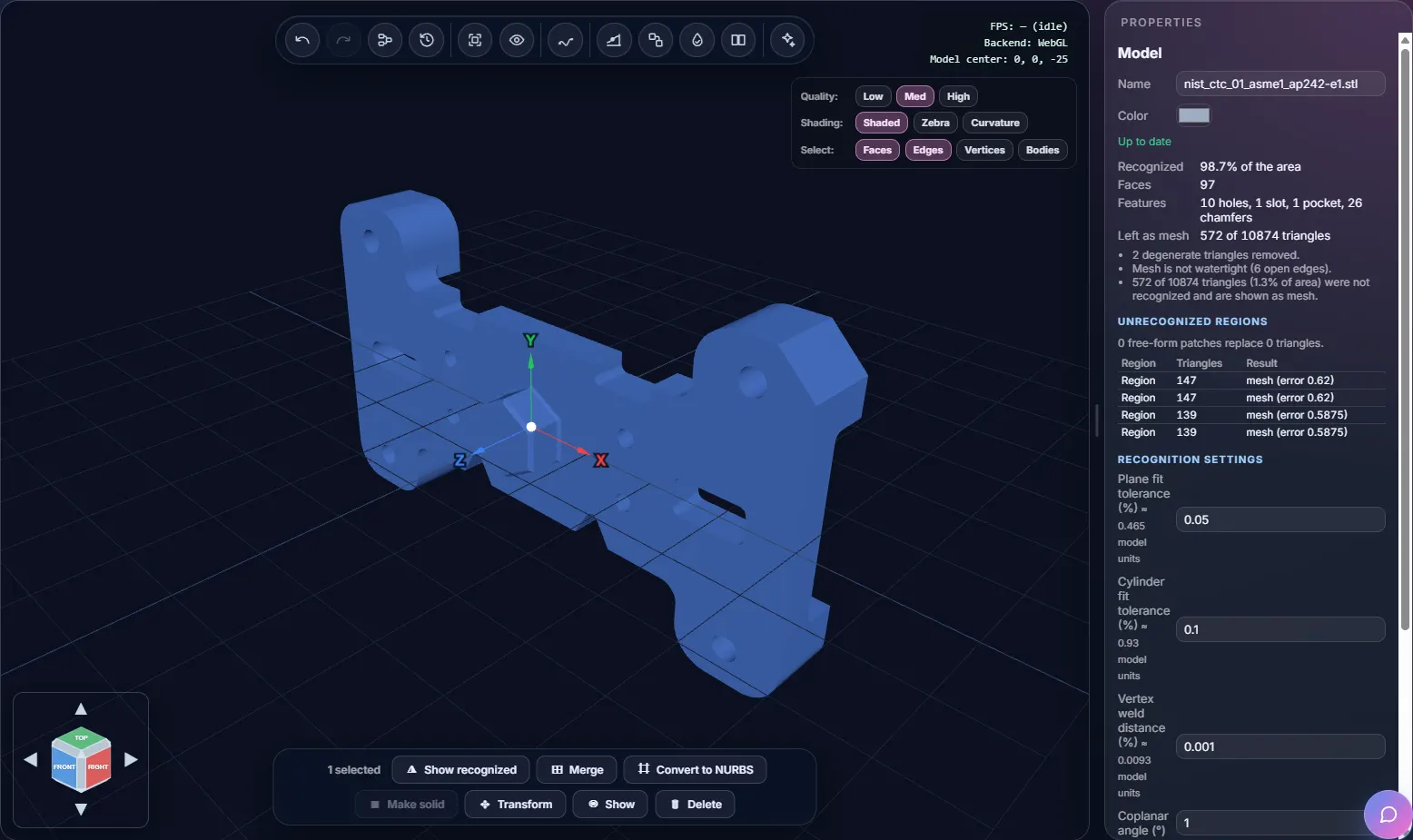
Import an .stl with Local import. Two steps appear in the tree. The
first is the mesh as it was imported, marked (original) and hidden. The second is
the recognized model, where the editor has replaced groups of triangles with real faces:
planes, cylinders, holes, slots, pockets and chamfers. Recognition needs a signed-in
account with a verified email. Without one you get the mesh only, and you can run
Recognize features after you sign in.
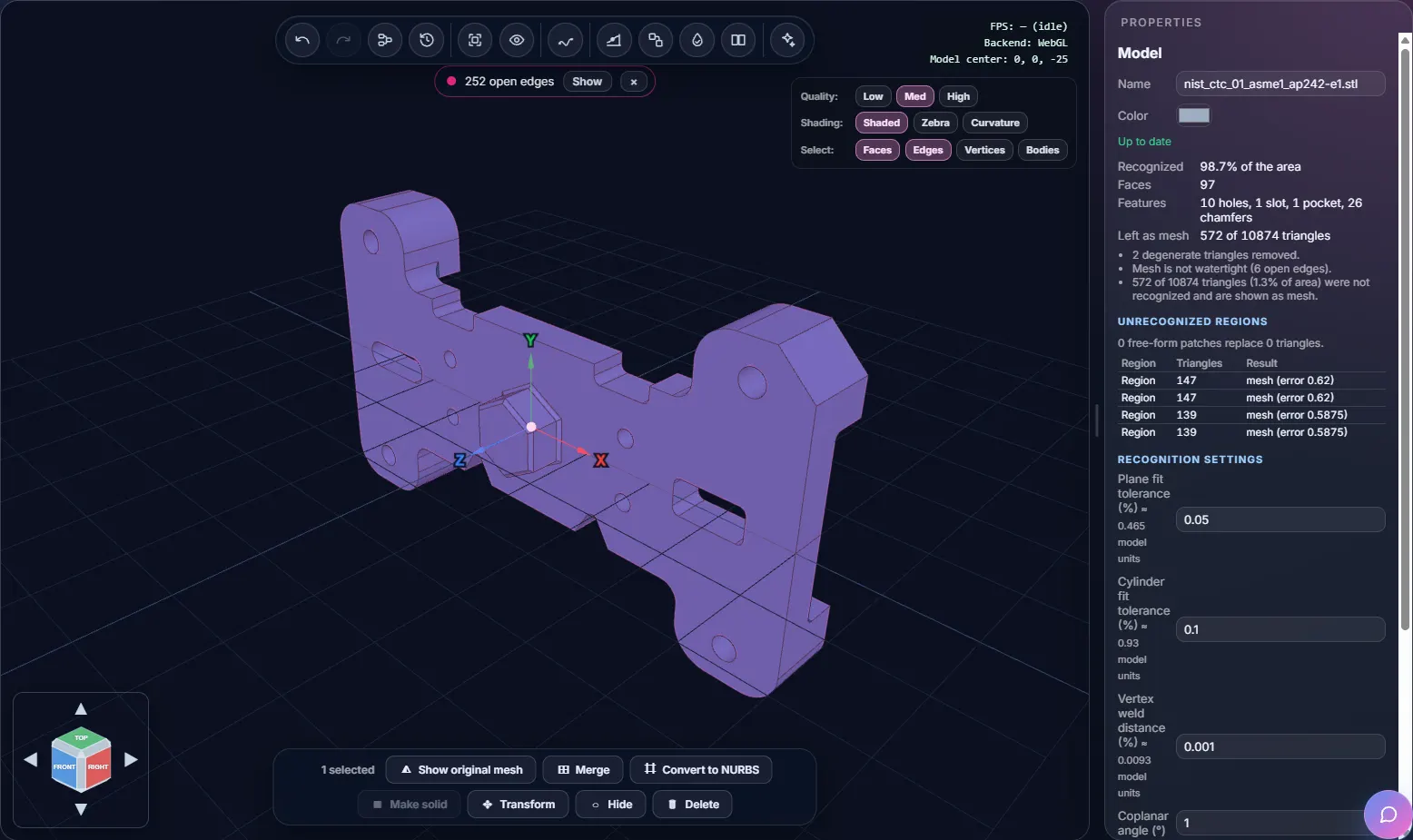
Select the recognized step and the Properties panel shows:
- how much of the surface was recognized, the number of faces and the features found (for the sample: 10 holes, 1 slot, 1 pocket and 26 chamfers);
- how many triangles were left as mesh, with notes about the mesh, such as degenerate triangles or open edges;
- the unrecognized regions, each with its size and what became of it;
- the recognition settings. Change a value and click Re-recognize to run it again. Defaults puts the standard values back. Recognition settings on the STL & Feature Editing page explains each one.
Use Show original mesh in the action bar to compare the recognized model with the mesh, and Show recognized to go back.
The Units box in Settings > Import / Export (and on the mesh step) is only a label. Nothing is rescaled. The recognized faces can then be used like any other face. You can edit holes, convert them to NURBS, merge them or make a solid.
PLY: point clouds
Import a .ply file and the editor looks for flat regions on your device. A
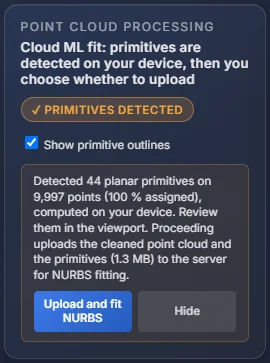
Point Cloud Processing card appears in the left column. It shows how many
planar primitives were found and how many points they cover.
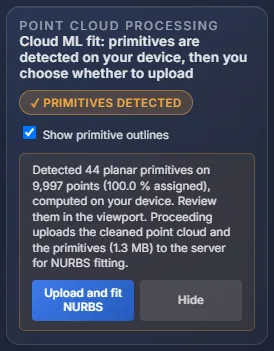
- Show primitive outlines draws the outline of every region in the 3D view.
- Upload and fit NURBS would send the cleaned points to a server to fit NURBS surfaces. That server isn't open to everyone yet. If you click it, the app offers to email you when it is available.
- Hide turns the outlines off.
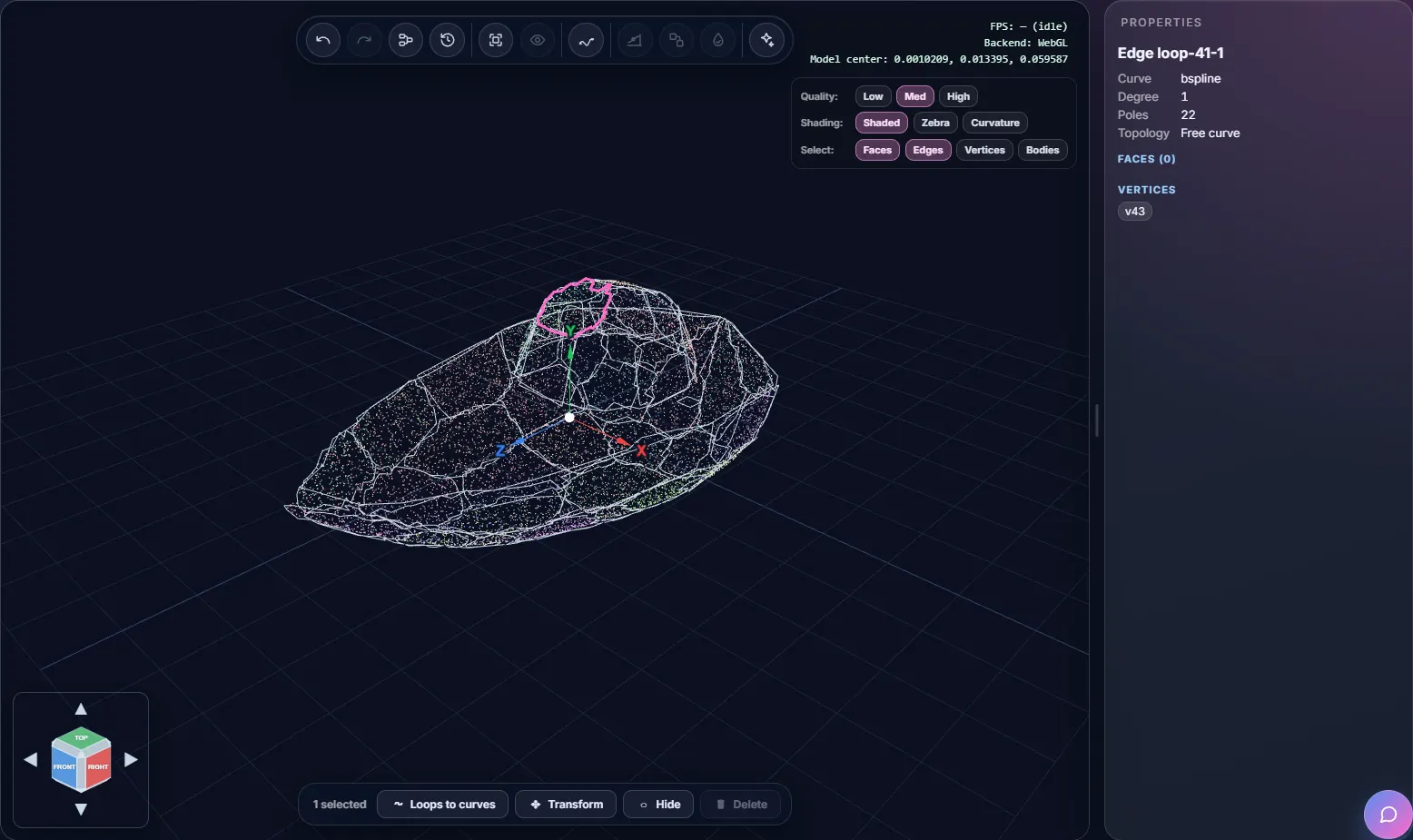
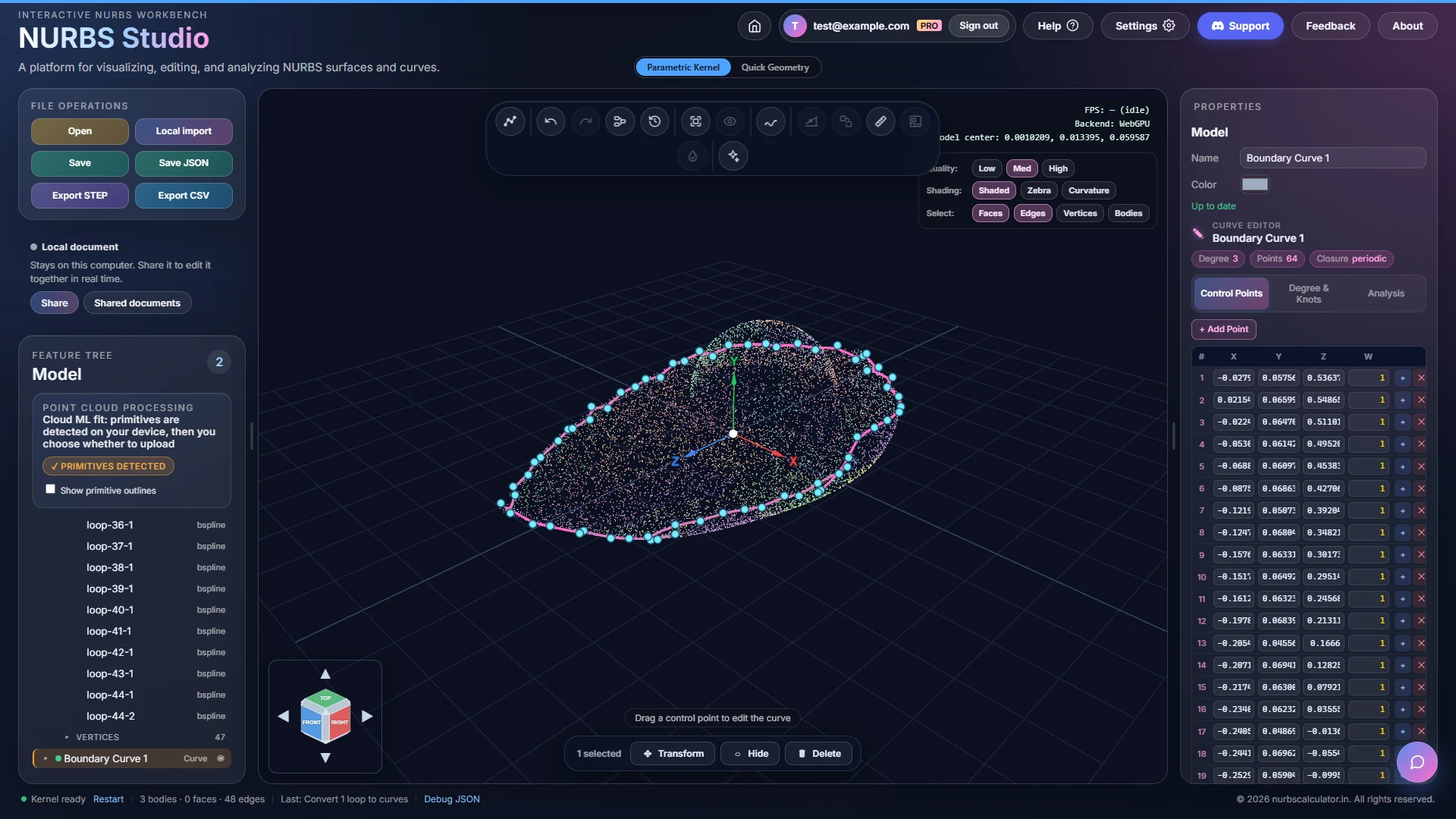
The outlines are edges under the point cloud in the tree (named loop-1-1 and so on). Select a loop in the 3D view. Select several to see Merge loops. Loops to curves turns the selected loops into NURBS curves.
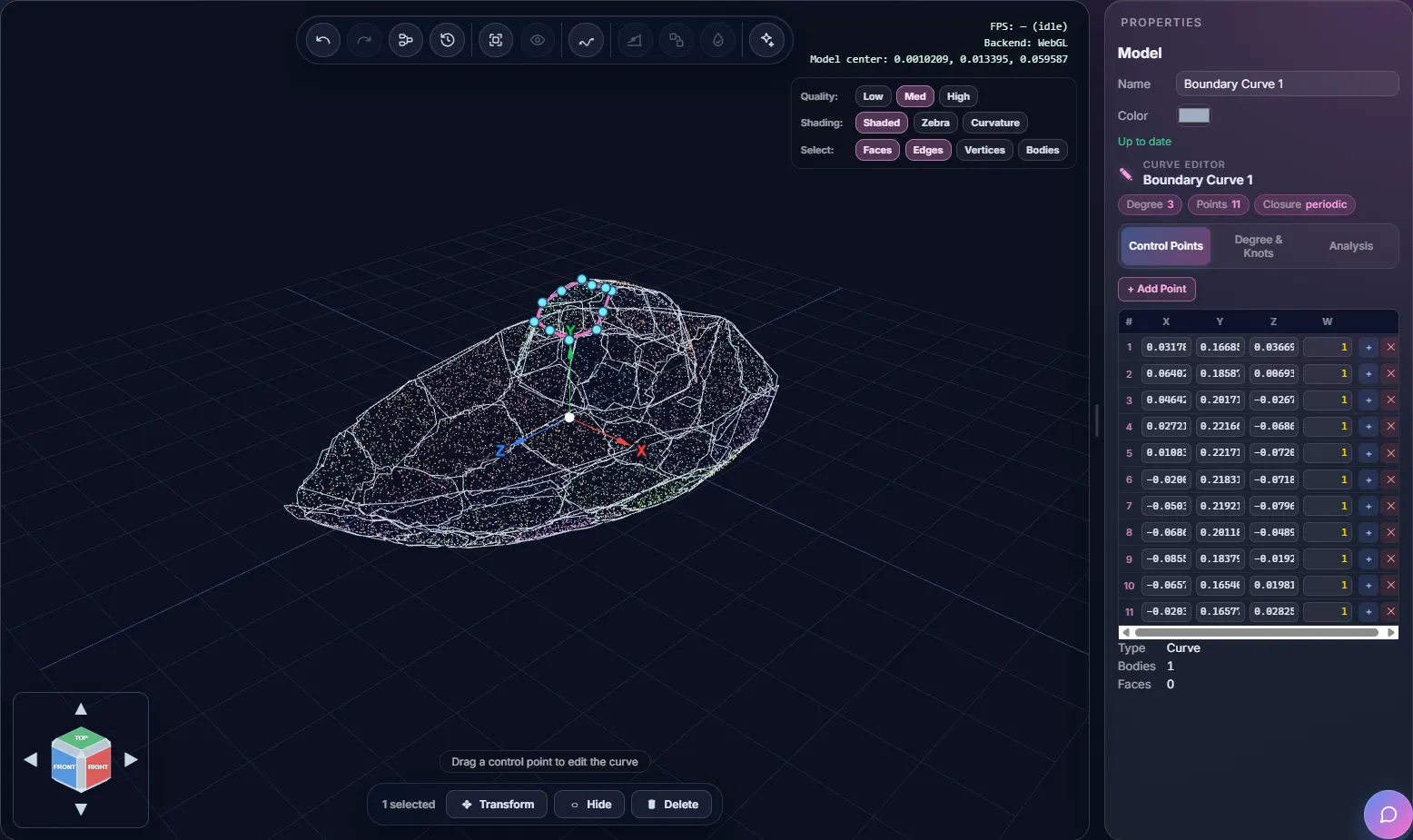
Each new curve is a normal curve step called Boundary Curve. It is closed and periodic, and you can edit its control points like any other curve.
Picking a boundary by hand
The outlines found for you follow the flat regions. If you want a different outline, for example the outer edge of the whole scan, you can trace it yourself.
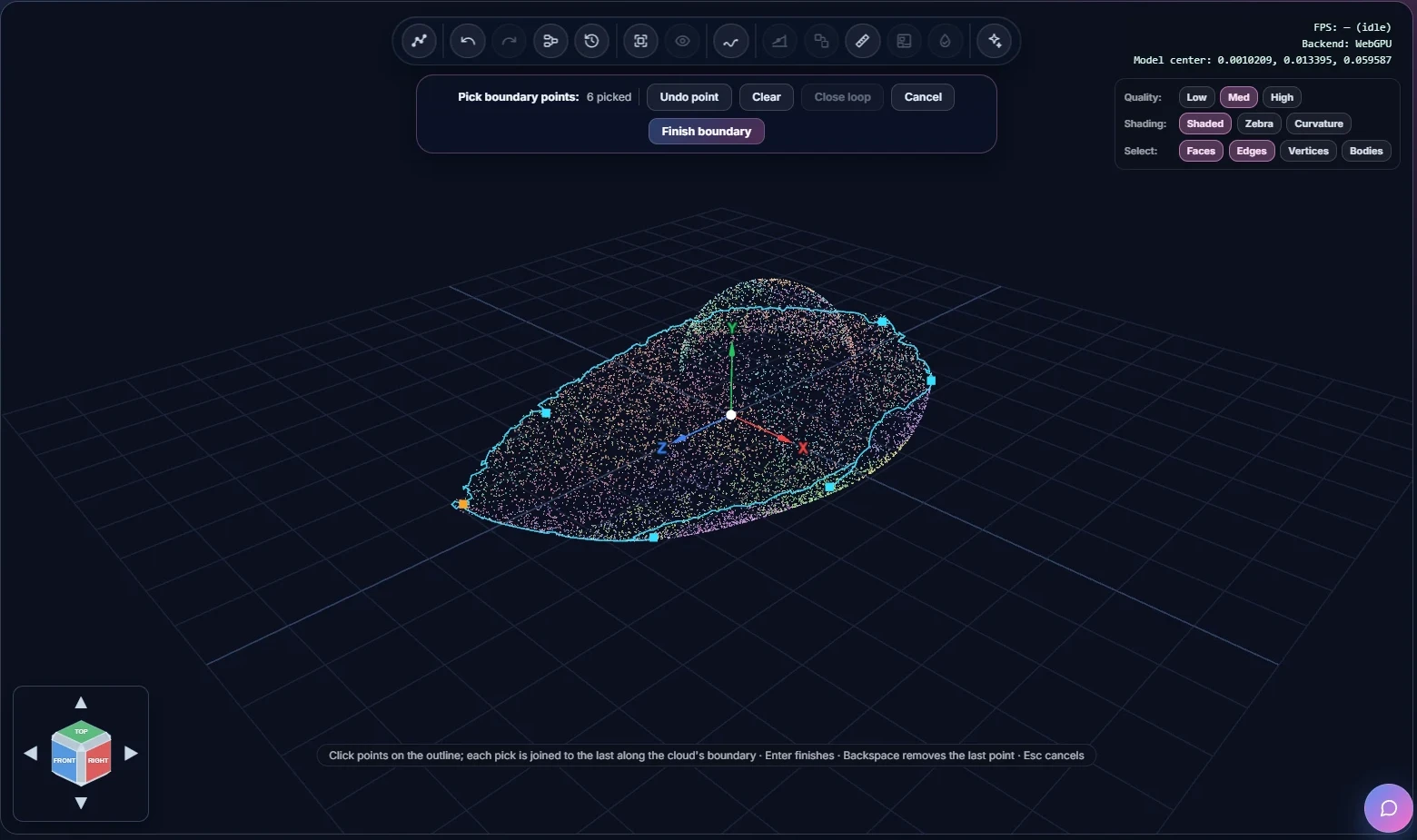
- Click Pick boundary points, the first button in the toolbar. It is there whenever the model has a point cloud. If there are several clouds, select the one you want first. A bar with the picking controls appears under the toolbar.
- Click points on the edge of the cloud. Each click is joined to the one before along the edge of the cloud, so you only need a few clicks, not every point. The first point is orange. The bar shows how many points you have picked.
- To close the outline, click Close loop or click the orange first point again. You need at least 3 points for that.
- Click Finish boundary or press Enter.
Undo point (or Backspace) removes the last point, Clear removes them all, and Cancel (or Esc) stops without adding anything. It can help to untick Show primitive outlines first, so only your own outline is drawn.
The finished outline is added to the cloud as a loop named manual-1 (then manual-2 and so on) and is selected for you. It works like the outlines that were found for you: Loops to curves turns it into a NURBS curve, and you can merge it with other loops. Finishing is one step, so Undo takes it back.
Parametric Kernel editor
Saving & Exporting
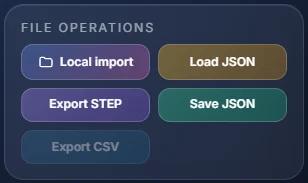
The file buttons are in the File operations card on the left. Hover over any of them to see what it does and what it needs.
Save and Open
- Save (Ctrl+S) writes the whole model, with its history, to an
.ncffile. Open it later and you can carry on where you stopped. - Open (Ctrl+O) reads an
.ncffile, or a.jsonfile saved by either editor. It replaces the model that is open now. A JSON file from the Quick Geometry editor opens as a set of surfaces without any history, and the status bar tells you so. Opening needs no Pro account.
Export
- Export STEP writes the visible surfaces and solids to a STEP file that other CAD programs can read. Hidden steps are left out.
- Save JSON writes the model as a readable JSON file.
- Export CSV writes the points of the selected curve to a CSV file. The button is grey until you select a curve.
Importing curve points (CSV)
Local import also takes .csv (or .txt) files of points
along a curve, such as the file Export CSV writes, and you can drop them on the 3D view. Each file
becomes a new cubic curve fitted to its points, named from the file. A curve exported with its
generated knots comes back with its own control points; any other point list gets as few control
points as keep the curve within a hair of every point. The status bar shows how many control points
were used and the largest distance from the points. Rows can be index,x,y,z,
x,y,z or x,y, separated by commas, semicolons, tabs or spaces. A first
row with names, such as x,y,z, is fine. Importing needs no Pro account.
A small file looks like this:
x,y,z
-594.9545,-553.7719,0.0000
-594.2054,-554.4675,7.7646
-592.0091,-556.5067,15.0000
...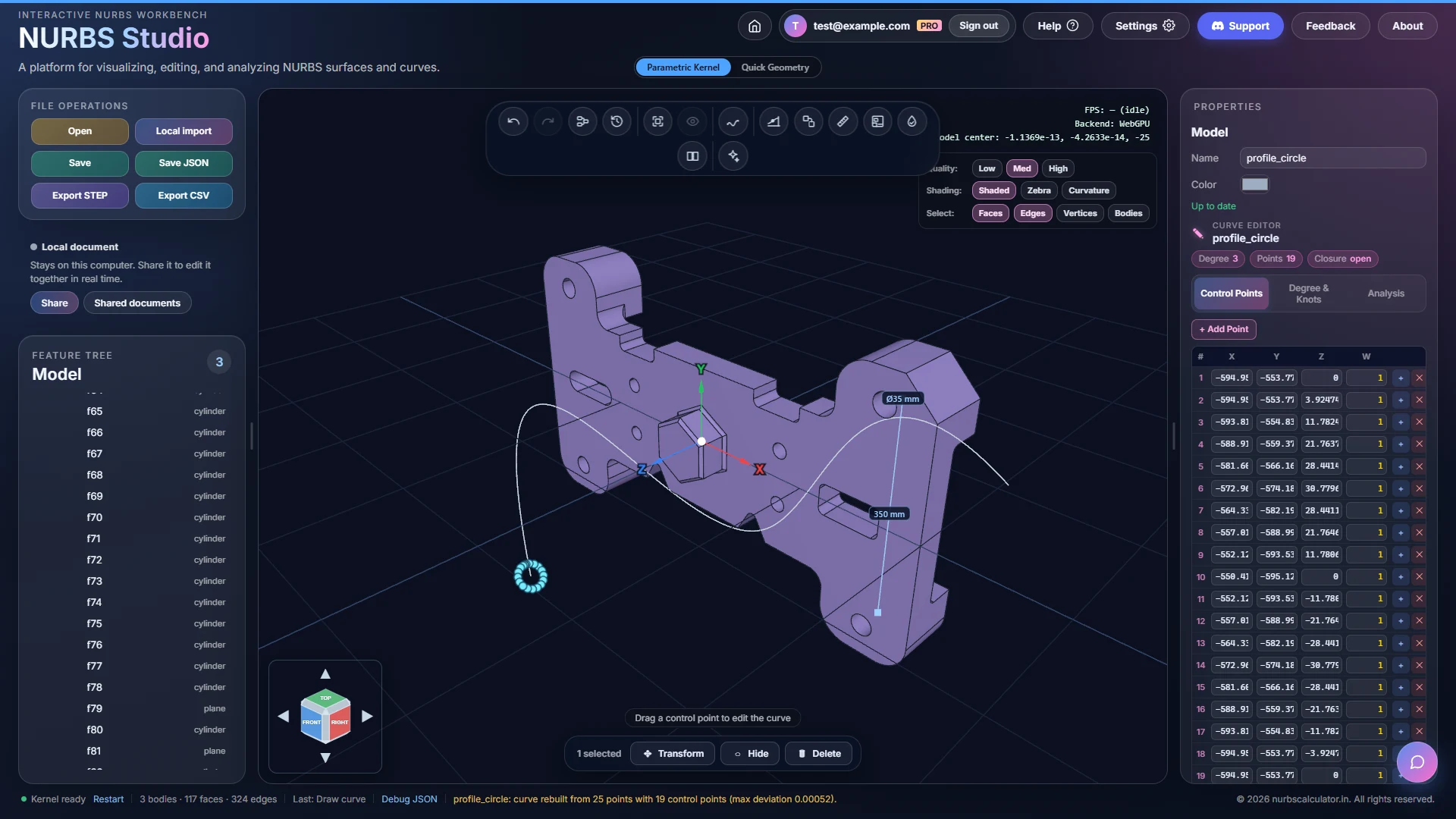
The new curve is a normal curve step. You can edit its control points, use it in a loft, or use it as the profile of a sweep, as on the Curves & Surfaces page.
Keeping the original STEP file
Open Settings and go to the Import / Export tab. Tick Embed original STEP when saving and Save also stores the STEP file you imported. The settings window tells you how much that adds to the file. Then, with the imported step selected, Export original STEP gives you the untouched file back and Re-import original STEP converts it again with the current importer, as one change you can undo.
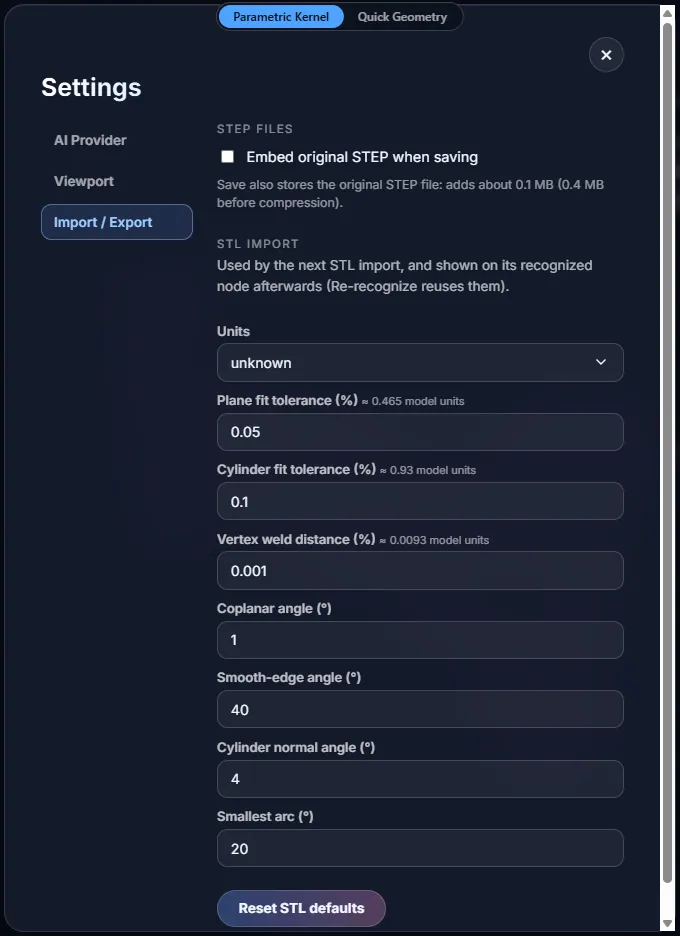
The same tab holds the STL import settings: the units and the recognition tolerances. They are used by the next STL import. Reset STL defaults puts them back.
For checking a file by hand
The Debug JSON link in the status bar (Ctrl+Shift+E) saves the model as a text file with all its data written out, which is handy for reading or comparing two models.
Parametric Kernel editor
Collaboration
Share a model and work on it together with other people at the same time. Everyone sees each change as it is made, who else is in the document and what they are looking at. You can leave comments on faces and edges, and save named versions to go back to.
A model you open or import is a Local document: it stays on your computer. The card under the file buttons says so. Once you share it, the card shows the shared document instead.
Sharing a model
- Sign in. Sharing needs an account.
- Open or import the model, and wait until the status bar says Kernel ready.
- Click Share in the card on the left.
- Give the document a name and click Upload and share.
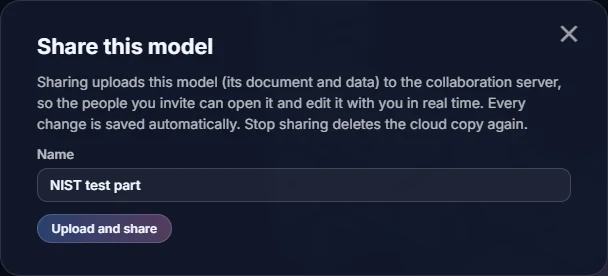
The model and its data are uploaded to the collaboration server. From then on every change is saved there as you make it, so there is nothing to save by hand. The card shows Shared · saved, or Saving… while a change is on its way. You are the Owner of the document.
Inviting people
Click Share settings in the card. Type an email address, pick what that person may do, and click Invite. They see the document in their Shared documents list once they sign in with that address, with the email verified.

There are three roles besides the owner:
- Can edit: change the model, comment and save versions.
- Can comment: look at the model and add comments, but not change it.
- Can view: look at the model and read the comments.
Under People with access you can change someone's role or Remove them. An invite that is not used yet can be cancelled with Cancel.
Sharing a link
Instead of inviting people one by one, you can make a link. Create view link makes a link that opens the document read-only, even for people who are not signed in. Create edit link makes a link that lets people edit, after they sign in. Copy puts a link on the clipboard. Revoke turns it off and removes the people who joined through it.
Copy link in the card copies a plain link to the document. It only opens for people who already have access.
Opening a shared document
Click Shared documents (or Documents when a shared document is open). The list has two groups: Shared by me and Shared with me. Each row shows the owner, your role and when it last changed. Click Open to open it. Owners and editors can also Rename it.
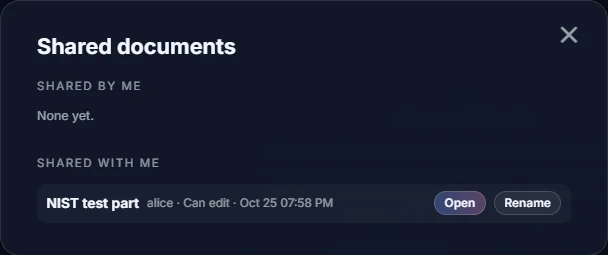
Working together
Each person in the document gets a round badge with their initials in the card, in their own colour. You are the blue You badge. What the others select is drawn in their colour in the 3D view, and the tree shows a dot on the rows they are working on. If you select the same thing, the Properties panel says who else is looking at it or editing it.
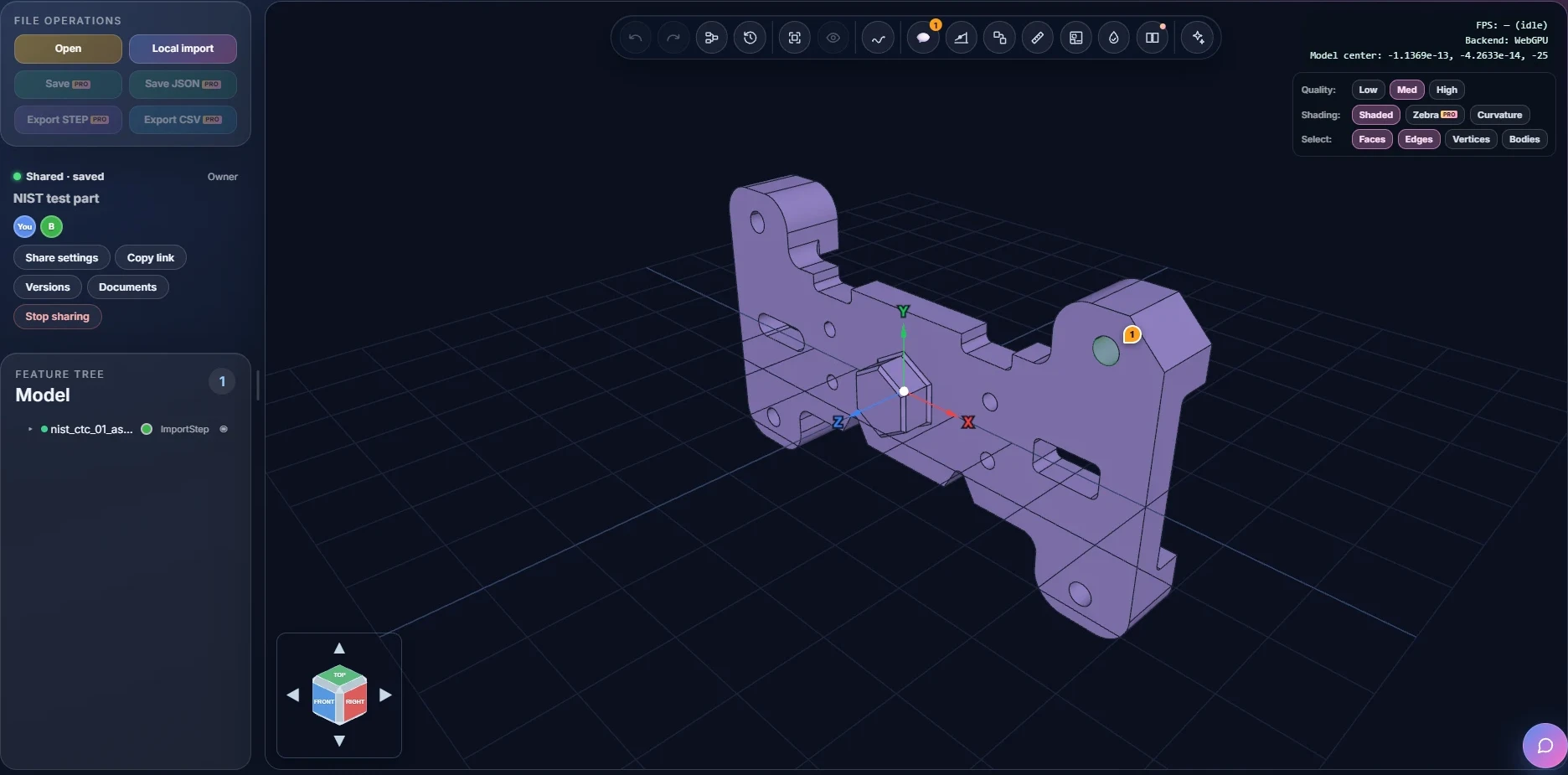
- Click someone's badge to follow them: your view moves with theirs. Click it again, or turn the view yourself, to stop.
- Undo only takes back your own changes, never someone else's.
- If you lose the connection, the card says Offline and counts the changes that are waiting. You can keep working. The changes are sent when the connection is back. With too many waiting changes, editing pauses until then.
- When the owner has Pro, everyone who can edit or comment can use the Pro steps in that document, even without Pro of their own. If a Pro step cannot be built on your side, you see it as another member last built it, and the card says so.
Comments
In a shared document a 💬 Comments button appears in the toolbar, with the number of open comments. Click it to open the Comments panel on the right.
- Select the face, edge or step you want to talk about. The comment box says what the comment will be attached to.
- Type your comment and click Comment, or press Ctrl+Enter.
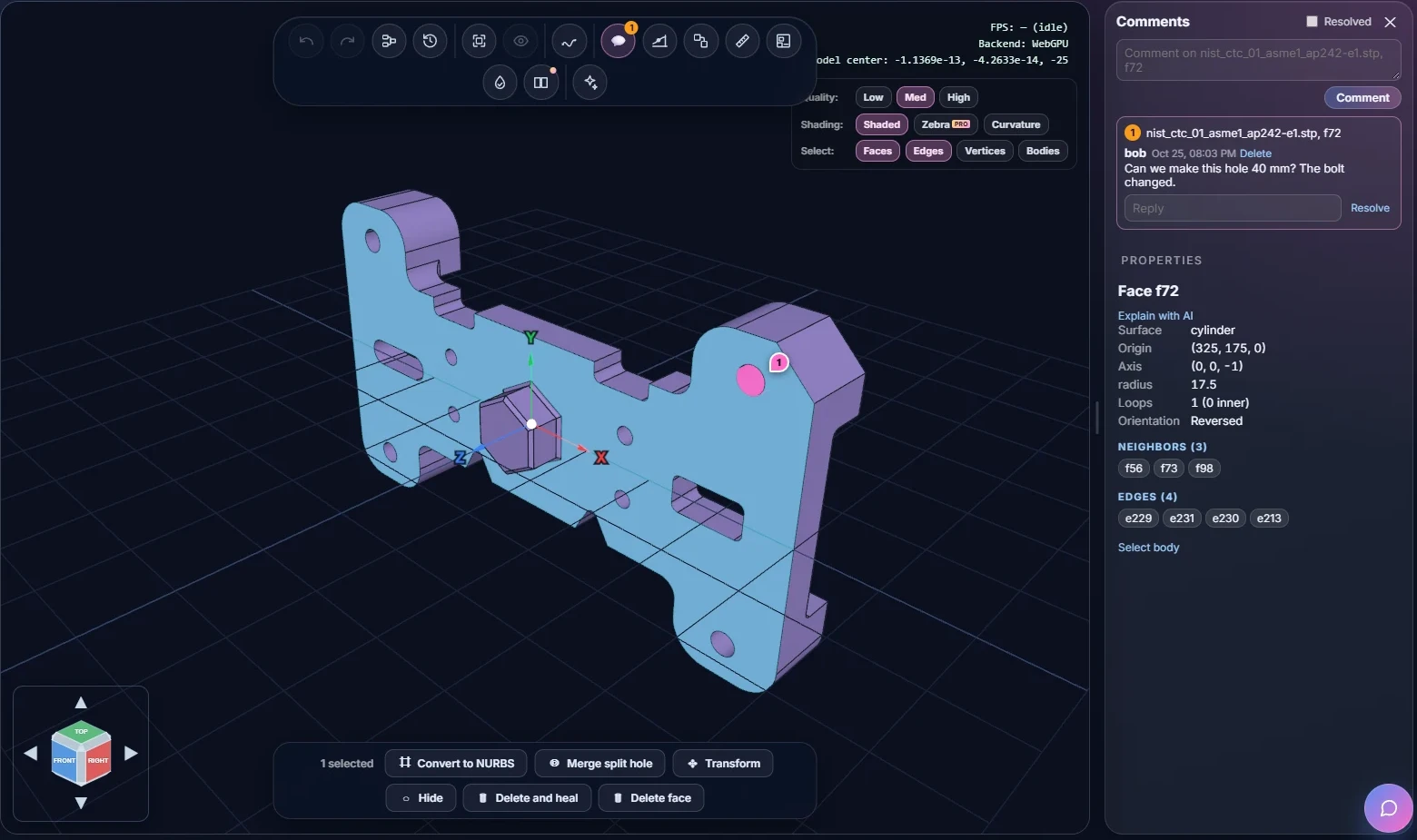
- Each comment gets a numbered pin in the 3D view. Click a comment in the list to jump to what it is attached to.
- Type in the Reply box and press Enter to answer.
- Resolve marks a thread as done and Reopen opens it again. Tick Resolved at the top of the panel to show resolved threads.
- You can delete your own comments. The owner can delete any comment.
- If the face or edge a comment is attached to is removed, the comment is kept and marked detached.
People who can only view the document can read the comments but not add any.
Versions
Click Versions in the card. Type a name and click Save version to give the document as it is now a name, for example before a bigger change.
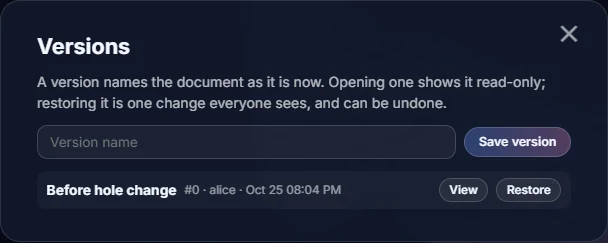
- View shows that version read-only, without changing the document.
- Restore puts the document back to that version. It is one change that everyone sees, and Undo takes it back.
Saving and restoring versions needs the Can edit role or Owner.
Leaving and stopping
- Leave (for invited people) closes the shared document here. It stays open as a local copy, and your changes are no longer shared.
- Stop sharing (for the owner) deletes the cloud copy, with its history, versions and comments, for everyone. The app asks first. The model stays open on your computer as a local document. You can also stop sharing a document from the Shared documents list.
Quick Geometry editor
Quick Start
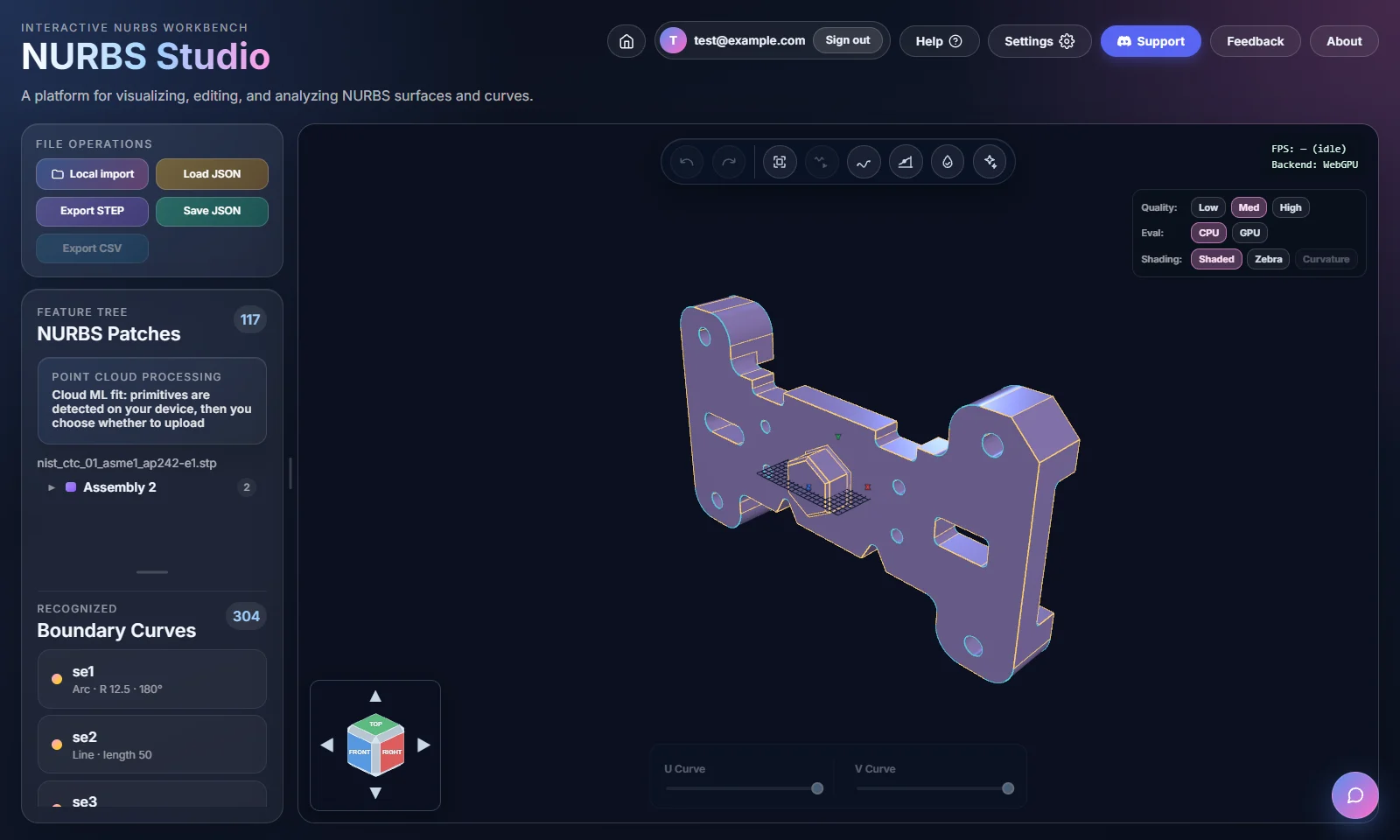
This page is for the Quick Geometry editor. There are two ways to start. You can bring in a model you already have (a STEP, STL or PLY file), or you can sketch a curve and build from there. This page covers both.
Importing a file
- Click Local import in the header and pick a file. The app looks at
the extension and handles each type in its own way:
.step/.stp: every face becomes an editable NURBS patch. You don't need to sign in for this..stl: the mesh goes through feature recognition (see STL & Feature Editing)..ply: the point cloud is split into flat regions (see Point Clouds (PLY)).
- The file is read in your browser and is not uploaded anywhere.
- The patches show up in the feature tree on the left and in the 3D viewport in the middle. Click one, in either place, to select it and open its editor on the right.
- A water-tight check runs on the new model by itself and tells you if there are any gaps between surfaces (see Water-tight & Sewing).
If you're wondering whether a STEP import changes your geometry: it doesn't. The File Formats tab explains why.
Sketching your first curve
- Click Create Curve in the viewport toolbar. You need to be signed in with a verified email for this (see Accounts & Tiers).
- Pick a sketch plane (XY, YZ or ZX), then click in the viewport to place control points, one click per point.
- Click Finish Curve once you have at least 2 points. Undo Point takes back the last point and Cancel throws the sketch away.
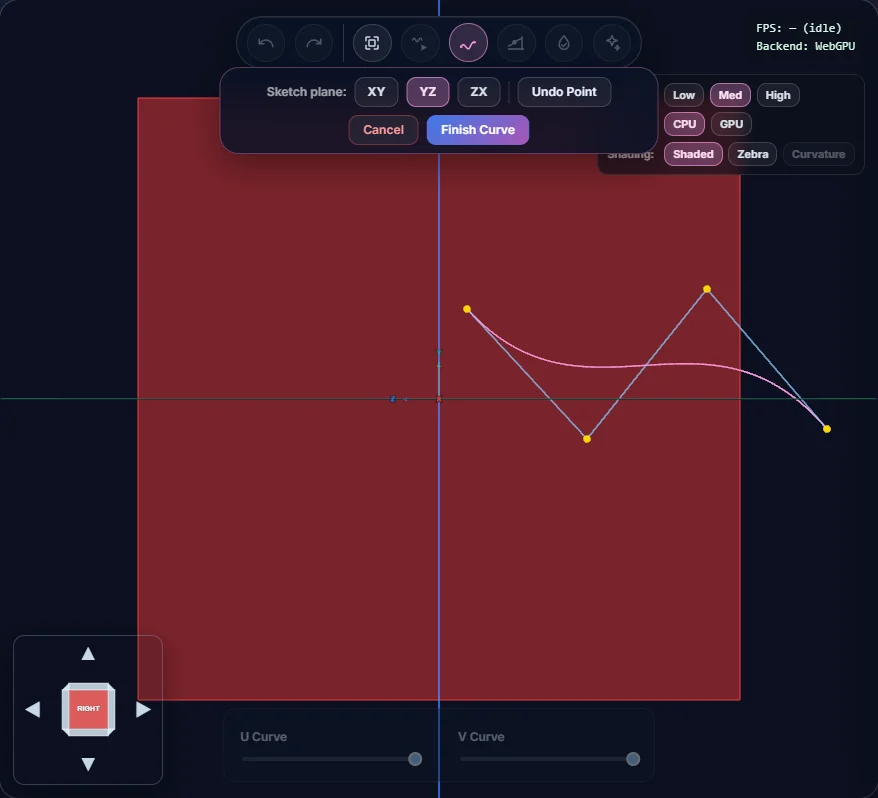
After that you can change the curve's degree, its knot vector and any of its control points. With 2 or more curves you can build a surface (Loft or Fill Boundary). Curves In Depth explains the derivative, Frenet and curvature comb readouts, and Surfaces In Depth covers building surfaces from curves.
Finding your way around
The feature tree follows your selection. Click a patch or a control point in the viewport and the tree scrolls to it and highlights it, so you don't have to hunt for it in a long list. It works the other way round too: click a row in the tree and the matching geometry lights up in the viewport.
Foundations
NURBS Basics
NURBS stands for Non-Uniform Rational B-Spline. Nearly every CAD package uses it to describe curves and surfaces exactly. A NURBS surface is a smooth mathematical function you can evaluate at any point, rather than a mesh of flat triangles. This page goes through what each part of it means.
Control points
A NURBS curve or surface is shaped by a set of control points. The curve usually doesn't pass through them. It is pulled towards them instead. In the "clamped" curves this app uses, the first and last points are the only ones the curve always touches.
Degree
The degree sets how many neighbouring control points affect each point on the curve, and how smoothly the curve can bend.
- Degree 1: straight lines between the control points, with a sharp corner at each one.
- Degree 2: smooth, though a curvature comb can still show small facets if you look closely.
- Degree 3 (cubic): the usual choice for CAD surfaces. Even the curvature changes smoothly, so the comb has no kinks. Most surfaces in this app default to cubic for that reason.
Knot vectors
This is the part people usually find confusing. A knot vector is a list of numbers that never decreases. It says where along the curve's parameter each control point's influence starts and stops.
A clamped knot vector, which is what this app always creates, repeats
its first and last values degree + 1 times. That repetition is what forces
the curve to touch its first and last control points exactly.
pole count + degree + 1 knots. Changing one without the others gives
an invalid curve, so the Knot Vectors panel checks the length, the order and the end
multiplicity before it accepts an edit.
Weights (the "Rational" in NURBS)
Each control point also has a weight. A weight above 1 pulls the curve harder towards that point, and a weight below 1 lets it drift further away. If every weight is 1 you have an ordinary (non-rational) B-spline.
Weights matter because a plain polynomial curve can only get close to a circle or an ellipse. With the right weights, a rational curve can describe them exactly. In CAD a circle has to actually be a circle, so this is important.
The parametric domain (u, and u/v)
A curve is a function of one parameter, usually called u. Give it a value
and it returns a 3D point, C(u). A surface has two parameters,
S(u, v). The U and V sliders in the viewport move along these parameters.
They measure position in the curve's own numbering, not physical distance. Two points
that are the same parameter distance apart can be very different distances apart in 3D,
depending on how the curve speeds up or slows down there.
Continuity (G0 / G1 / G2)
Where two curves or surface edges meet, the join can be smooth to different degrees:
- G0: the positions match, so there's no gap. There can still be a crease, like two sticks glued end to end at an angle.
- G1: the positions and the tangent directions match. There's no crease, but the amount of bending can still jump, and that shows up as a kink in reflections.
- G2: position, tangent and curvature all match. This is what Class-A automotive and product surfaces aim for, and the seam can't be seen even with zebra stripes.
The Continuity & Merging and Surfaces In Depth tabs show how the app measures and displays each level.
Quick Geometry editor
Curves In Depth
The ideas on this page (derivatives, curvature, the Frenet frame, knots and basis functions) apply to both editors. The buttons and panels it describes are the ones in the Quick Geometry editor. The same curve tools in the Parametric Kernel editor are covered on the Curves & Surfaces page.
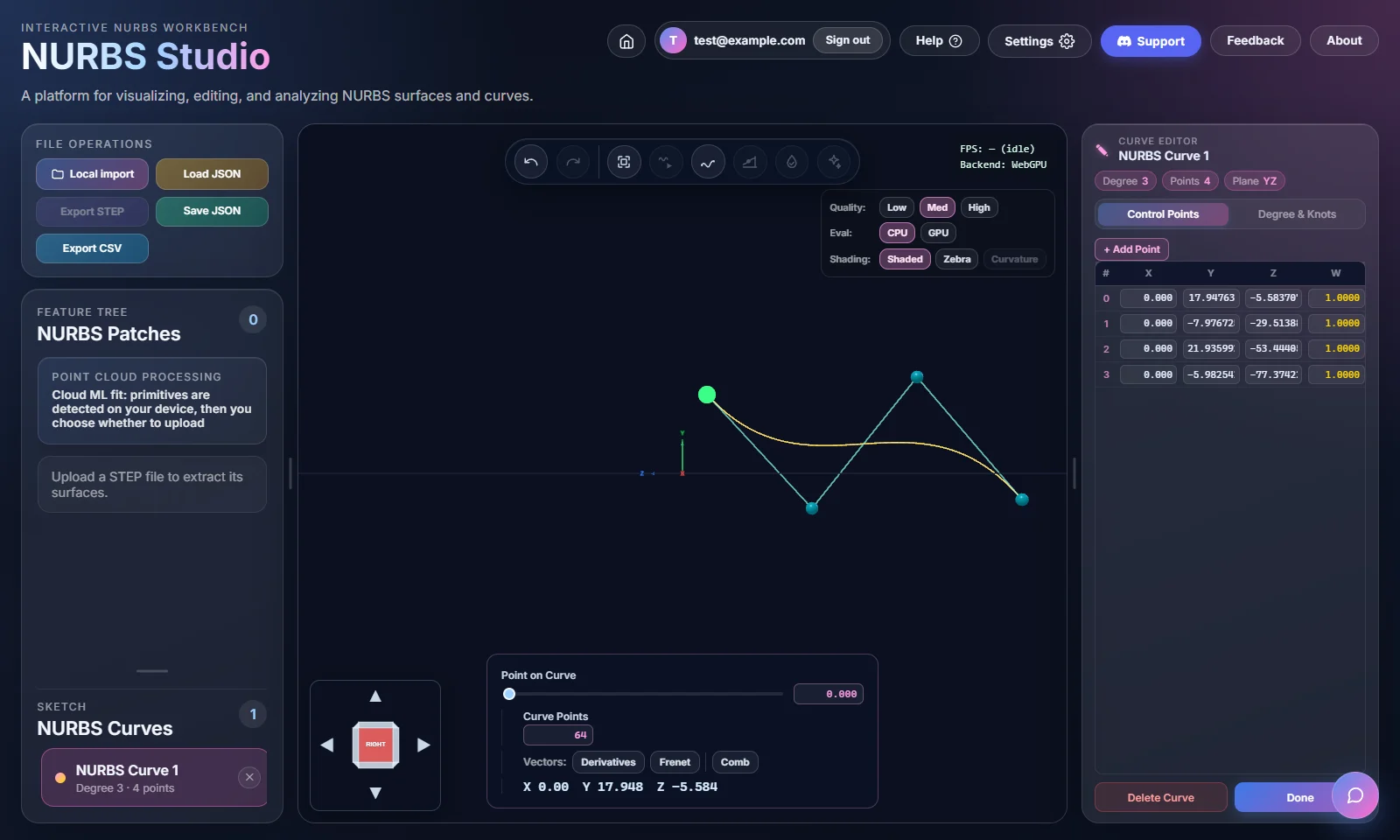
With a curve selected, the Point on Curve slider in the bottom panel has three toggles: Raw, Frenet and Comb. Each one tells you something different about the curve at that point.
Creating and editing curves
- Click Create Curve in the viewport toolbar (you need to be signed in) and pick a sketch plane: XY, YZ or ZX.
- Click in the viewport to place control points one at a time. Undo Point removes the last one and Finish Curve (2 or more points) saves the curve.
- While you sketch, or afterwards, the editor panel on the right lets you change the degree, edit the knot vector, and move or delete individual control points.
- Select 2 or more finished curves with Ctrl/Cmd/Shift-click. You can then Loft a surface through them in order, or use Fill Boundary to make a Coons patch bounded by 2 to 4 curves. See the Surfaces tab.
Closed & periodic curves
Every curve you sketch starts as Open. Its start and end points are separate and have nothing to do with each other. Once the curve is finished, the Degree & Knots tab of the curve editor offers two more options:
- Closed: the end point is moved to meet the start point, and that's all. You may still see a corner at the seam, the same way you can at a G0 join between two curves (NURBS Basics explains G0).
- Periodic: closed and smooth. Position, tangent and curvature all carry on through the seam, so there's no kink. Periodic includes everything Closed does and adds smoothness on top.
Periodic needs at least degree + 1 control points. Until you have that many
the button stays disabled, and its tooltip says why. When you switch to Periodic, the app
copies your first degree control points to the end of the list as hidden
mirror points and builds a uniform, unclamped knot vector to match. The Control Points
table shows these mirror points greyed out because you can't edit them yourself. When you
drag or type a new value for one of your own points, its mirror updates straight away.
You can't add or remove control points while Periodic is on. Switch back to Open, change
the number of points, and then turn Periodic on again.
Switching a curve between Open, Closed and Periodic.
Derivatives Raw
Imagine a particle moving along the curve as u goes from 0 to 1. The
first derivative, C′(u), is its velocity: a vector pointing
the way it's moving, whose length is how fast it's moving through parameter space. The
second derivative, C″(u), is its acceleration, meaning how
quickly the direction of travel is changing.
C′ is your speed and the direction your car is
pointing right now. C″ is how hard you're turning the wheel. It's zero on a
straight road and large on a hairpin bend.
Curvature (κ)
Curvature puts both derivatives together into one number for how sharply the curve bends at a point, regardless of how fast you're moving along it:
κ = |C′ × C″| / |C′|³
A straight line has κ = 0 everywhere and a tight corner has a large κ. A
circle of radius r has a constant κ = 1/r, so bigger circles
bend more gently and have a smaller κ.
The curvature comb Comb
The comb draws a short line at right angles to the curve at many points along it. The length of each line is proportional to κ at that point. Surface designers rely on it because it shows problems you'd miss by eye:
- If the outline of the comb rises and falls smoothly, the curvature changes smoothly and the curve is good "Class-A" quality.
- Sudden spikes, a flat stretch followed by a jump, or lines that flip sides on a curve that looks smooth all point to a real quality problem.
The Frenet frame Frenet
At any point on a curve, three vectors at right angles to each other describe which way it's facing:
- T (Tangent): the direction of travel, the same as
C′. - N (Normal): points to the inside of the bend, the way the curve is turning.
- B (Binormal): at right angles to both T and N (
T × N). Together with T and N it fixes the plane the curve is bending in at that moment.
Knot vector span view
This overlay puts a marker on the curve at every distinct knot value, which splits the curve into its spans. A span is the stretch between one knot and the next, and each one is a single polynomial piece (NURBS Basics explains knot vectors). A repeated knot, like the clamped ends that every curve in this app has, gets one marker. What you want to see is where each span starts, not how many times a value repeats.
Basis function view
Each control point Pi has its own basis function,
Ni,p(u). It's a curve plotted against the same u as
the main curve, and it shows how strongly that control point pulls at each point along
the curve. This view plots all of them on one graph, one line per control point, across
the whole range from 0 to 1.
- A basis function is zero outside its own span range. This is how "local support" (see NURBS Basics) works, and here you can actually see it.
- At any
u, exactlydegree + 1basis functions overlap. The curve at that point is a blend of those control points and no others, which is why dragging a far-away control point never moves that part of the curve. - At every
uthe active basis functions add up to exactly 1. This is called the partition of unity, and it means the blend is always a proper weighted average that never overshoots.
Turning on knot span markers and the basis function plot while dragging a control point.
Quick Geometry editor
Surfaces In Depth
The ideas on this page (normals, tangent planes, curvature and zebra stripes) apply to both editors. The buttons and panels it describes are the ones in the Quick Geometry editor. The same checks in the Parametric Kernel editor are covered on the Checking & Repairing page.
A NURBS surface takes everything from the Curves tab into two dimensions. Instead of a row of control points you have a grid, with its own degree and knot vector in the U direction and in the V direction.
Editing a patch
When you select a patch, every control point gets a gold sphere and a cyan net joins them up. Drag a sphere and the surface reshapes as you go. The editor panel on the right also has a scrolling table of every pole's X, Y, Z and weight, and a Knot Vectors tab for the U and V knots. These are checked the same way as curve knots: right length, never decreasing, and the right multiplicity at the ends.
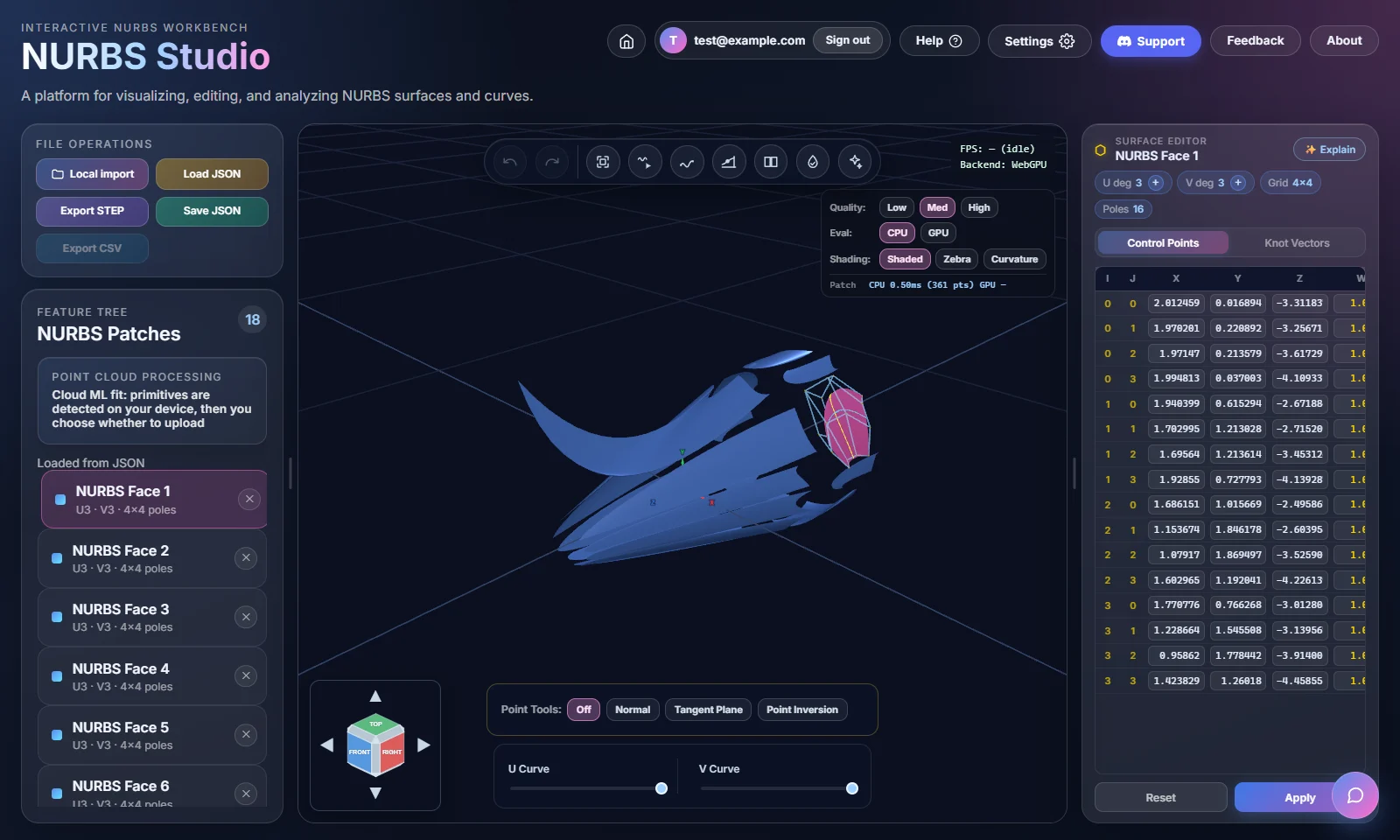
Surface normal Normal
At any (u, v) point, the surface normal is the vector at right angles to the surface, the direction it faces. Light reflects around it when the surface is shaded, a 3-axis mill plunges its cutter along it, and you'd offset along it to make the surface thicker or thinner.
Tangent plane Tangent Plane
The tangent plane at a point is the flat plane that best matches the
surface there. It's spanned by the two partial derivatives, ∂S/∂u and
∂S/∂v, which are the surface version of a curve's C′. The
surface normal is the vector at right angles to this plane.
Point inversion Point Inversion
The other tools on this page start with a (u, v) and find where it is in 3D.
Point inversion works the other way: you give it any 3D point and it
finds the closest (u, v) on the surface. This is how a click near a surface
can snap to the nearest point on it. The app has to turn your click into a parameter
first.
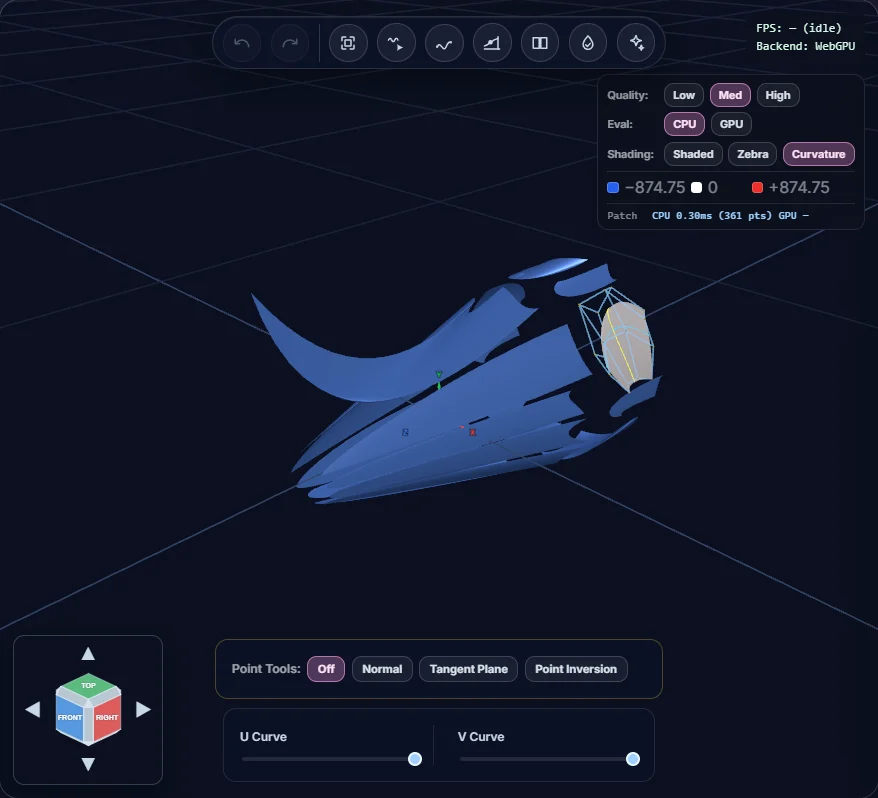
Curvature heatmap Curvature
This is the κ idea from curves applied to surfaces. A surface curves in two directions at every point, and the heatmap combines them into one value and colours the surface by it. That makes pinches, fillets that are too tight, flat spots and saddle shapes easy to spot, where plain shading would hide them.
Zebra-stripe analysis Zebra
Zebra stripes paint a repeating pattern of stripes on the surface as if it were reflecting them, much like a paint shop checks a car panel under strip lights. There are no numbers to read. You just look:
- A stripe that bends smoothly across the seam between two patches means G1 or better.
- A stripe that kinks or changes angle at the seam means G0 only: the positions meet but the tangents don't.
- A stripe that keeps its direction but changes width or spacing at the seam means G1 but not G2, because the curvature changes there.
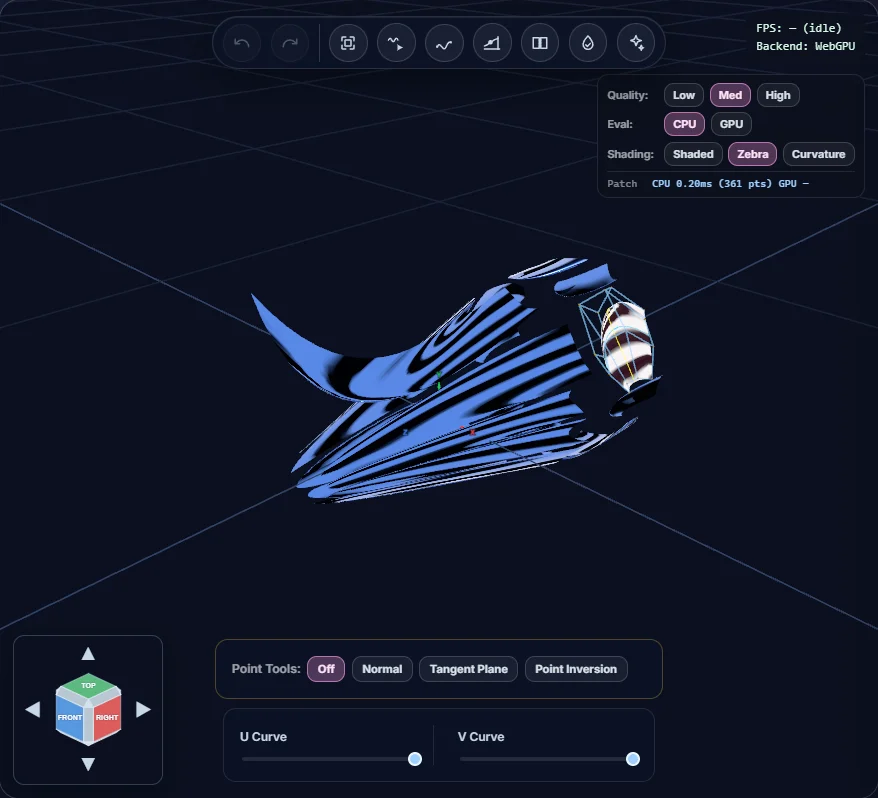
Zebra stripes bending smoothly across a G1 seam and kinking across a G0 one.
Building a surface from curves
- Loft Surface makes a surface through 2 or more selected curves, in the order you selected them. If every selected curve is closed, a Cap ends option adds a flat cap at each end so you get a closed shell.
- Fill Boundary makes a Coons patch bounded by 2 to 4 selected curves.
Selecting curves in order, then trying Loft Surface and Fill Boundary.
Quick Geometry editor
Continuity & Merging
The Continuity panel
The panel looks at every edge that two patches share and marks it as G0 or G1 (the NURBS Basics tab explains these). You can filter the list and elevate one pair, or a whole batch, from G0 to G1 right there in the app.
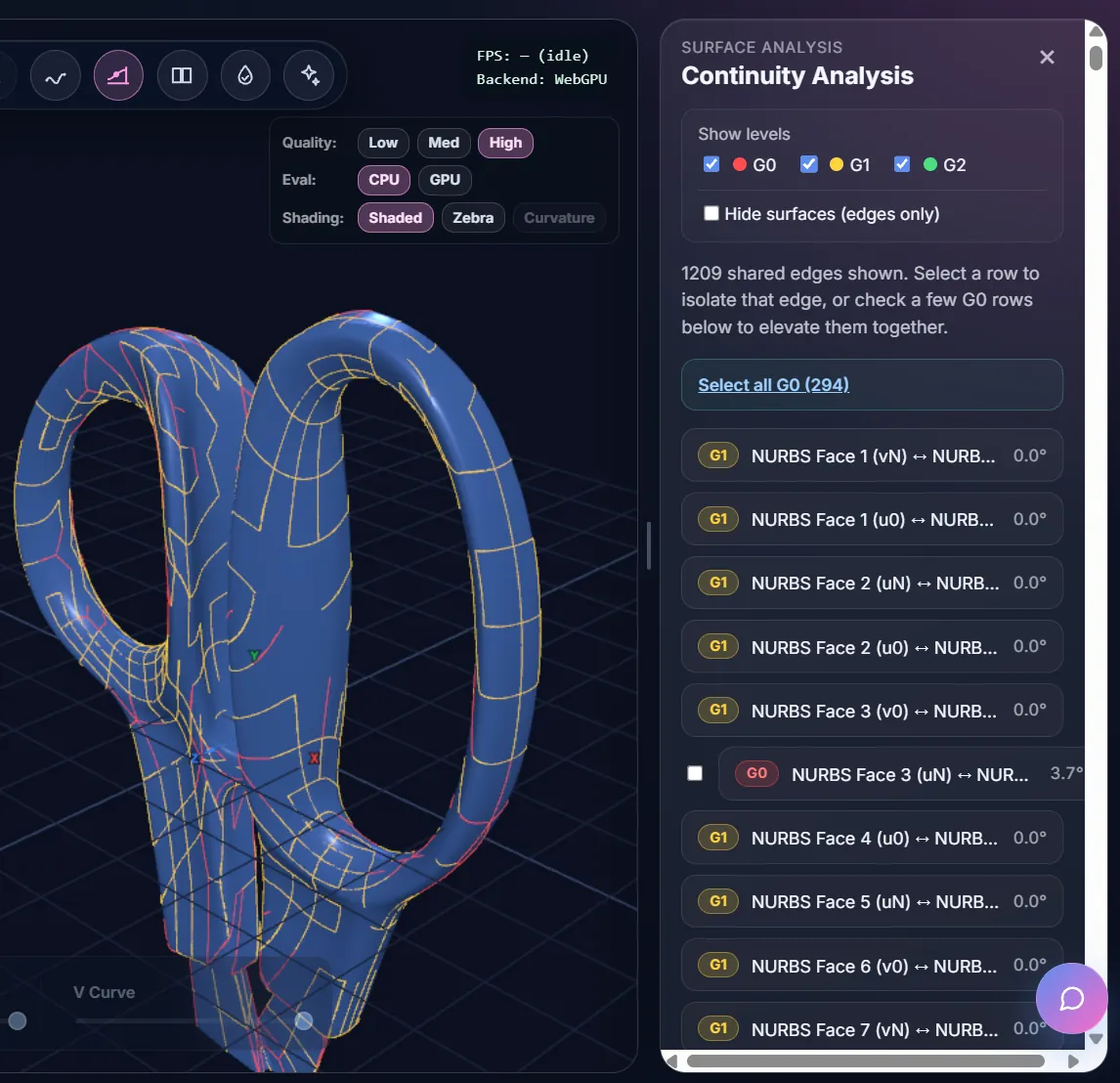
Automatic merge detection
When a STEP import finishes, the app looks through the patches in the background for edges that are close enough to merge into fewer, continuous surfaces. You can keep working while it runs. A banner shows its progress, and you only get a dialog if it finds something.
Reviewing candidates
- Candidates come in groups. Each group is a set of patches that touch each other closely enough to be merged together.
- Tick or untick groups as you like. ✨ Explain this group with AI gives a plain-English view of how likely a group is to actually reduce the patch count.
- Nothing changes until you click Merge Selected. Not now closes the dialog without merging.
Why a merge can remove 0 patches
This catches a lot of people out. Two patches can line up at their edges with no gap (G0) without being tangent-smooth (G1) across that edge. A merge always sews touching patches into one shell with no gaps. The CAD kernel, however, only fuses two faces into one when they're also G1. If the tangent deviation across an edge is high, the sew will work and the model will be valid and gap-free, but the patch count will hardly drop. That comes from the original geometry, not from a bug, and the result banner says so.
Quick Geometry editor
STL & Feature Editing
Besides exact NURBS import from STEP, NURBS Studio can take a plain triangle mesh (STL) and work out the planes, cylinders and boundary curves it's made of. Holes and fillets can then be resized, and the same diameter editor works on STEP models too.
Importing an STL
- Click Local import in the header and pick a
.stlfile. The app spots the extension and runs feature recognition instead of the STEP reader. - Recognition runs in your browser and the STL is not uploaded. You need to be signed in with a verified email (see Accounts & Tiers).
- The original mesh is kept in memory the whole time. If nothing useful is recognized, you'll see the raw mesh instead of an empty viewport.
- When recognition is done, a water-tight check runs on the result (see the Water-tight & Sewing tab).
STL feature recognition
Recognition looks for flat and cylindrical regions in the mesh and the curves (circles and straight lines) where they meet. The result is a set of separate faces you can select and edit. A plate with a drilled hole is the simplest case: the top face, the bottom face and the hole wall each come back as their own face.
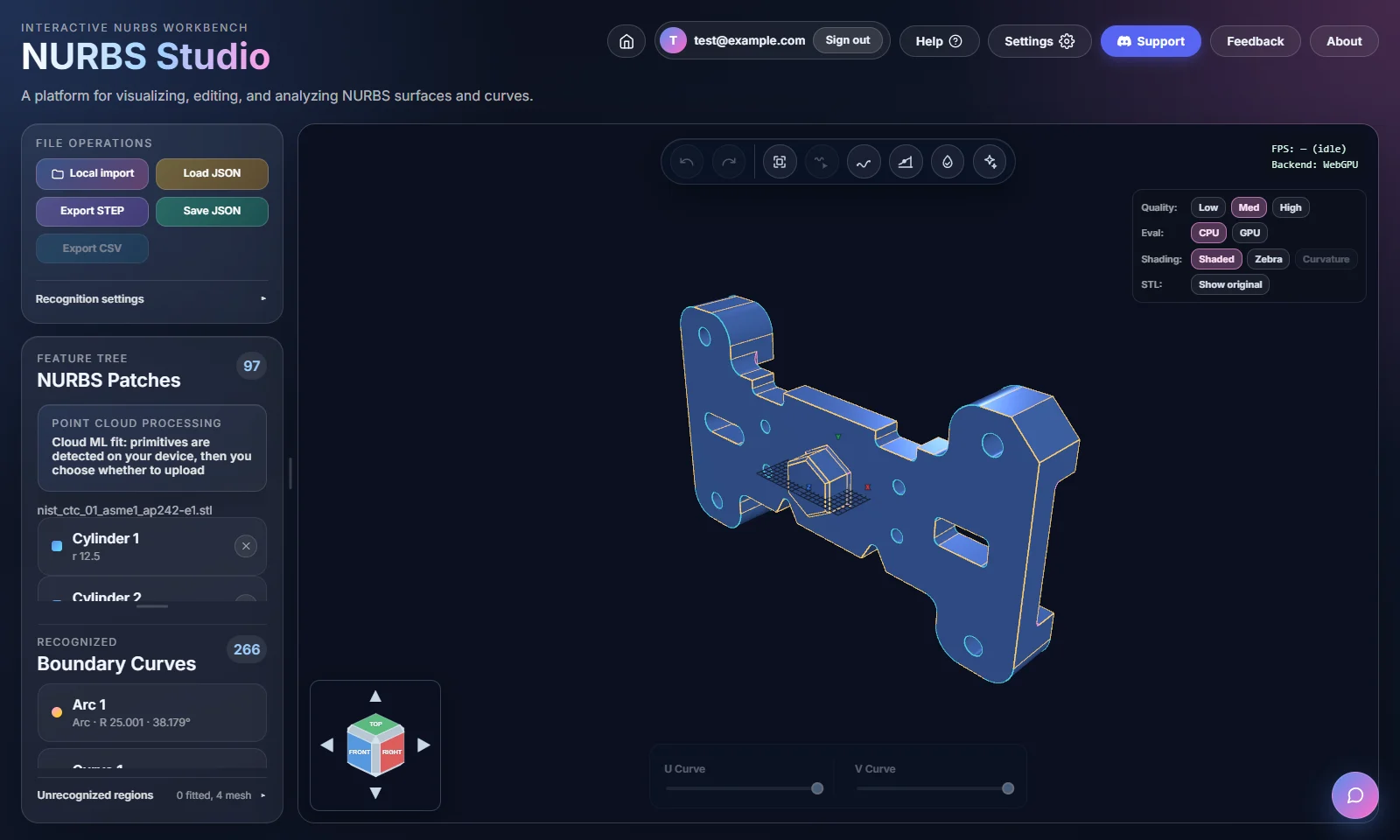
- Triangles that don't fit a recognized shape stay on screen as the original mesh, next to whatever was recognized. A partial result never hides or loses geometry. The unrecognized part is just left as it was.
- Click a recognized cylindrical face to open its info panel on the right. It shows the face's dimensions and, for a hole or a boss, a diameter (or radius) field.
- Change that value and the cylinder is rebuilt along with every face it touches or cuts through. For example, the trims on the plate's top and bottom follow a wider or narrower hole, so no edge is left out of place.
- Sometimes a hole comes in as two partial cylinders that together make a full turn, usually left over from a boolean cut. In that case you'll see a Merge into one hole suggestion. It only appears when the situation is clear. Anything more complicated is left alone.
- Convert to NURBS is available on any recognized face, next to its diameter editor, for when you want full control-point access to that face.
When several holes in the part have the same diameter, the panel also has an Edit all section, for example "Equal hole diameters (4 × Ø25)". Type a new value and press Apply to all 4 to resize them together. Either every hole is changed or, if one of them wouldn't fit, none are. The panel also shows the largest diameter that fits in the part.
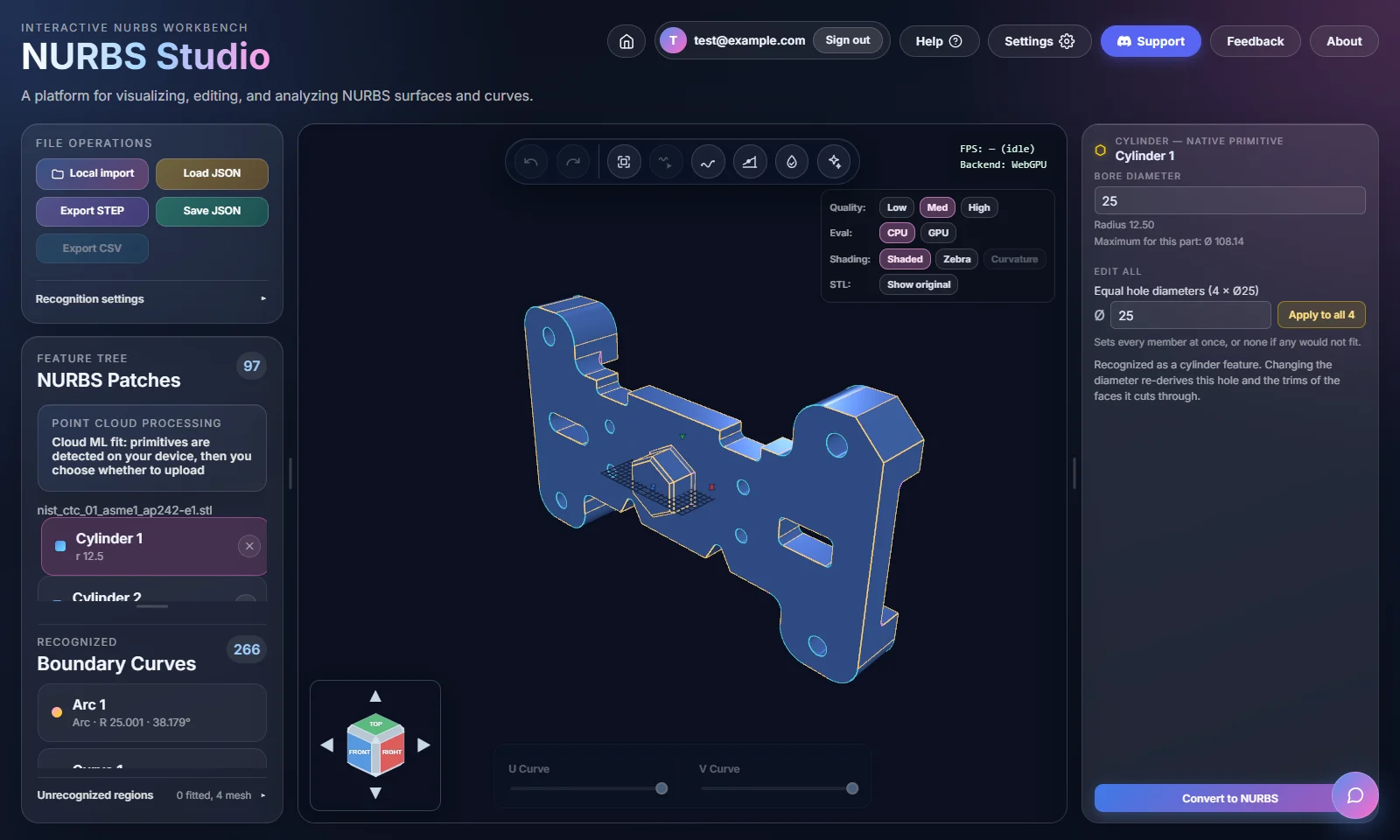
Importing an STL, recognizing its features and changing a hole's diameter.
Comparing with the original Show original
Recognition swaps triangles for ideal planes, cylinders and curves, so it's worth checking how closely the result follows the mesh you imported. When a recognized STL is loaded, an STL: row appears in the viewport's settings panel, under the Quality, Eval and Shading rows:
- Show original lays the imported mesh over the recognized faces, so you can see where they match and where they drift apart.
- Show recognized appears once the original is visible. Turn it off to hide the recognized faces and look at the original STL by itself.
- The slider sets how see-through the original is, from nearly invisible to solid, while both are on screen.
This only changes what you see. The recognized model, editing and export aren't affected.
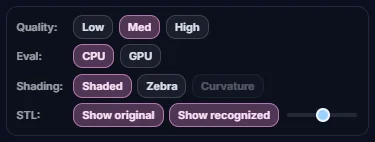
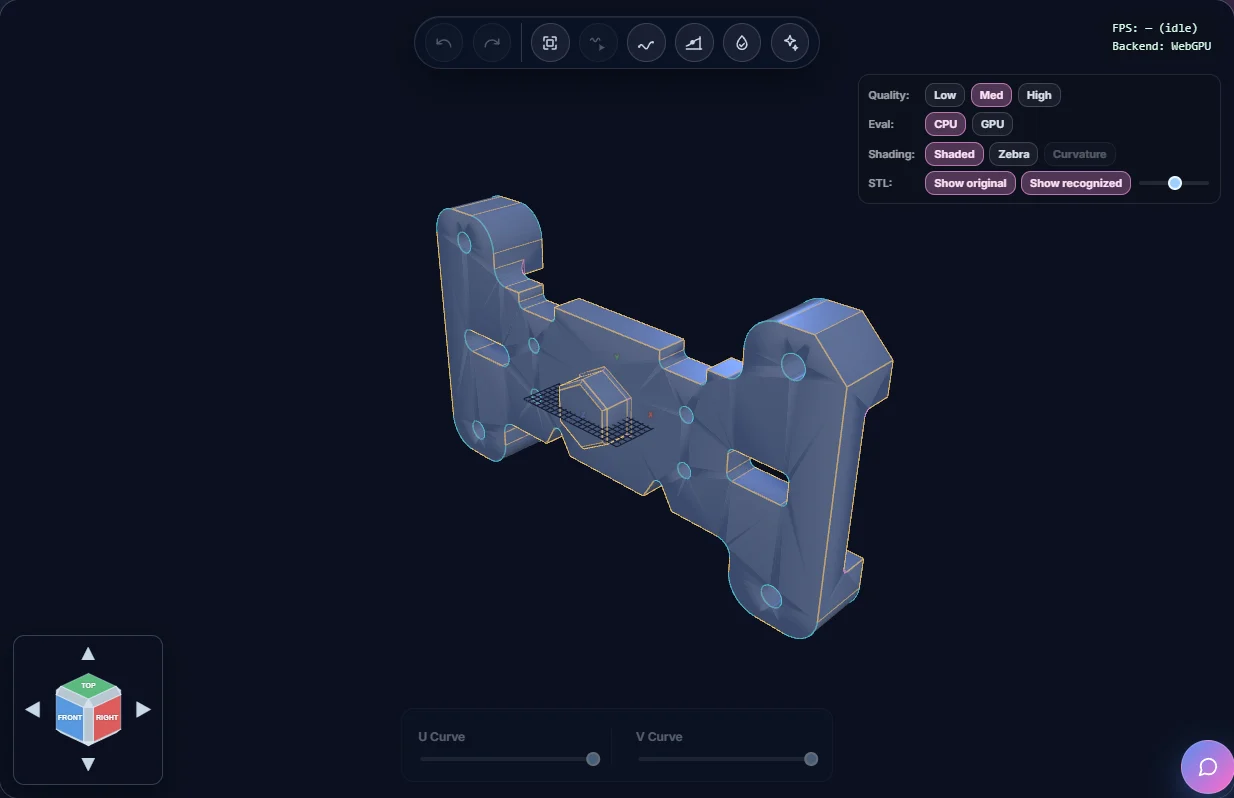
Showing the original STL over the recognized faces and changing its opacity.
Recognition settings
The default tolerances suit clean meshes exported from CAD. Scanned or very dense STLs sometimes need looser settings so more of the mesh is recognized, or tighter ones so surfaces that are close but separate aren't treated as one. After you load an STL, a Recognition settings panel appears under the file buttons in the left sidebar. Click its title to open or close it, and drag its edge to resize it. It's there even when nothing was recognized, because that's exactly when you'd want to loosen the tolerances.
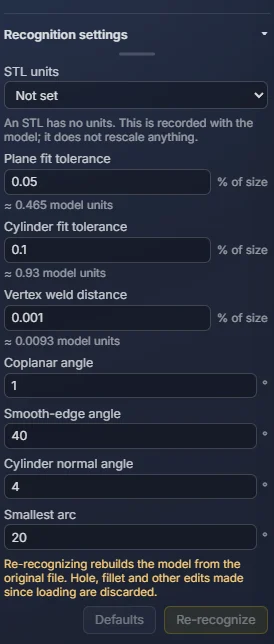
- STL units: mm, cm, m, in or Not set. STL files don't store units, so this is just a label saved with the model. It never rescales anything.
- Plane fit tolerance and Cylinder fit tolerance: how far a vertex can be from a fitted plane, or from the surface of a fitted cylinder.
- Vertex weld distance: vertices closer together than this are merged before recognition starts.
- Coplanar angle: neighbouring facets within this angle of each other count as one flat area.
- Smooth-edge angle: facets that bend by less than this are treated as one smooth surface.
- Cylinder normal angle: how far a facet's normal can be off from a fitted cylinder's axis.
- Smallest arc: the shortest arc that still counts as a partial cylinder, such as a fillet or the end of a slot.
Distances are entered as a percentage of the model's size (the diagonal of its bounding box), and the matching length in model units is shown next to each field. Angles are in degrees. If a value is out of range the field is flagged, and Re-recognize stays greyed out until every field is valid.
- Re-recognize builds the model again from the original STL using your new values.
- Defaults puts every value back to the original setting.
Loosening the tolerances and re-recognizing an STL.
STEP feature editing
The diameter editor isn't only for STL. When you import a STEP file, faces that belong to a hole or a fillet are tagged straight from the file's exact B-rep geometry (no mesh fitting involved), and the same editor panel works on them.
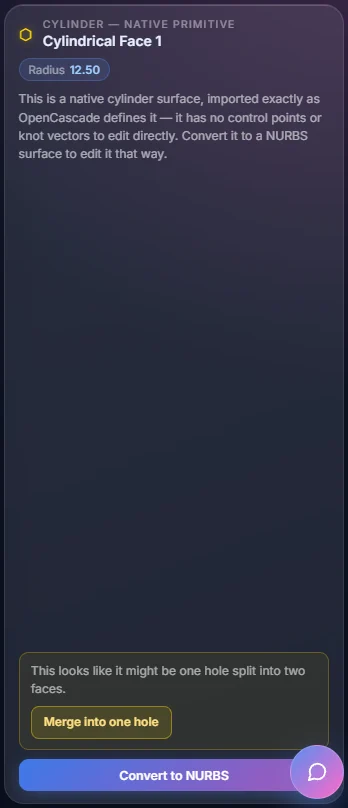
- Select a tagged face in a STEP model just like a recognized STL face. Its info panel has the same diameter or radius field, and a new value updates every face that depends on it, just as it does for STL.
- A STEP face keeps its exact original geometry until you choose Convert to NURBS. You don't have to convert it before changing its diameter.
- Everything else in a STEP import still works as usual: the feature tree, merge detection and continuity analysis. Feature editing is just another tool on top, with no separate mode to switch on.
Changing a hole's diameter on a STEP model.
Quick Geometry editor
Point Clouds (PLY)
You can import a .ply point cloud, such as a 3D scan, and NURBS Studio will
find the flat regions in it. You can also trace the outline of any shape on the points by
hand and turn it into a NURBS curve, and from there into a surface. All of this runs in
your browser and the file is not uploaded.
Importing a PLY file
- Click Local import in the header (the same button you use for STEP and
STL) and choose a
.plyfile. - A badge at the top of the feature tree shows how far it has got. The app reads the file, cleans out stray points, estimates normals and then splits the cloud into flat regions. Cancel stops it.
- When it's finished the badge reads ✓ Primitives detected. The cloud appears in the viewport with each flat region in its own colour, and a short summary says how many regions were found, on how many points, and what percentage of the points belong to one.
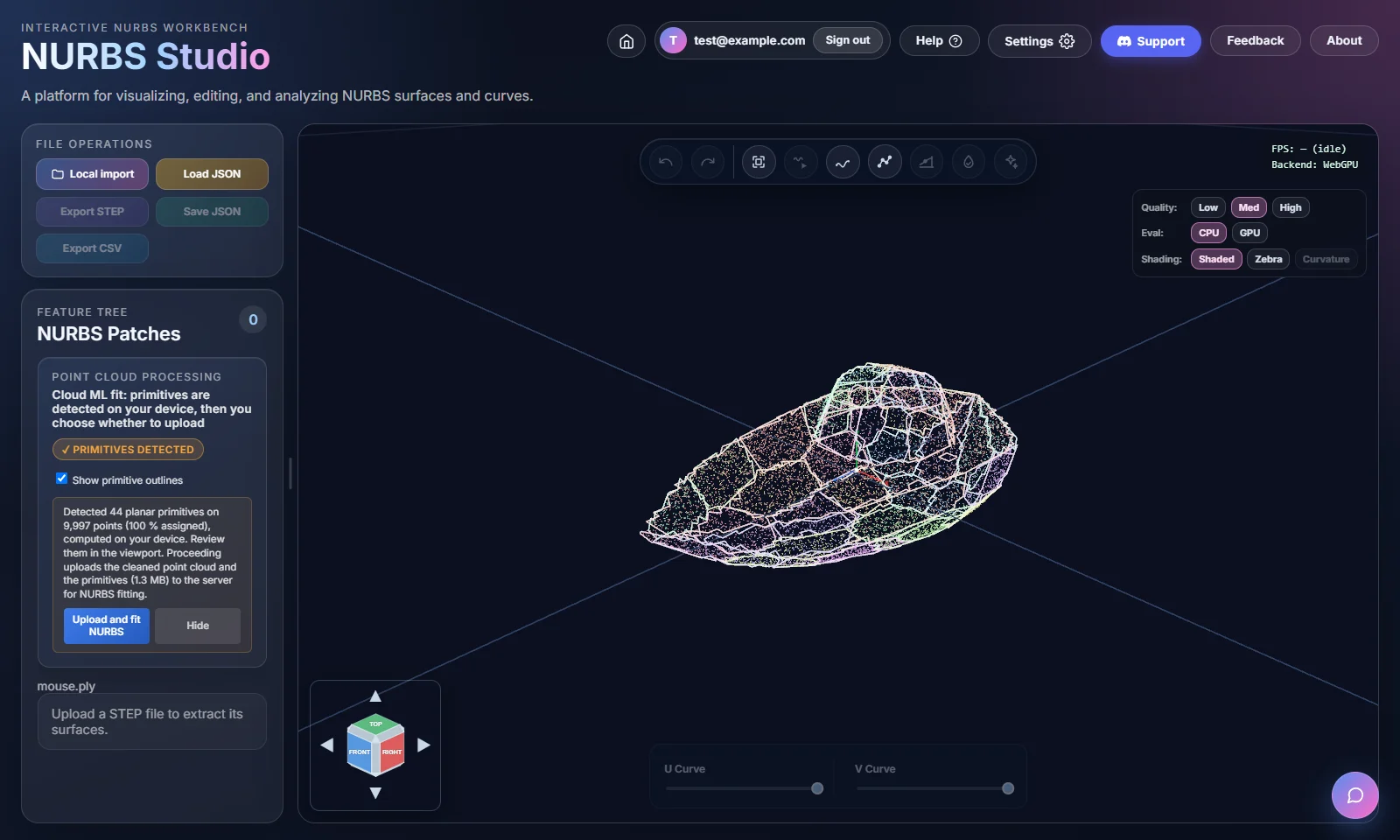
Showing and hiding the outlines
Each detected region has a coloured outline drawn around it, which can get in the way when you want to look at the points. Untick Show primitive outlines in the feature tree, just under the badge, to hide them, and tick it to bring them back. Only the drawing changes; the detected regions stay the same. The camera also zooms to fit the cloud when it loads, so even a small scan fills the view.
Picking a boundary by hand
The automatic outlines are a good start, but sometimes you need the outline of one particular shape, like the edge of a face, a cut-out or a rim. You can pick it straight off the points.
- With a point cloud loaded, click Pick Boundary Points in the viewport toolbar. It's the icon with four dots joined by a line, next to Create Curve. The first time you use it on a cloud you'll see Analysing point cloud... for a moment.
- Click points along the edge you want. The cursor becomes a crosshair and the point under it is highlighted. You can only pick points on the side facing you, so you won't grab one from the back of the cloud by mistake.
- Each new point is joined to the one before by a path that follows the edge of the cloud instead of cutting straight across, so a few clicks are enough even on a curved edge. If there's no path along the edge between two points, they're joined with a straight line and a message tells you.
- To close the shape, click the first point again (it's shown in orange) or press Close Loop. You need at least 3 points for this.
- Press Finish Boundary (at least 2 points). Your outline is added as a new boundary and selected, ready for the next step.
While you're picking, the bar at the top of the viewport also has:
- Undo Point to remove the last point, or to reopen a loop you just closed.
- Clear to drop all your points and start again.
- Cancel to leave the tool without keeping anything.
- Hide Detected Loops / Show Detected Loops to hide the automatic outlines while you pick, so they don't get in the way.

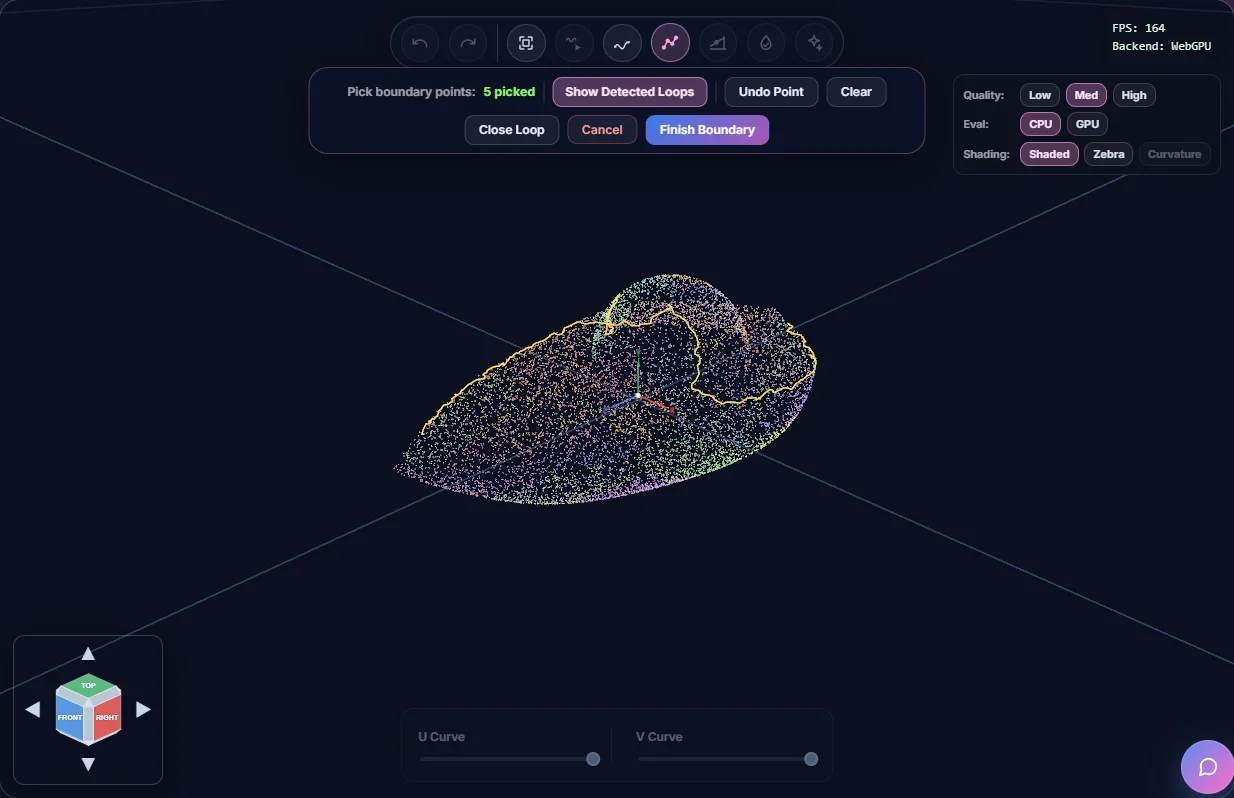
Picking points along an edge, closing the loop and finishing the boundary.
Working with boundaries
Click any outline in the viewport, whether it was detected or drawn by you, to select it. Click it again to deselect it. A toolbar shows how many are selected and gives you these options:
- Merge Loops joins 2 or more selected outlines into one, for example two halves of the same edge. Undo Merge takes it back.
- Convert to NURBS Curve fits a NURBS curve through each selected outline and adds it to your curves. You can undo it. With Pro, closed outlines become closed (periodic) curves. Without Pro they come in as ordinary open curves.
- Clear deselects them all.

Once an outline is a curve, it works like any other curve. You can edit its control points and knots (see Curves In Depth) and select 2 or more curves to make a surface with Loft Surface or Fill Boundary (see Surfaces In Depth).
ML-based NURBS fitting (not online yet)
Finding flat regions is the first step. The next step is a machine-learning model, nurbsfit, that fits complete NURBS surface patches to the cleaned cloud on its own. For now that fitting only runs locally and isn't available in the online app.
If you click Upload and fit NURBS in the feature tree after the regions are found, you'll get a Coming soon window. If you're interested in this feature, enter your email and click Notify Me, and we'll let you know as soon as it's live. Everything else on this page (region detection, outlines, boundary picking, curves and surfaces) already works without it.
Quick Geometry editor
Water-tight & Sewing
A model is water-tight when every surface edge meets a neighbouring surface, with no cracks you could see through. You need that for most CAD work and for manufacturing. NURBS Studio can check it for you. If patches overlap or leave seams, Trim & Sew can join them into one connected solid.
Water-tight check
You don't need an account for this. The check runs by itself after you import a STEP or STL file or load a saved JSON file, and the results window opens. Click Water-tight Check in the viewport toolbar to run it again at any time. The button stays highlighted while the last check found gaps.
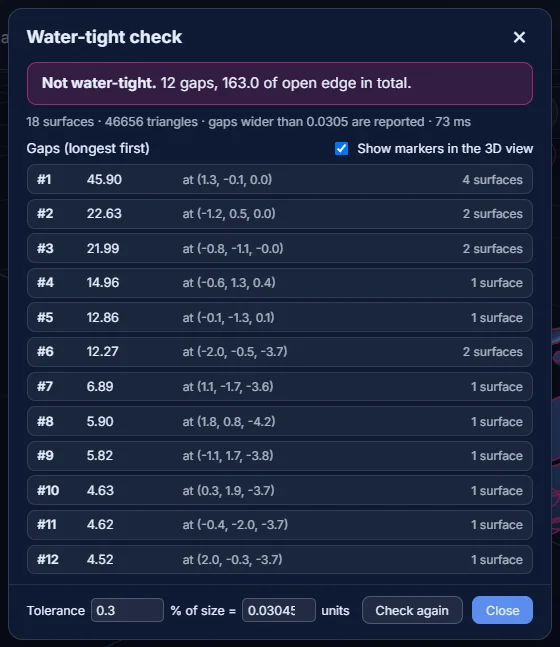
- Water-tight (green) means every edge has a neighbour.
- Not water-tight (red) gives the number of gaps and their total length. The gaps are listed longest first, with each one's length, position and the number of surfaces around it. They're also marked in the 3D view. Click a gap in the list to zoom to it, and use Show markers in the 3D view to turn the markers on or off.
- The summary line also gives the number of surfaces and triangles checked, and the smallest gap size that gets reported.
- For a recognized STL, the triangles that weren't recognized are checked as one extra surface called "Unrecognized mesh". That way a partly recognized model isn't reported as closed by mistake.
- You may see a note about edges covered by overlapping triangles of one surface. That comes from how the surface was turned into triangles and doesn't open the model.
Once you close the window, a small label near the top of the viewport keeps showing the number of gaps. It has a button to show or hide the markers and an × to clear the result, which also removes the markers and the toolbar highlight.

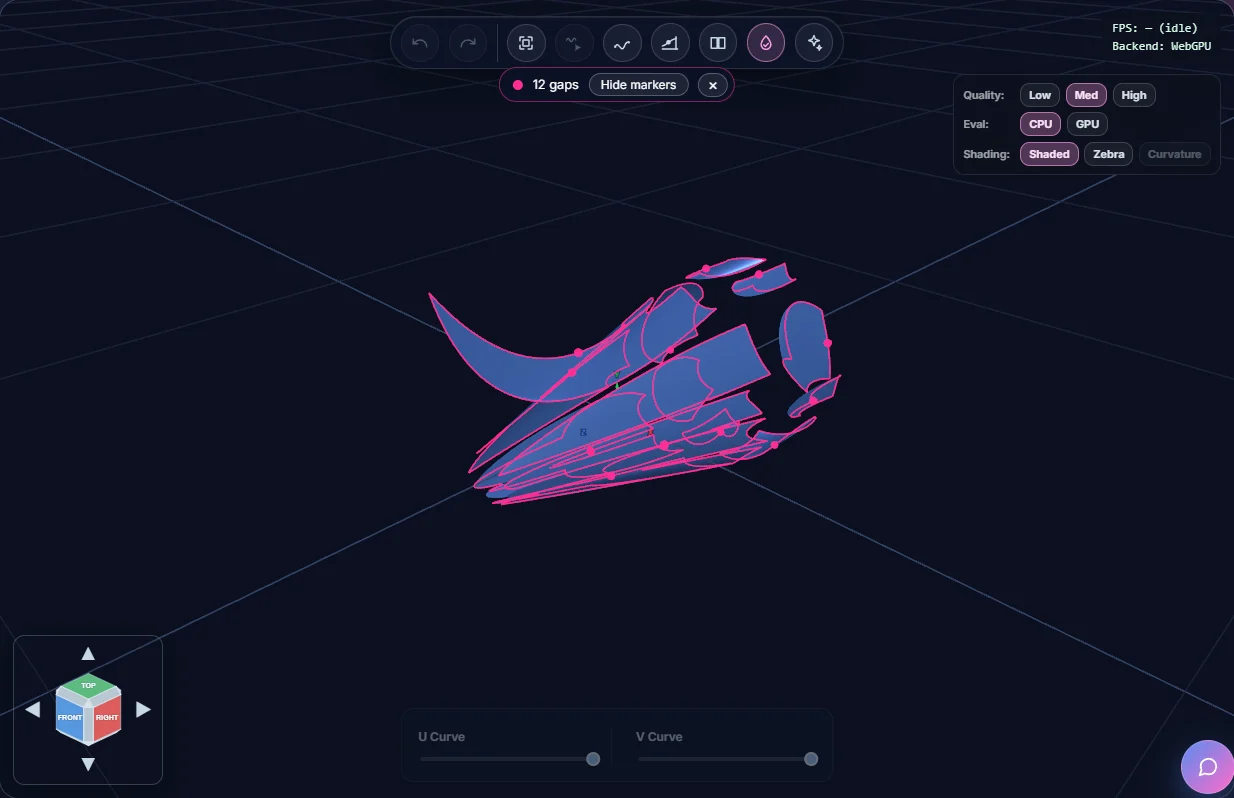
Tolerance
Neighbouring surfaces are turned into triangles separately, so their edges never line up perfectly. Two edges closer together than the Tolerance (at the bottom of the window) count as joined. You set it as a percentage of the model's size (0.3 % by default), and the matching length is shown next to it. Both fields hold the same setting, so changing one changes the other. If curved edges show up as gaps when they look closed, raise the tolerance and press Check again (or Enter).
Running the water-tight check and zooming to a gap.
Trim & Sew
Surfaces fitted to a scan often overlap, or only nearly touch. Trim & Sew cuts each patch back to where it meets its neighbours and then sews the trimmed faces into one connected B-rep, with shared edges and vertices. The button shows up when the model has more than two NURBS patches. Without Pro it carries a PRO badge, and clicking it shows the upgrade window instead of the panel.
- Click Trim & Sew in the viewport toolbar. Its panel opens on the right in place of whatever panel was there.
- Set the Edge tolerance, as a percentage of the model's size (1 % by default, up to 50 %). The panel groups the patches that share edges at that tolerance. If it doesn't find any, try a bigger value or pick the patches yourself.
- Choose what to sew. Tick single patches, a whole group, or Select all. You can also click patches in the viewport: a normal click selects only that patch, and Ctrl/Cmd/Shift-click adds or removes one. Hovering over a name in the list highlights that patch.
- Press Sew N selected. Progress is shown as each stage runs. The work happens in the background, so the page stays responsive.
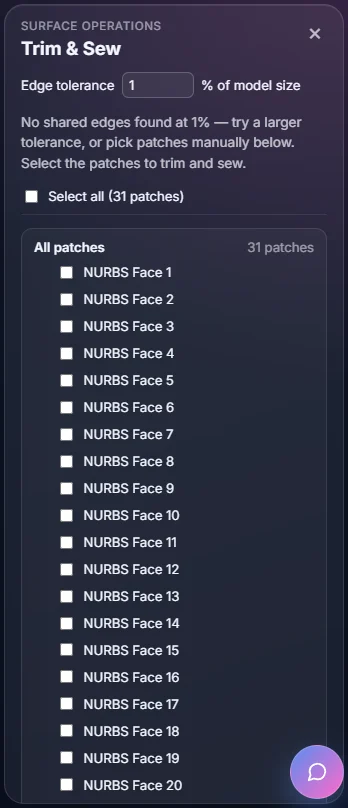
When it's done, the selected patches are replaced by their trimmed versions, and any patch that's completely covered by others is removed. A banner tells you how many patches were trimmed, how much overlap was removed, how many shells the result has, how many open edges are left, and whether it's closed. Patches you didn't select stay as they were, and you can undo the whole thing.
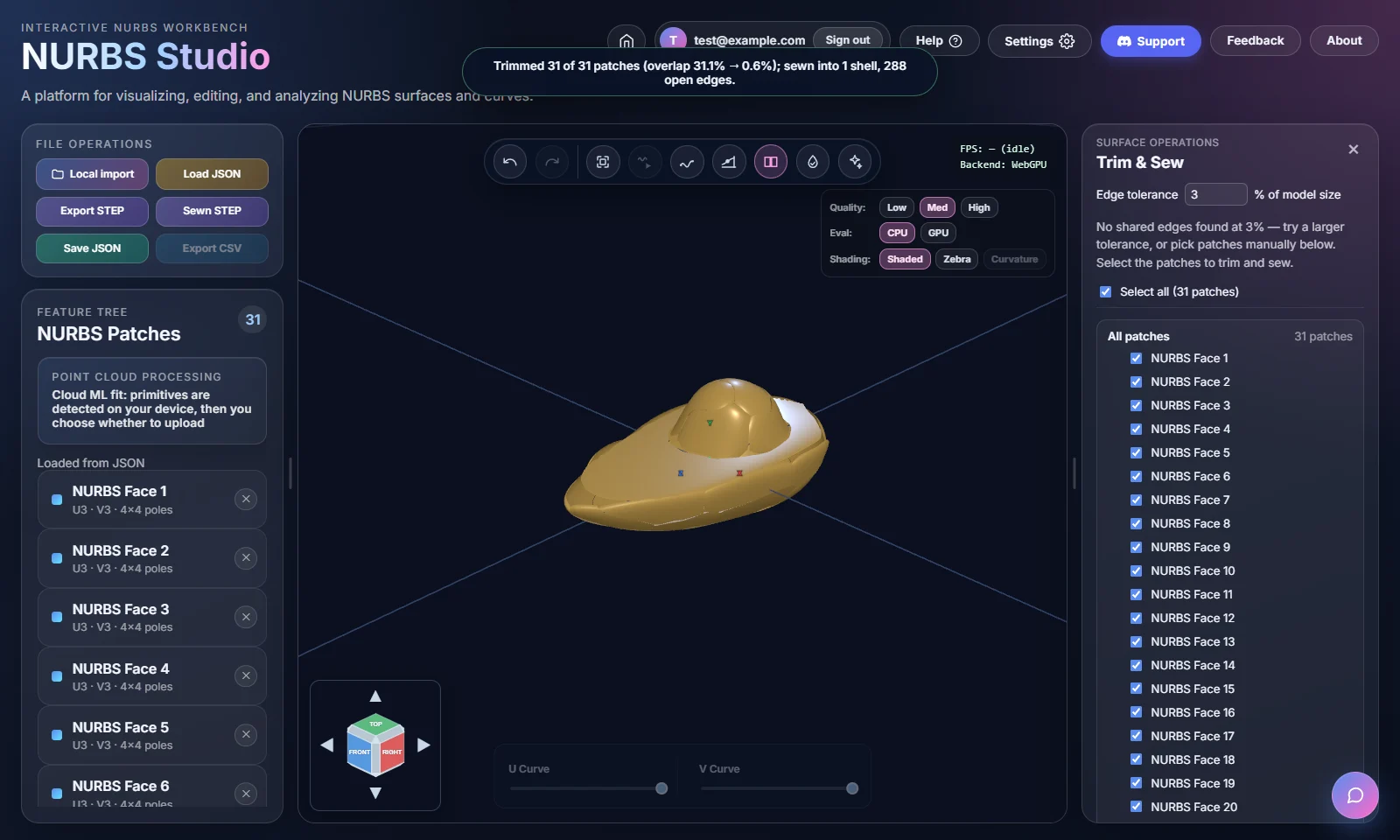
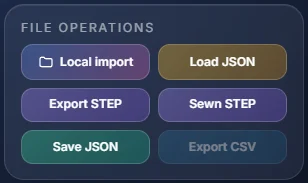
- A Sewn STEP button appears next to Export STEP. It downloads the sewn
result as
sewn-model.stepand stays there until you change the model. - Run the water-tight check again afterwards to make sure the seams are closed.
Selecting overlapping patches and sewing them into one solid.
Import & export
File Formats
STEP (.step / .stp)
STEP (ISO 10303, short for "STandard for the Exchange of Product model data") is a
text-based format that almost every CAD system can read and write, which makes it the
nearest thing CAD has to a universal file format. A curved face is stored as a
B_SPLINE_SURFACE entity, with the same control points, degree, knots and
weights this app works with, along with topology entities (edges, loops, shells) that say
how the faces connect.
STL (.stl)
An STL file is just a triangle mesh. It has no units and no idea of faces or curves. NURBS Studio recognizes the planes, cylinders and boundary curves in it so you can edit the model (see STL & Feature Editing). Because of this the result is a close match to the mesh rather than an exact copy, and you can use Show original to compare them.
PLY (.ply)
A PLY file holds a point cloud, usually from a 3D scanner. NURBS Studio finds the flat regions in it and lets you pick boundaries to turn into curves (see Point Clouds (PLY)). As with STL, this all happens on your device and the file isn't uploaded.
This app's own JSON format
Save JSON writes your patches and curves (control points, weights, degree
and knot vectors) to a small JSON file that only this app uses. The Quick Geometry editor reads it
back with Load JSON, exactly as it was saved. The Parametric Kernel editor
reads it with Open. It's quick and simple, but it isn't a CAD standard.
A saved .json file only opens in NURBS Studio, not in SolidWorks, Fusion 360
or any other CAD program. To take a model somewhere else, use Export STEP.
NCF (.ncf)
An .ncf file is what Save writes in the Parametric Kernel editor.
It holds the whole model together with its history: every step, and what each step was
built from. Open it again and you carry on where you stopped. Like the JSON file, only
this app reads it, so use Export STEP when the model has to go to another CAD program.
Export Curve Points Export CSV
With a curve selected, the Export CSV button (next to Local import, Export
STEP and Save JSON) downloads a .csv file of the curve's evaluated
points. There's one row per point with the columns index,x,y,z, plus a comment
line at the top with the curve's name and the number of points. Index 0 is the start of the
curve (u = 0) and the last index is the end (u = 1), in order
along the curve.
The points come from the same sampling the Point on Curve tool uses, which is free. Only the CSV download is Pro. This file isn't meant to be opened in NURBS Studio or a CAD program. It's raw coordinates for a spreadsheet, a script or another tool that imports points.
Exporting a selected curve's points to CSV.
AI-assisted workflow
AI Assistant
The AI features use your own key. You connect your own account with a provider (OpenAI, Anthropic, Gemini, a local Ollama server, or any OpenAI-compatible server) and requests go straight from your browser to that provider. Our server isn't involved, and your API key is kept only in your browser's local storage.
Setting up a provider
Open Settings, go to AI Provider and choose a provider. Fill in the base URL, the model name and an API key if that provider needs one, then click Save Settings.
AI Analysis
The AI Analysis button in the viewport toolbar sends a summary of the loaded model to your provider and shows its written analysis in a panel over the viewport.
AI Chat assistant
Open the chat bubble in the bottom-right corner to ask about the loaded model or about NURBS and CAD in general. The assistant can also suggest actions: selecting, highlighting or filtering patches, merging patches, fixing a broken knot vector, moving a control point, or exporting to STEP.
Turn on Include full model context to send a summary of every patch instead of just your selection. The answers are more thorough, but more tokens go to your provider. Clear starts the conversation over.
Shortcuts in the Quick Geometry editor
- Explain with AI in the patch editor opens the chat with a question about the selected patch.
- Suggest fix with AI on the Knot Vectors tab asks for a corrected knot vector when the current one is invalid.
- ✨ Explain this group with AI in the merge dialog explains one group's gap and tangent figures in plain English.
Shortcuts in the Parametric Kernel editor
- Explain with AI at the top of a face's properties opens the chat with a question about that face.
- Suggest fix with AI appears on a surface whose knot vector doesn't fit its control points.
- Explain next to a group in the Merge candidates panel explains that group in plain English.
- When you apply an action from the chat, such as a merge, a new knot vector, a moved control point or an export, it runs like the same action done by hand. It is a normal step in the history, so Undo takes it back.
Rendering
Viewport & Performance
WebGPU vs. WebGL
The viewport uses WebGPU when your browser and graphics card support it, and WebGL when they don't. The FPS counter in the corner shows which one is in use. WebGPU also lets the GPU evaluate the NURBS surfaces (see Eval below). With WebGL, evaluation always happens on the CPU.
Quality & Eval settings
- Quality (Low / Med / High) sets how many triangles are used to draw each surface. The NURBS data itself doesn't change, only how finely it's drawn. Turn it down for big files with lots of patches, or on a slower computer.
- Eval (CPU / GPU) sets where the surface points are calculated. If your browser or device can't do GPU evaluation, the GPU option is greyed out and its tooltip says why. The Parametric Kernel editor doesn't have this setting.
- Shading switches between normal shading, zebra stripes (Pro) and the curvature heatmap for the selected patch.
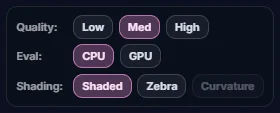
In the Parametric Kernel editor the same card has Quality and Shading too, plus a Select row that decides what a click can pick (see Importing & Model Tree).
Toolbar buttons in the Quick Geometry editor
The round buttons at the top of the viewport, from left to right. Some only appear when they apply. The toolbar of the Parametric Kernel editor is described on the Parametric Kernel Editor page.

- Undo takes back your last edit.
- Redo puts it back again.
- Zoom-to-fit fits the whole model in the view.
- Animate Curves plays the U/V curve sliders on the selected patch.
- Create Curve starts sketching a NURBS curve (sign-in needed).
- Pick Boundary Points traces an outline on a point cloud. Only shown when a point cloud is loaded.
- Continuity Analysis opens the Continuity panel (needs at least two patches).
- Trim & Sew (Pro) opens the Trim & Sew panel. Only shown when there are more than two NURBS patches.
- Water-tight Check checks the model for gaps. It's highlighted while the last check found some.
- AI Analysis sends a summary of the model to your AI provider.
Moving the camera
- Orbit, pan and zoom: drag, right-drag and scroll.
- View cube: click a face to jump to a standard view (Top, Front, Right and so on). The arrows around it turn the view 45° at a time.
- Zoom-to-fit: fits the whole model in the view with one click.
To change how dragging moves the camera, open Settings and go to the Viewport tab. The change takes effect at once and is remembered in your browser. There are three control schemes:
- Orbit is the default. The camera keeps "up" pointing up, so it can't roll past the poles.
- Trackball rotates freely with no fixed up direction, like spinning a ball.
- Arcball shows a rotation gizmo at the orbit target and lets you click to focus.
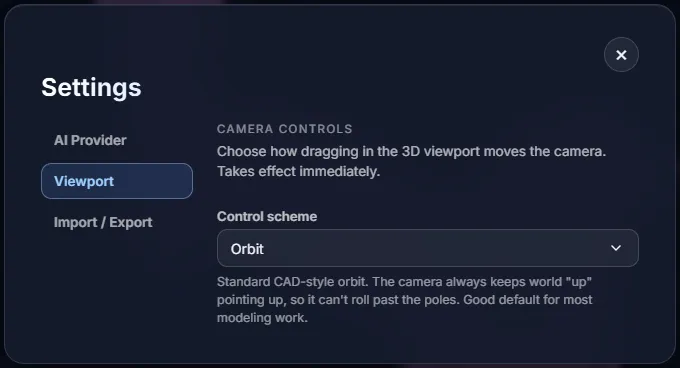
Access levels
Accounts & Tiers
There are three levels of access, and they exist for different reasons.
1. Open to everyone, no account needed
Anyone can import and view a STEP file, move around the viewport, read curve derivatives and curvature in Raw mode, and run the water-tight check, whether they're signed in or not.
2. Free with a verified sign-in
Export STEP*, Save and Load JSON, STL and PLY import, and creating curves and surfaces all need a signed-in account with a verified email. This is there to keep costs down and prevent abuse of the heavier features. It isn't about making money. Google sign-in is verified straight away. If you sign up with email and password, a verification link is sent right away and these features unlock as soon as you click it.
*Export STEP and Save JSON are Pro features too (see below). You need both the sign-in and Pro for them.
The Parametric Kernel editor is a little more relaxed. STEP and STL files open there without an account, and so does a saved model. Only the feature recognition for STL files and the import of PLY files need a verified sign-in.
3. Pro, $25 one-time
The curvature comb, Frenet frame, zebra stripes, surface normal, tangent plane, point inversion, closed and periodic curves, surfaces from curves, Trim & Sew (called Sew in the Parametric Kernel editor), Export STEP, Save, Save JSON and Export CSV need the one-time $25 Lifetime Membership as well as a sign-in. There's no subscription, and any Pro features added later are included. Go to the pricing section to buy it.